

2024
Sketch
AE
Protopie
Tools
UI/UX Designer
Role
Year
Overview
Research
Ideation
Design
Result

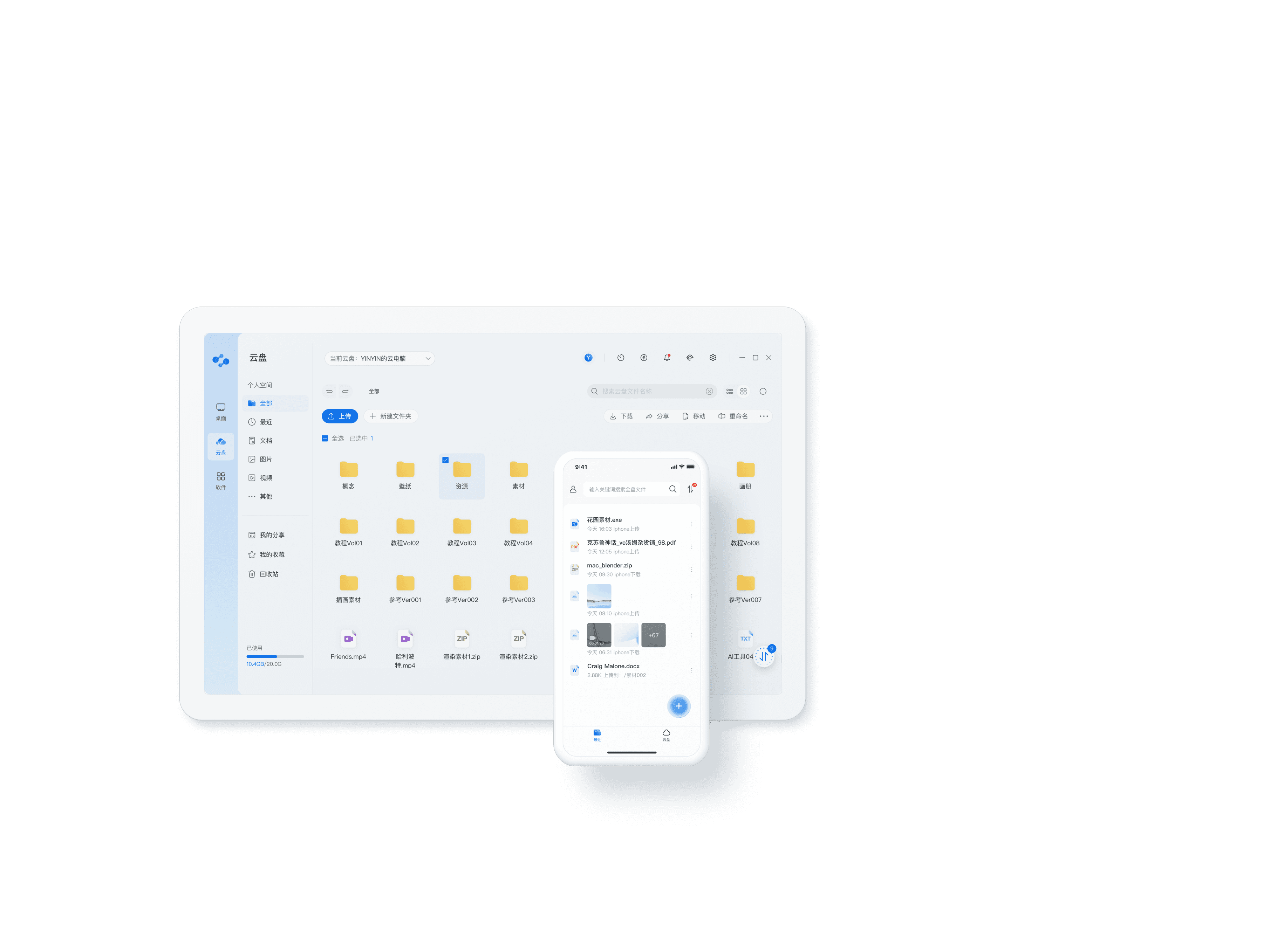
Desktop/Mobile App
Enterprise SaaS
Cloud Drive
End-to-End
Overview
What is Zanqi Cloud Drive?
Background
Problem
Goal
My Role
Highlights
I drove the end-to-end redesign of the cloud storage experience—from initial user journey mapping and pain point analysis to the final high‑fidelity mobile and desktop interfaces.
Zanqi cloud drive is a high-performance storage solution built for cloud workstations, designed to enable seamless integration and centralized management of project files with cloud computing power.
In the initial launch phase, the product faced two core challenges: key functions like file transfer and collaboration suffered from poor experience and instability, while media professionals—a critical user group—were forced into inefficient, computer-dependent workflows due to the lack of mobile support. This directly eroded trust in the platform's reliability and usability, limiting adoption and retention.
By analyzing support tickets and conducting preliminary usability reviews, we translated these insights into measurable experience improvements: Through redesigning foundational interactions for file transfer & collaboration and deeply integrating cross-device capabilities, we aimed to reshape Zangi Cloud Drive into a reliable, ubiquitous, and professional file hub for cloud workstations.
Team
Product
UX Designer
2

UI Designer
2
15
1
Developer



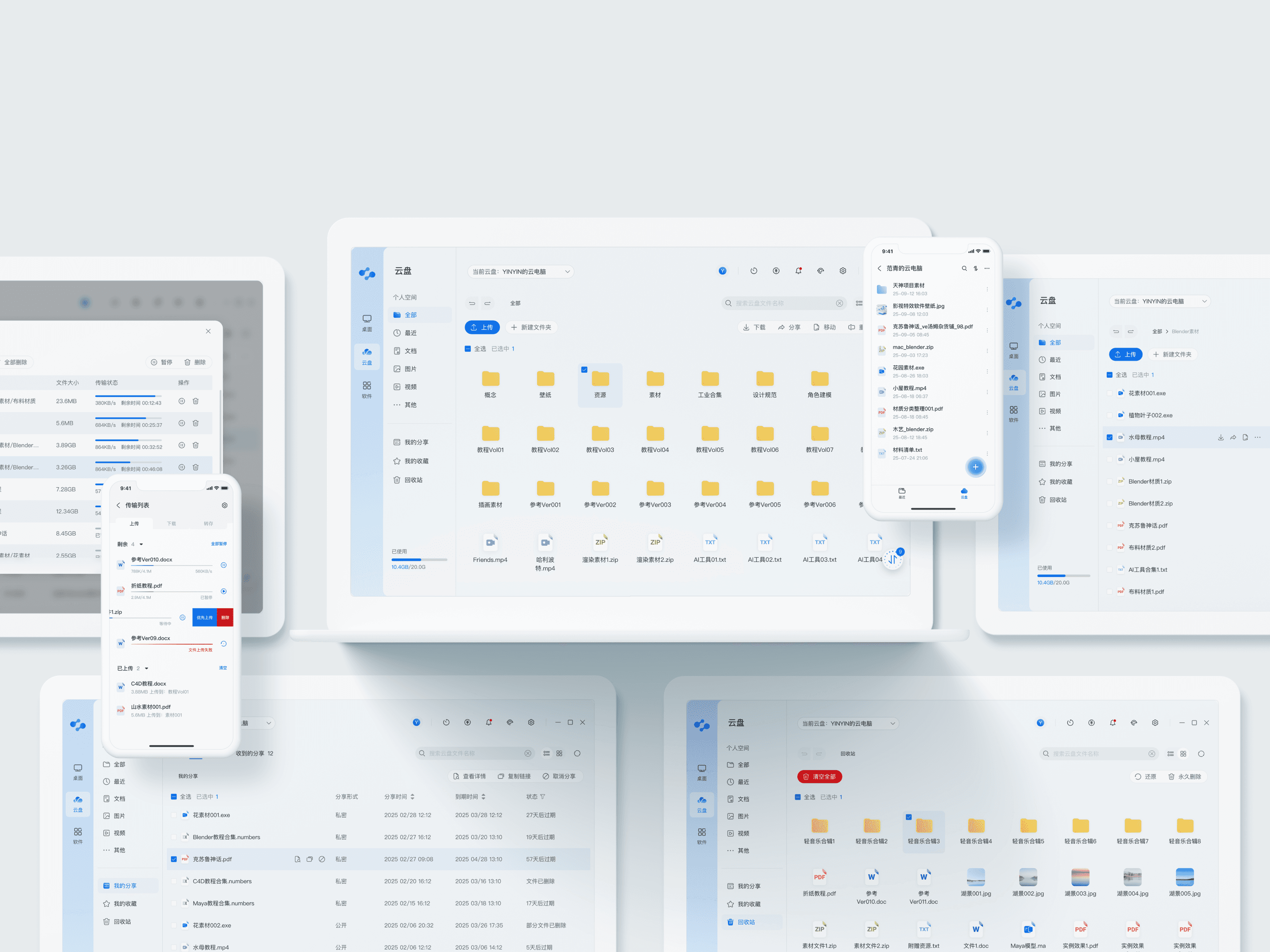
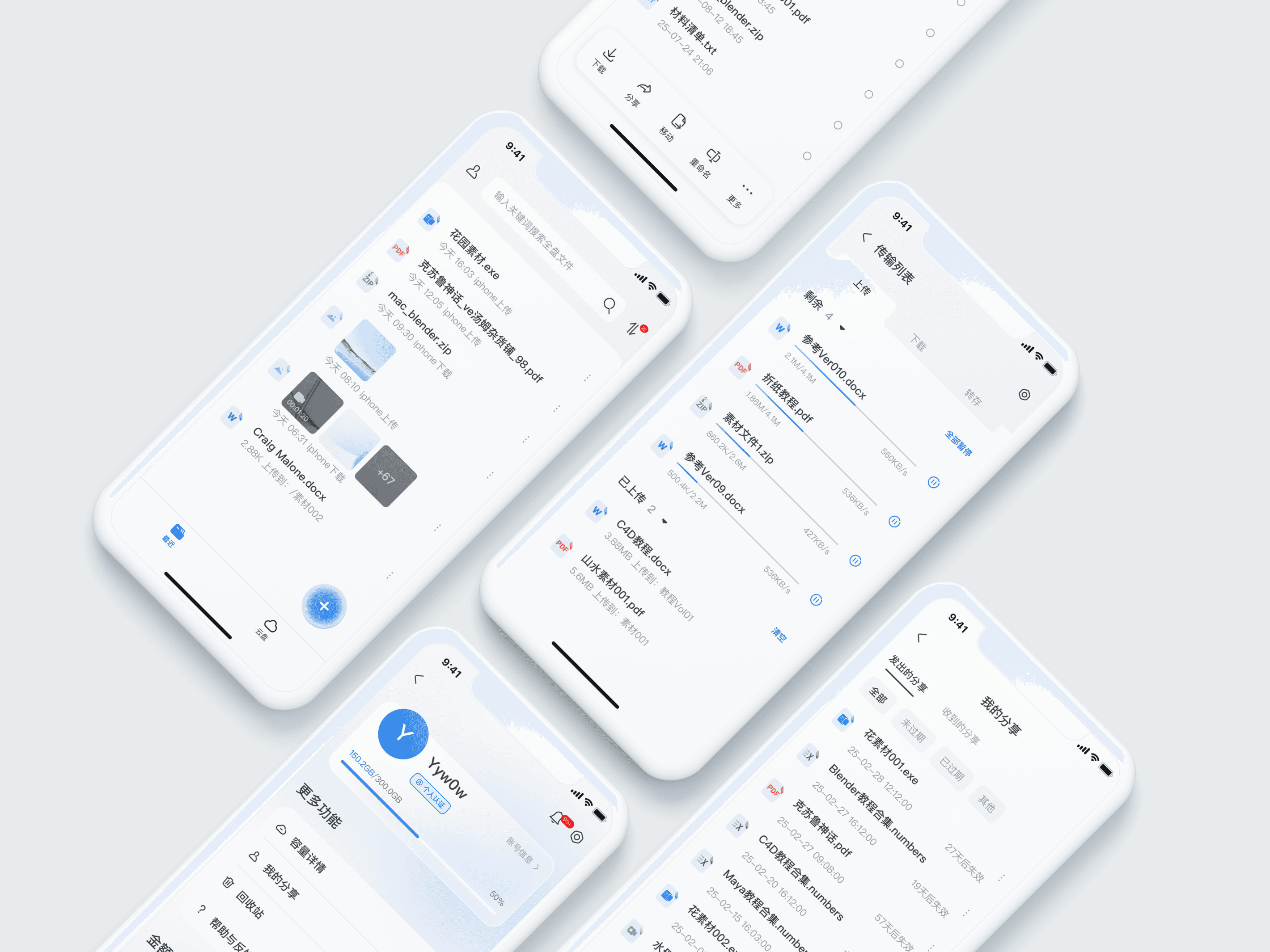
Zanqi Cloud Drive is a high-performance cloud storage solution built for cloud workstations. By redesigning its transfer engine, building fully cross-platform clients, and deeply integrating collaboration features, we transformed it from a basic storage service into a reliable, real-time, and omnipresent professional file collaboration hub—seamlessly supporting cross-device creation and team project flow.
“Hope to access shared cloud drive files when working remotely, able to retrieve them anytime, anywhere without being restricted by network connectivity.”

“The SFS 3.0 cloud drive does not have a recycle bin, making it impossible to recover accidentally deleted files, which poses a risk of data loss.”

“The personal drive in the cloud desktop has 90GB of storage, which feels somewhat insufficient, and I prefer not to store files in the public cloud drive.”

“Currently, people need to first access cloud desktop to read stored files in cloud drive.”

Users need a streamlined process to access and review archived content stored on the cloud, reducing the time and effort spent on locating specific files for reference or reuse.
Hard to Conduct Instant File Review
An intuitive and user-friendly interface is significant that simplifies the task flow without being overwhelmed by complex file management processes.
Clear and User-centric Interface
Users face difficulties in organizing and managing media assets across multiple devices, resulting in time-consuming searches and security vulnerability.
Cross-Device Collaboration is Restricted
Through customer interview, we have identified several key requirements faced by our target users.
Problem Statements
Customer Journey
Analyze power users' application scenarios on the cloud drive and identify their workflows and pain points through in-depth interviews, thereby obtaining deeper user needs in specific sectors.
• All project elements must be stored in the cloud drive as the source of truth.
• Ability to quickly locate needed assets within a massive library, with a clear structure.
• Share raw design files with collaborators in real-time while delivering final deliverables.
Expectations
Video editor Alex nees to manage the entire post-production lifecycle of a "Product Launch Video" within the cloud drive, from raw footage ingest to final master delivery.
Scenario
• Storage space should be intuitively mapped to actual work context with a clean interface that reduces cognitive load.
• I need powerful search and filtering to find files quickly, with a layout that ensures full visibility of file names to prevent errors.
• All core interactions, especially bulk operations, to be fluid, responsive, and delightful to use.
• I want to share files directly with colleagues within the platform, eliminating the need for local device transfers.
• A a recycle bin as a safety net against mistakes.
• A clear visibility into storage usage for efficient management.
Expectations
Project Initiation & Setup
Daily Editing & Project Management
Collaboration & Version Integration
Project Wrap-up & Archiving
"I've accidentally opened the wrong file so many times because the names get cut off."
"Sharing files between team accounts shouldn't require downloading and re-uploading through personal devices."
"One wrong click and I lost a week's work. Why isn't there a safety net?."
"The interface feels cluttered. My main job is file management, but that persistent bar makes it feel like a secondary task."
"Everything's jammed together – building and finding files takes more brainpower than it should."
"Selecting multiple files is a pain – I have to click each one individually."
"Inability to quickly identify which projects or large files are consuming the most space, making cleanup inefficient."
"The search feels like finding a needle in a haystack."
"Love how drag-and-drop just works – it's so smooth and instant."
1. Create Project Workspace: Establish a dedicated folder structure (e.g., "01_Raw Footage", "02_Assets“) for the "Product Launch Video".
2. Upload raw media: Ingest large volumes of camera raw footage and audio files into the cloud drive.
3. Organize assets: Move graphics, music, and other assets to their respective folders.
1. Save edit projects: Regularly save the editing software project file to the cloud drive to preserve work.
2. Locate & Use files: Quickly find the project file created last week within the "03-Models" folder to continue editing.
3. Content preview: Quickly preview rendered JPG within the cloud drive to check the result.
1. Share rough cut: Share a rough cut draft from the "04_Exports" folder with the motion graphic designer and director
2. Integrate opdated assets: The designer updates the motion graphics and uploads the new files to the cloud drive. Alex refreshes the links in the project file.
1. Deliver final master: Upload the final master file to a "FINAL" subfolder within "04_Exports".
2. Analyze & Cleanup storage: Identify and clean up obsolete temporary render files and old version assets, freeing up space.
3. Archive project: Confirm project completion, with all final files and historical versions securely stored in the cloud drive for future reference.
"Why can't I see at a glance which cloud desktop this storage belongs to? I waste so much time navigating between drives."
Our design optimizations are driven by key user pain points identified through customer research and journey mapping.
Guided by these insights, we implemented design solutions to resolve the core UX challenges of the cloud drive.
End-User Experience
Opportunities
Create clearer feature categorization and more intuitive navigation.
Reduce unnecessary steps and support batch operations to improve efficiency.
Redesign upload, download, and other key functions based on actual user workflows.
"Cluttered Layout, Unclear Hierarchy"
Optimize Information Architecture
Simplify Operational Steps
Restructure Core Workflows
"Feature Misalignment"
"Low Operational Efficiency"
Pain Points
Existing features do not align with users' actual workflows.
The information architecture is unclear, making it difficult for users to quickly locate features.
Certain procedures are cumbersome, requiring multiple clicks to complete.


Ideation
Restructure user flows and refine information architecture based on compiled requirements and pain points.
User Flow Overview
Full-Text search
Category filter
Find files
Choose files from device
Choose region & drive for upload
Look up files
Download & move
Rename
Share
Save to device (* mobile)
Delete
Quick actions
Look up files
Download & move
Rename
Share
Save to device (* mobile)
Delete
Quick actions
Upload files
Choose region & drive
Trash bin
Recover files
Find shared files & starred files
Find recent files
*mobile
Search files
*mobile
Profile & setting & account info & capacity & balance…
Quick upload
*mobile
Log in / Sign up
End
Main account
Sub account
Information Architecture
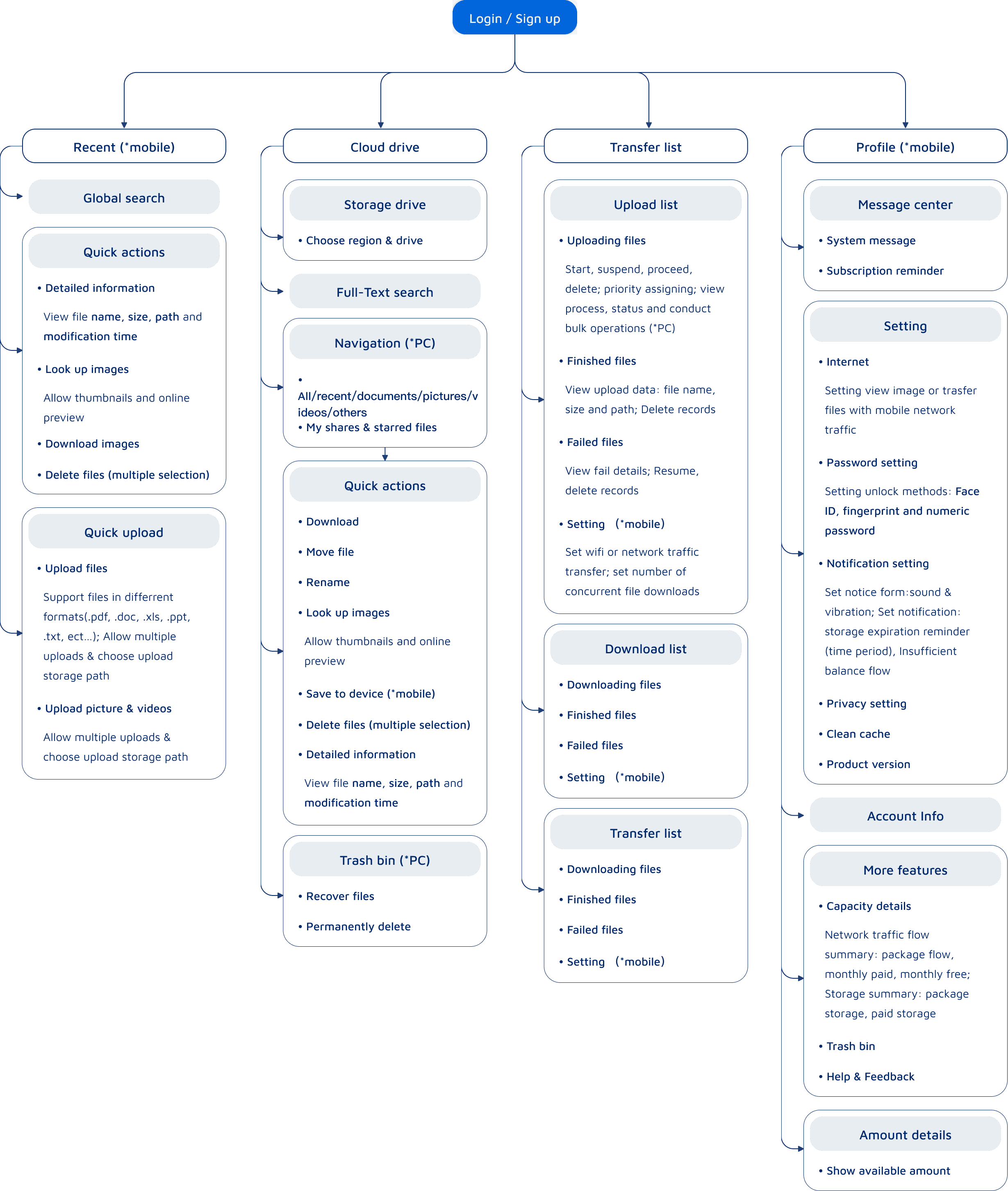
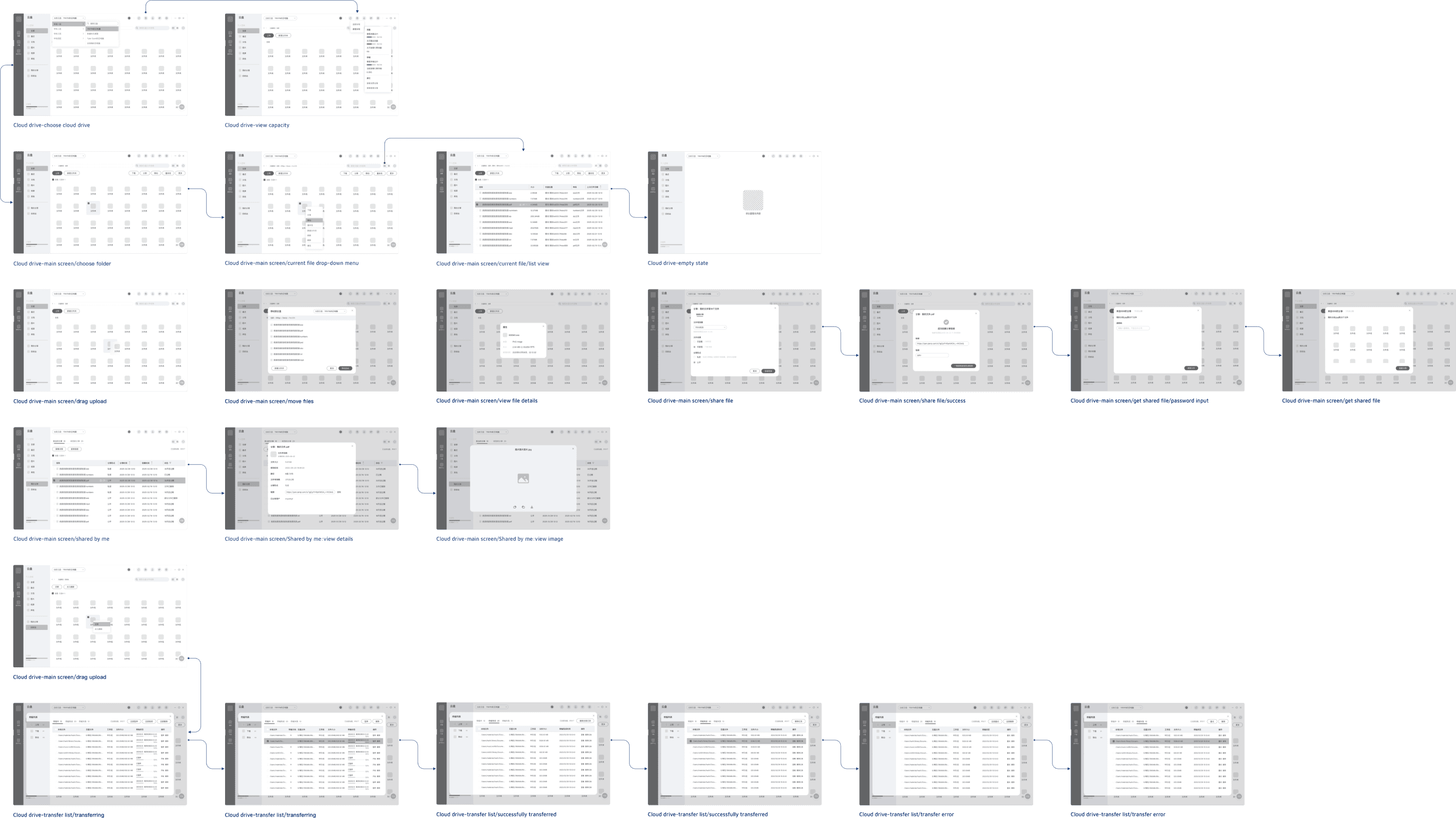
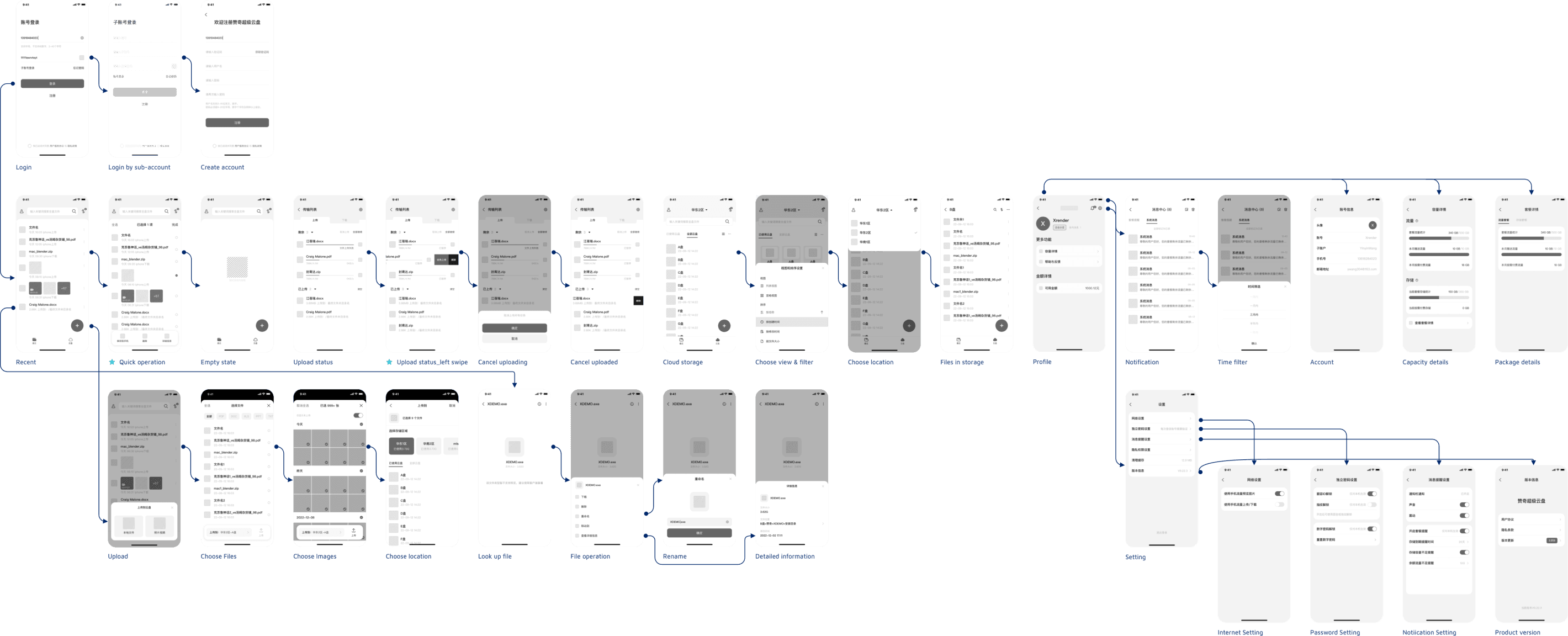
Low Fidelity Overview of PC & Mobile
Based on key deliverables from the IA and Ideation phase, we created low-fidelity prototypes to conduct initial validation of core task flows.
Wireframing
Design
Visual Standards
I leveraged our design system to establish the mobile visual style, then applied subtle refinements.
Typography
Pingfang SC
Chinese
Numbers & Symbols
Din
云
123
H1
Header2
Header3
Header4
H5
H6
Body
Caption
Font size: 24px
Font size: 20px
Font size: 18px
Font size: 16px
Font size: 16px
Font size: 14px
Font size: 14px
Font size: 12px
Line height: 33px
Line height: 28px
Line height: 25px
Line height: 22px
Line height: 22px
Line height: 20px
Line height: 20px
Line height: 17px
Font weight: Medium
Font weight: Medium
Font weight: Medium
Font weight: Medium
Font weight: Regular
Font weight: Regular
Font weight: Regular
Font weight: Regular
Mobile version
Primary & Secondary colors
Neutral colors
Auxiliary colors
#006FEE
#333333
#EC0606
#63D000
#F0A424
Complementary colors
#62AED3
#3DA538
#EF533A
#8BC129
#A167D2
#6CC6FB
Deliverables
Cloud Drive Structural Refactoring
Redefine the information architecture and interaction framework around the user's mental model to enhance operational efficiency.
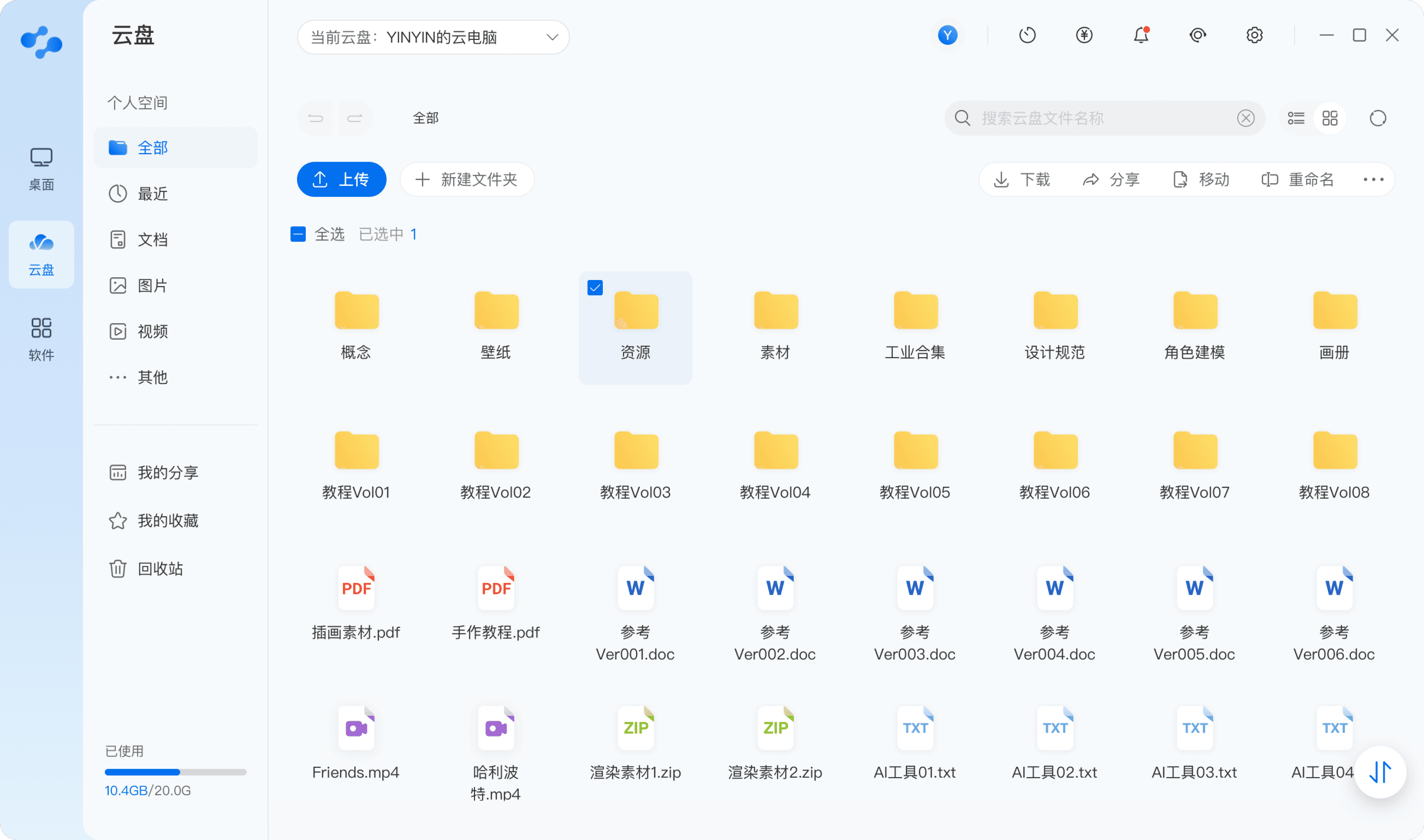
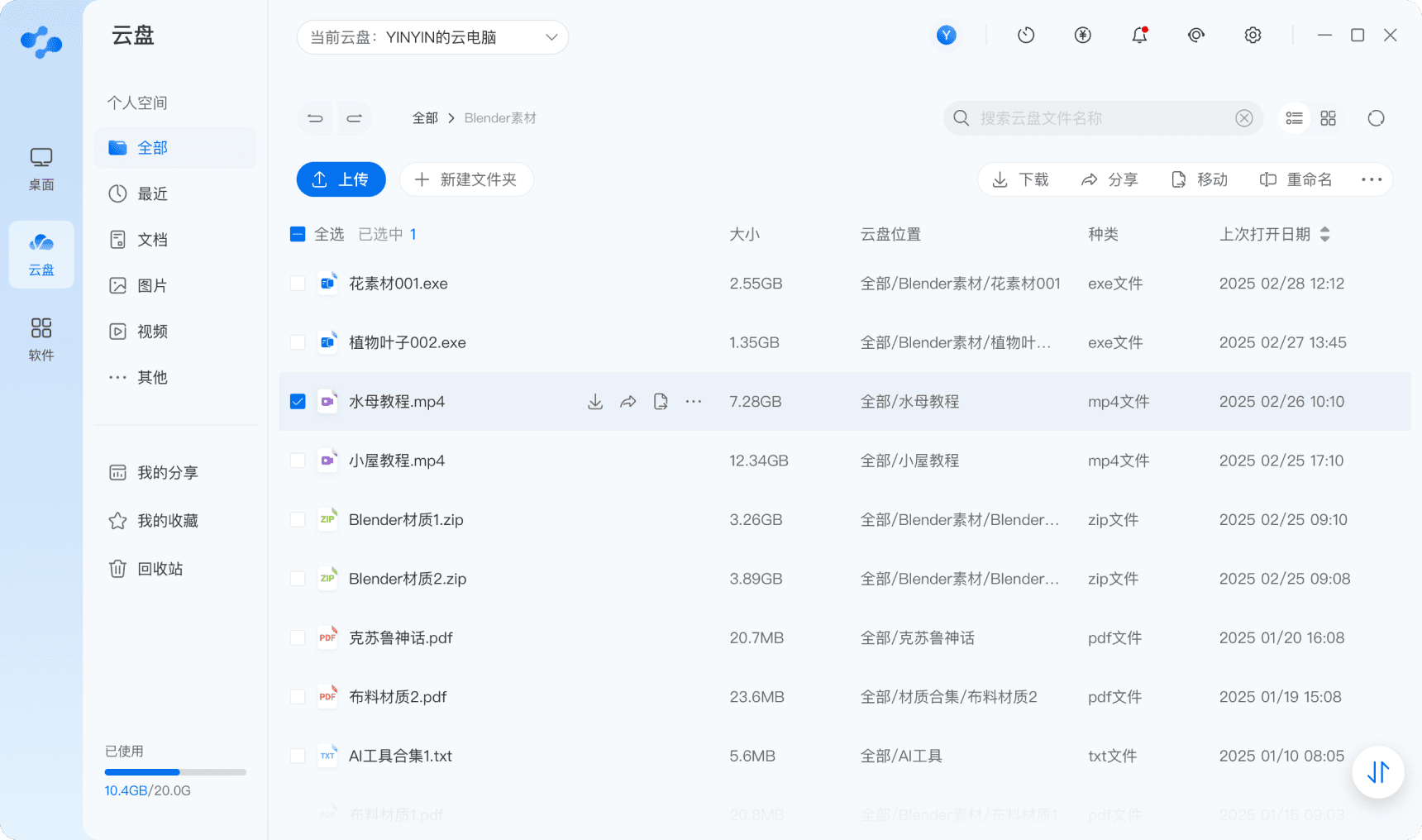
Cloud drive main screen-Grid view
Cloud drive main screen-List view
Cloud drive main screen
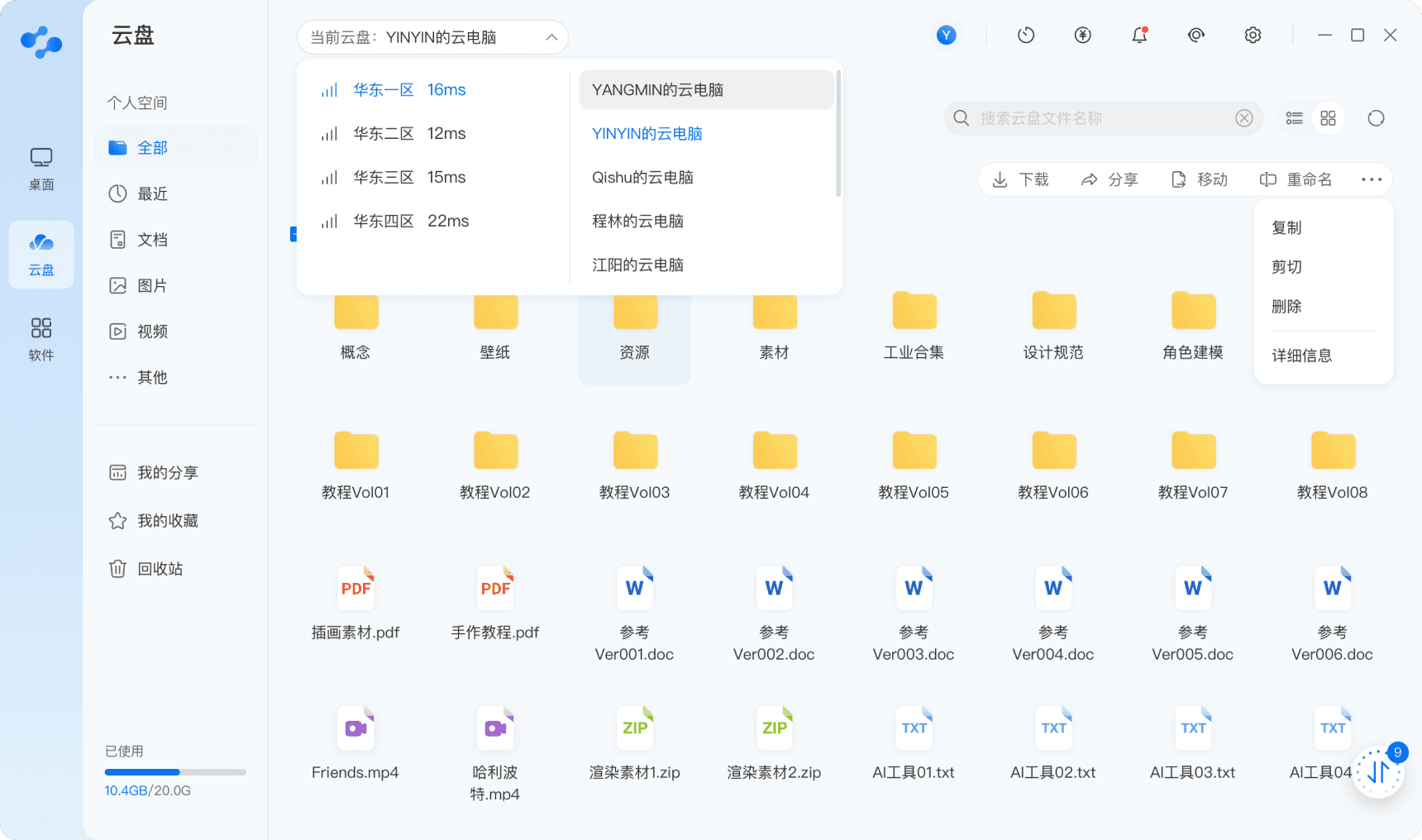
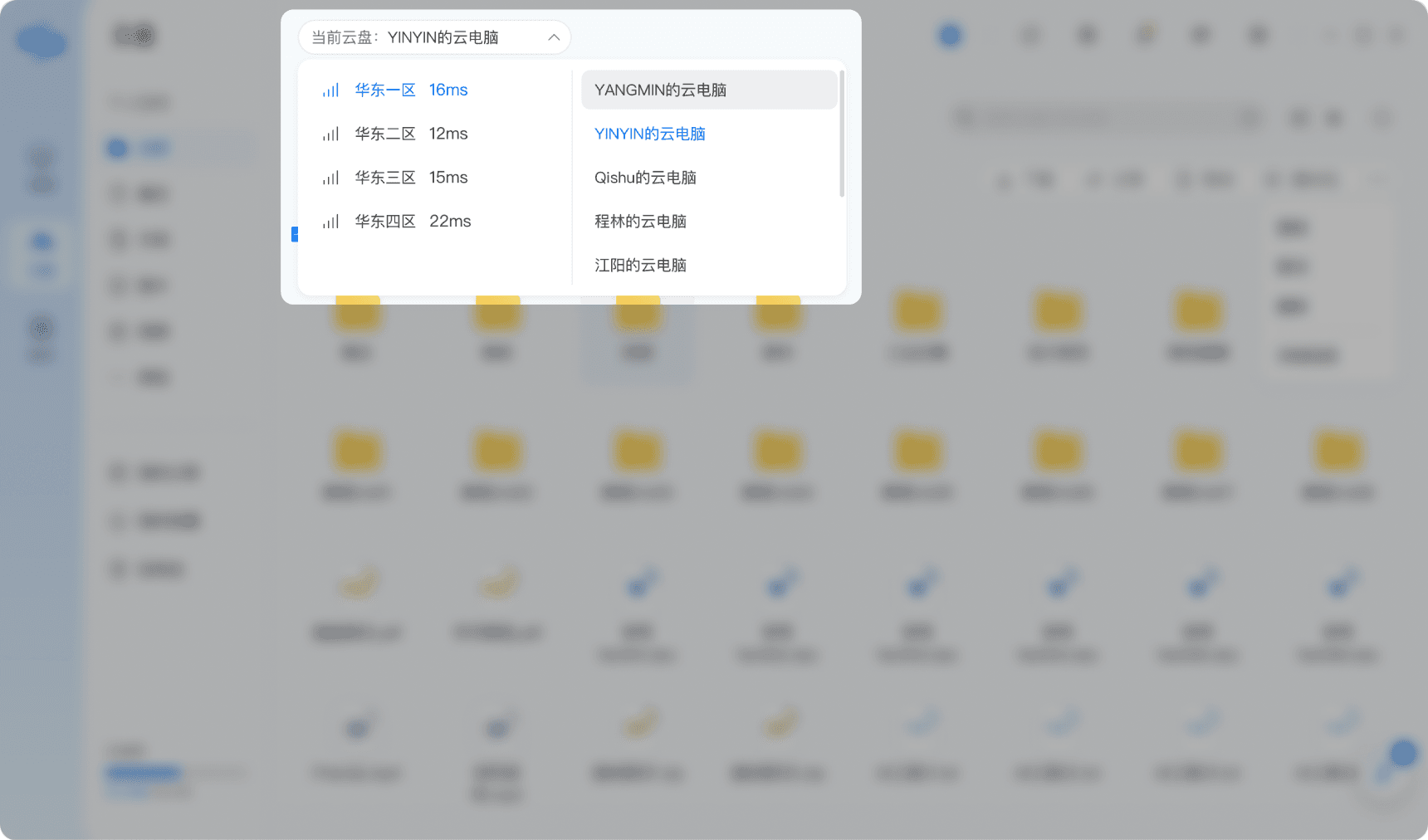
Cloud drive main screen-Select cloud instance
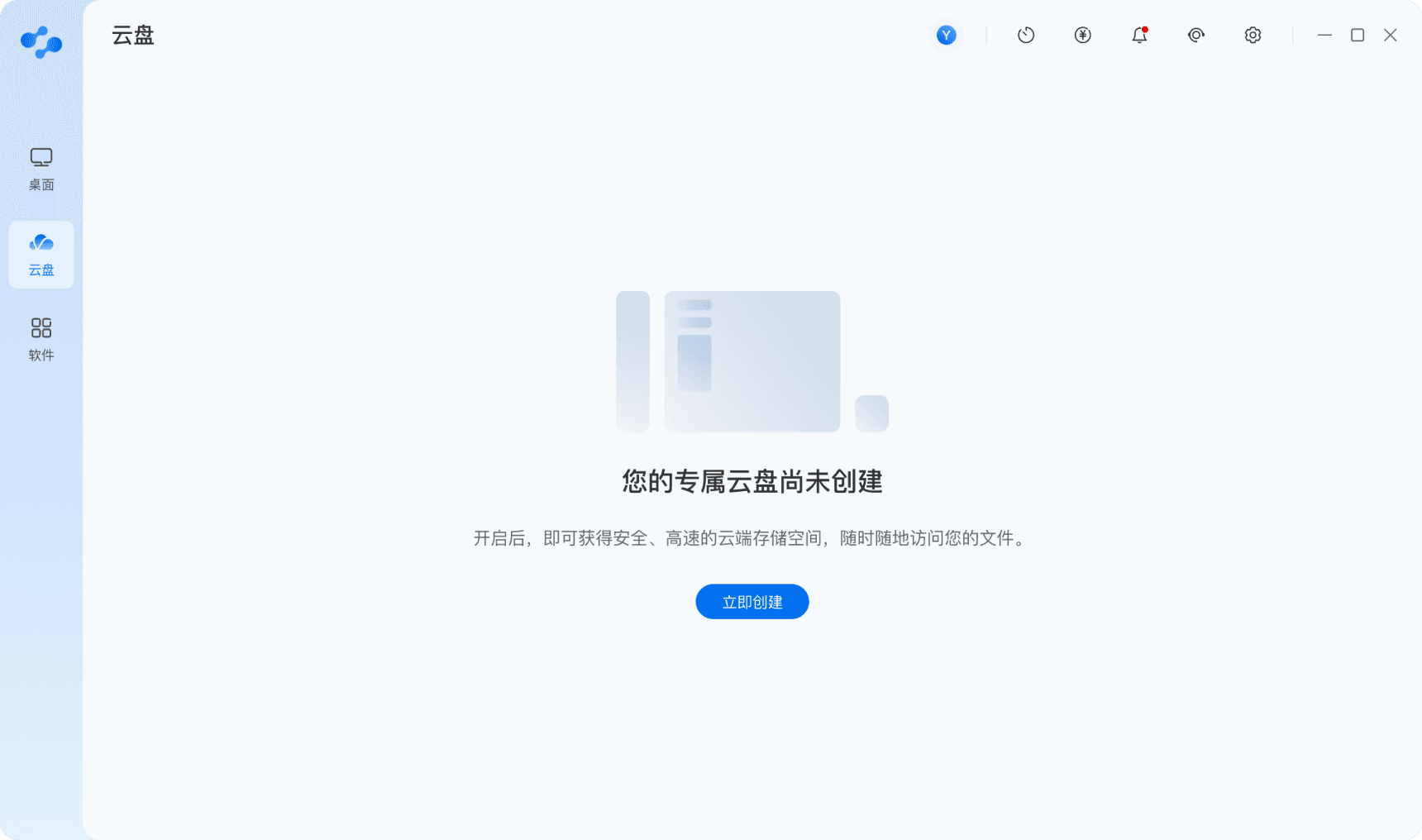
Cloud drive main screen-Empty state
Optimize Information Density and Readability
Visual Layer Visual Hierarchy
Use spacing rather than lines to distinguish between different information groups, employ font weight and color contrast to differentiate content attributes, create a sense of breathing room, and establish a systematic visual hierarchy.
4
Define "File Browsing and Management" as the Absolute Core Task
Make Space Management Align with the User's Mental Model
2
3
All layout decisions prioritize the display space and operational efficiency of the file list.
Organizing storage based on cloud desktop instances, creating an intuitive mapping between the work environment and storage location.
Business Layer User‑Centered Strategy
Proposed design
Old design
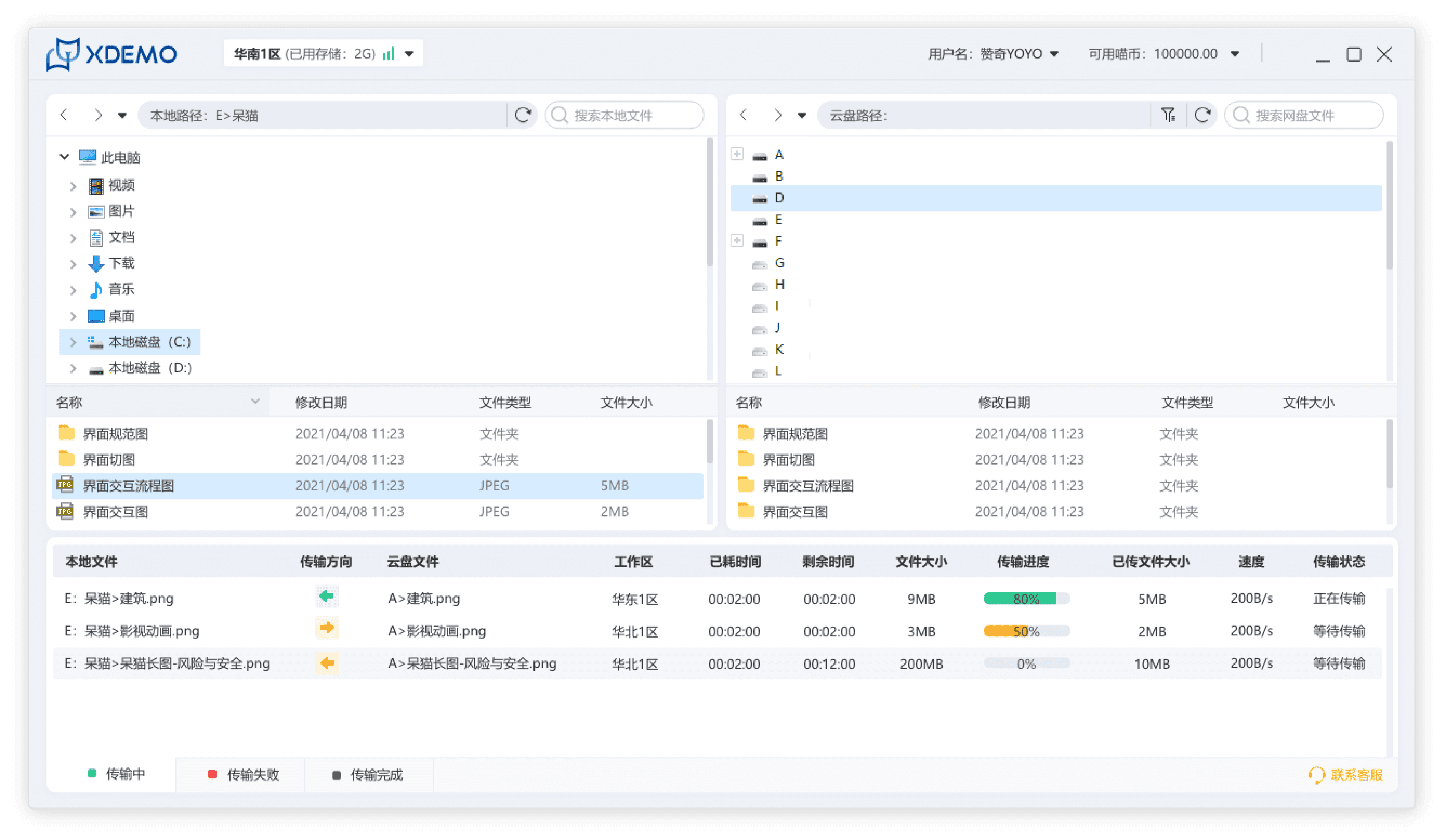
Cluttered interface and confusing navigation increase cognitive load during file retrieval.
The bottom-placed transfer list cramps file space and interferes with core tasks.
The narrow file list panel increases file hunting time and causes eye strain, also prone to accidental taps.
Cluttered Layout, Unclear Hierarchy
Inefficient Use of Space & Poor Error Tolerance
Features Misaligned with Core Scenarios
1
2
3
Abstract drive letters lack visual connection to cloud desktop instances, making file storage feel disconnected and hard to manage.
Mobile access gaps prevent timely file retrieval and review.
Cloud drive
Interaction Layer
Optimize Layout & Navigation
Refactor the Layout Framework
The left side features a vertical navigation, while the main area on the right is dedicated entirely to the file list and operations, eliminating unnecessary split panels.
Remove the bottom fixed bar. Transfer tasks are displayed as a floating circular button with a bubble list. It automatically minimizes when not in use to maximize content display space.
1

9
Mobile version
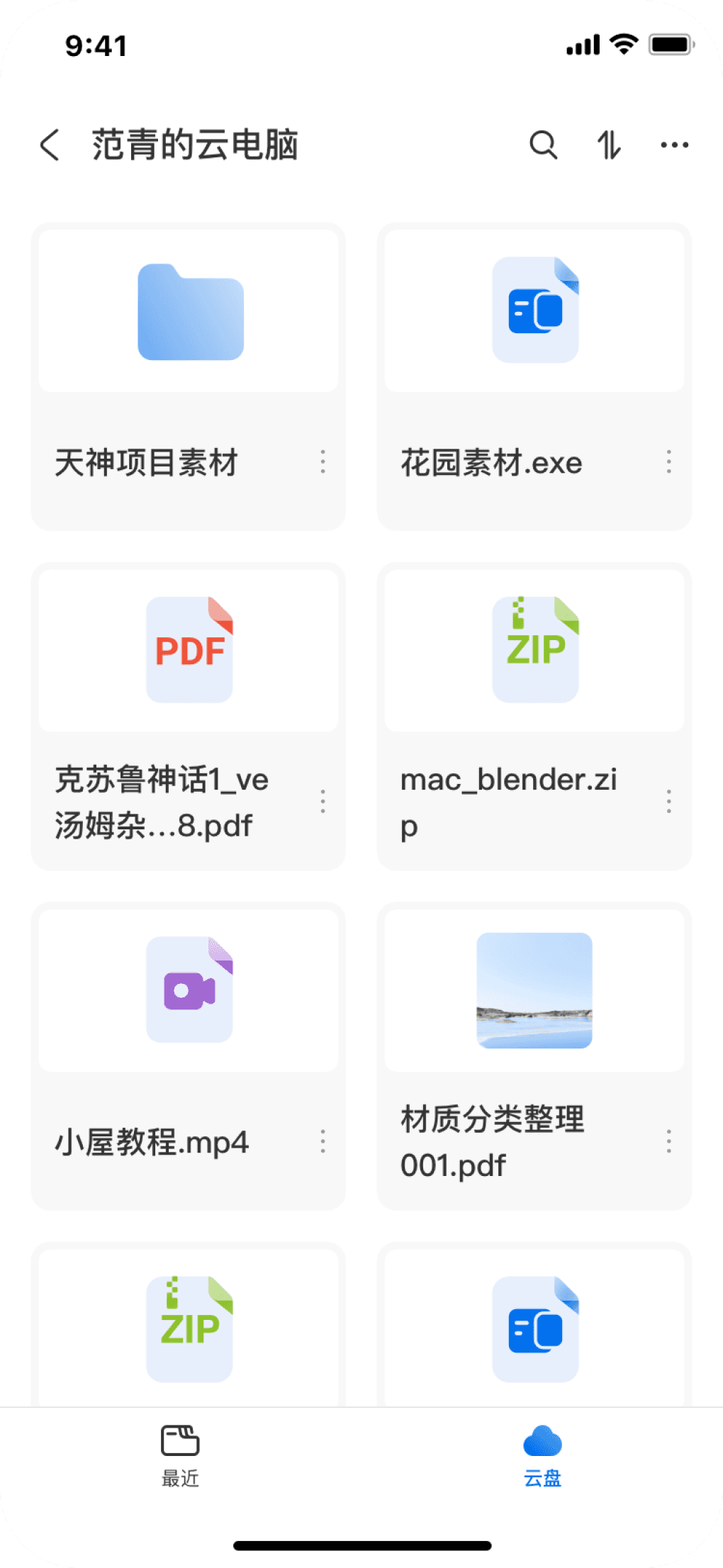

Cross-Device Collaborative Mobile Workflow
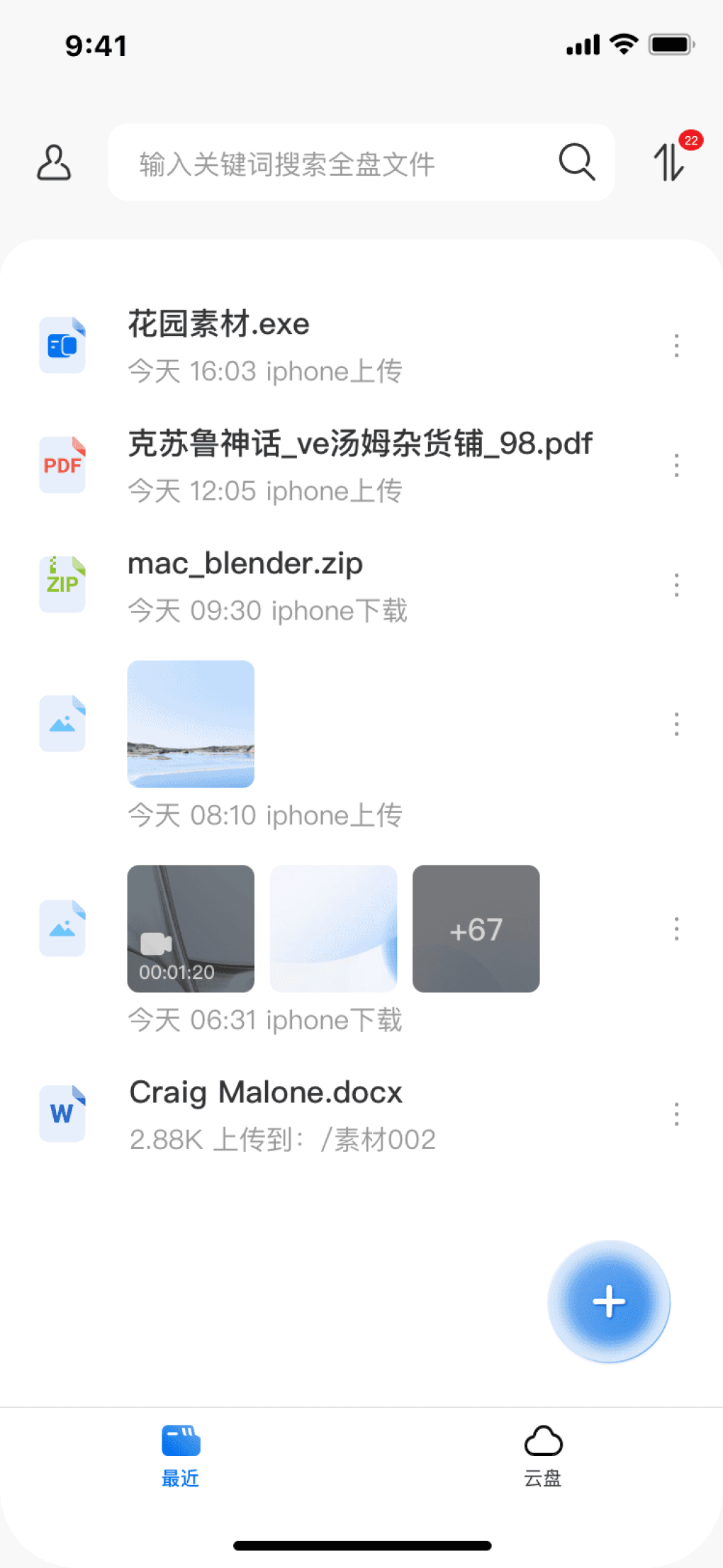
Smart Portal (Recent' Page)
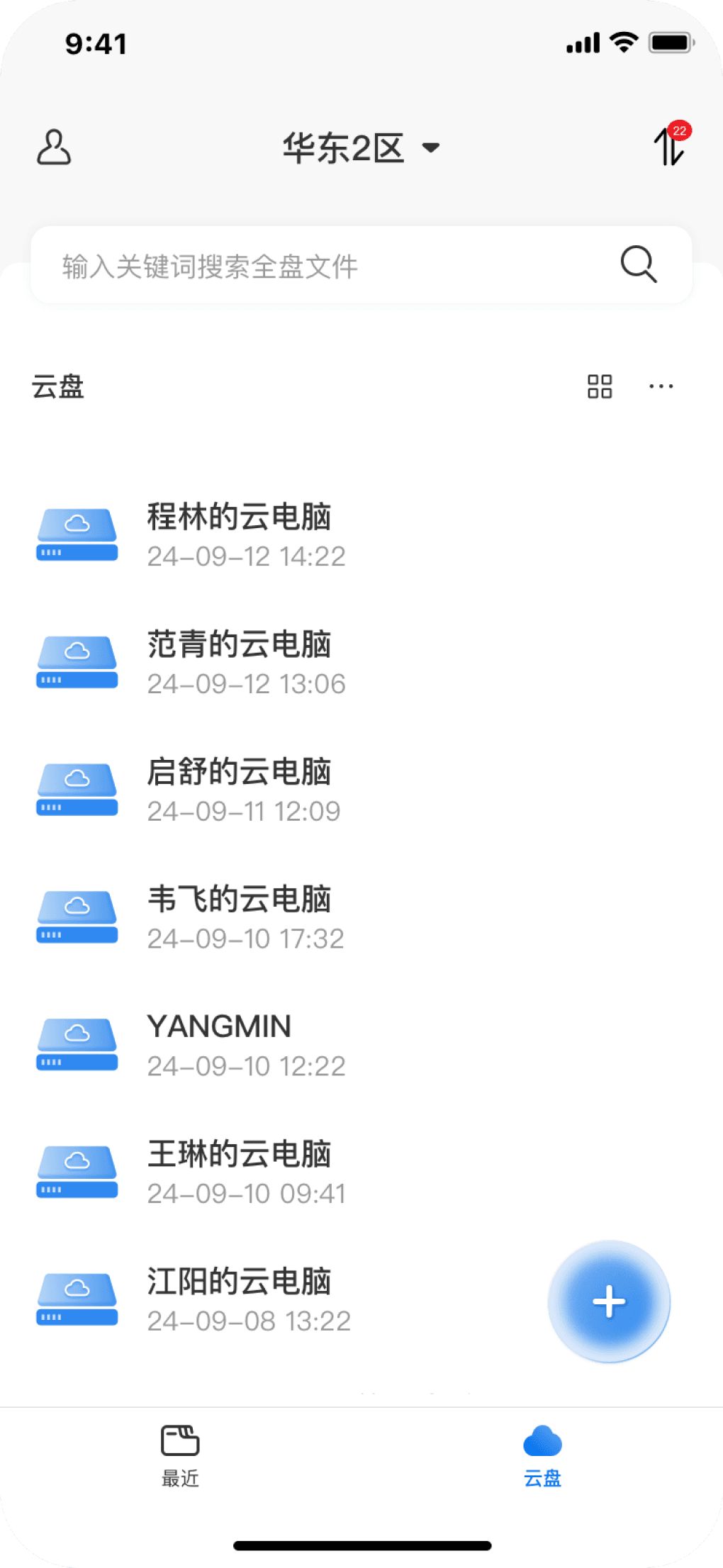
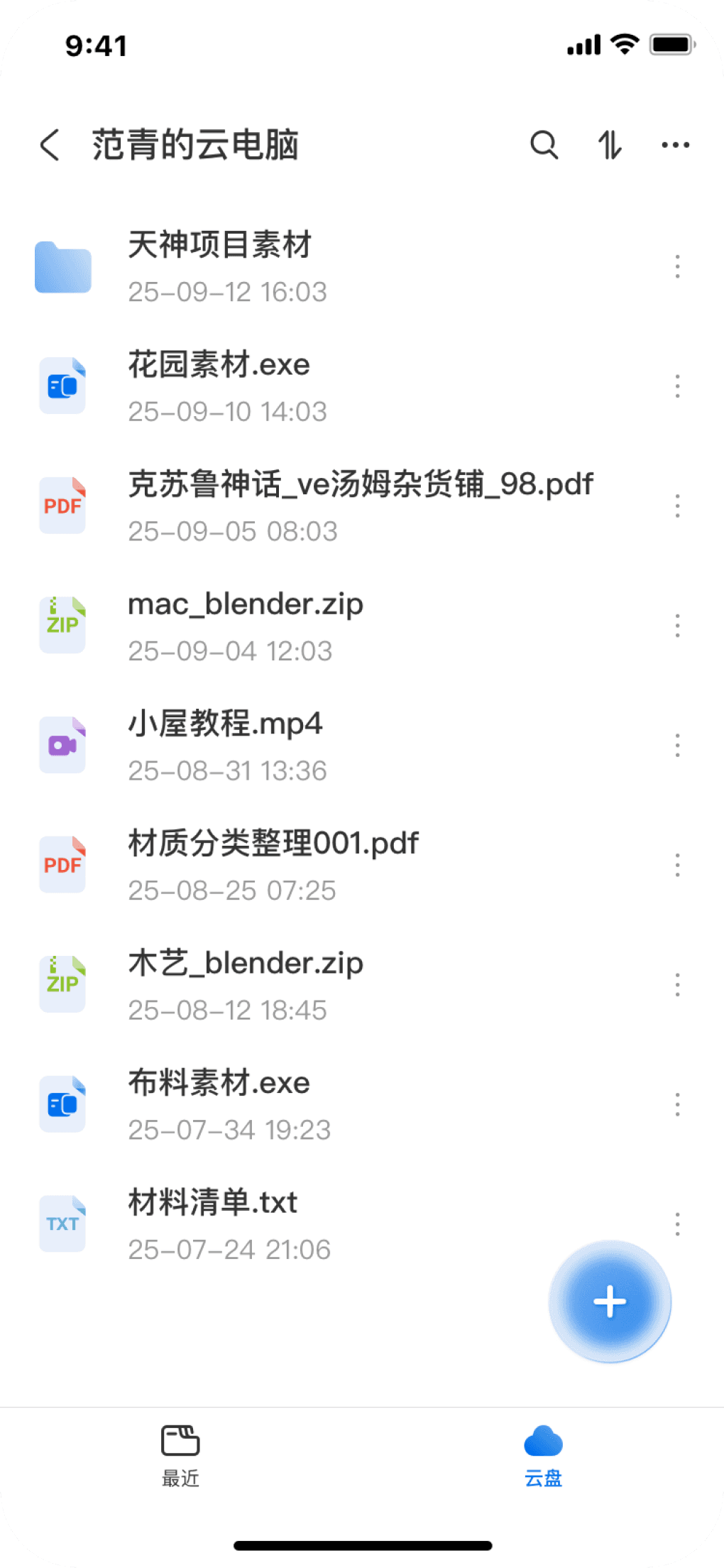
Clear Navigation (Region Selection)
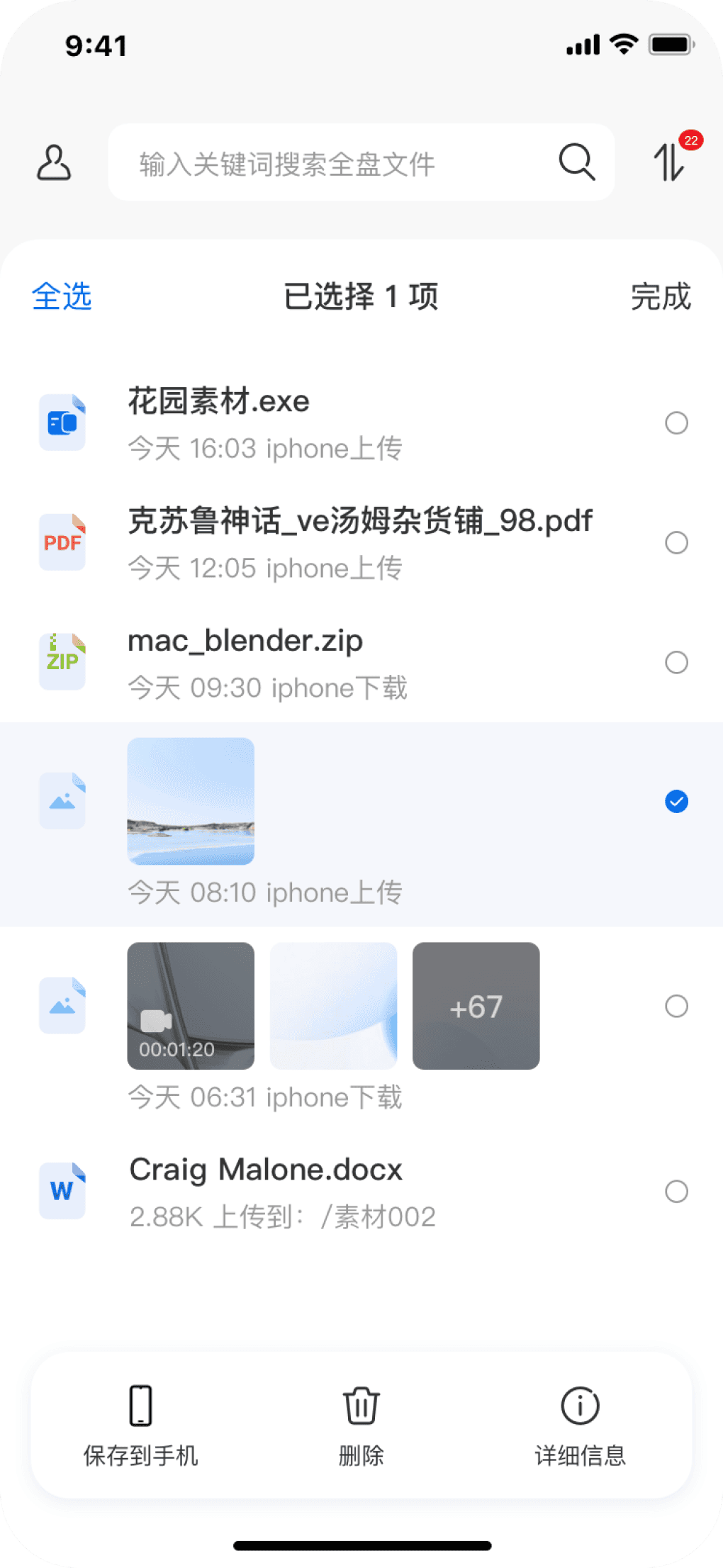
The "Recent" page serves as an intelligent portal, prioritizing the display of the latest files while providing contextual quick actions like preview and download to shorten the user's decision-making path.
The storage area selection process guides users to first locate the region, then associate the cloud computer, and finally access the target cloud drive. This two-step selection approach helps users precisely locate their target working environment.
1
2
Recent file lookup & quick operation
Storage drive selection & file list
Enhance Operational UX
Redefine the operational workflows and visual feedback to significantly boost efficiency, reliability, and intuitiveness across core tasks.
Old design
The current file filtering options are insufficient, failing to meet users' needs for quickly locating specific files within large volumes of data, which impacts search efficiency.
In the file list, the multi-selection mechanism is inefficient, requiring users to click on files one by one, which creates a poor experience for batch file management scenarios.
The file moving process is forcibly interrupted. Users are required to leave the current directory and select the target path in a new window, preventing them from completing the operation seamlessly within the original context.
Lack of Precise Search Functionality
Efficiency Bottleneck in Transfer Management
Poor Error Handling
1
2
3
Deleted files cannot be restored.
Cloud drive
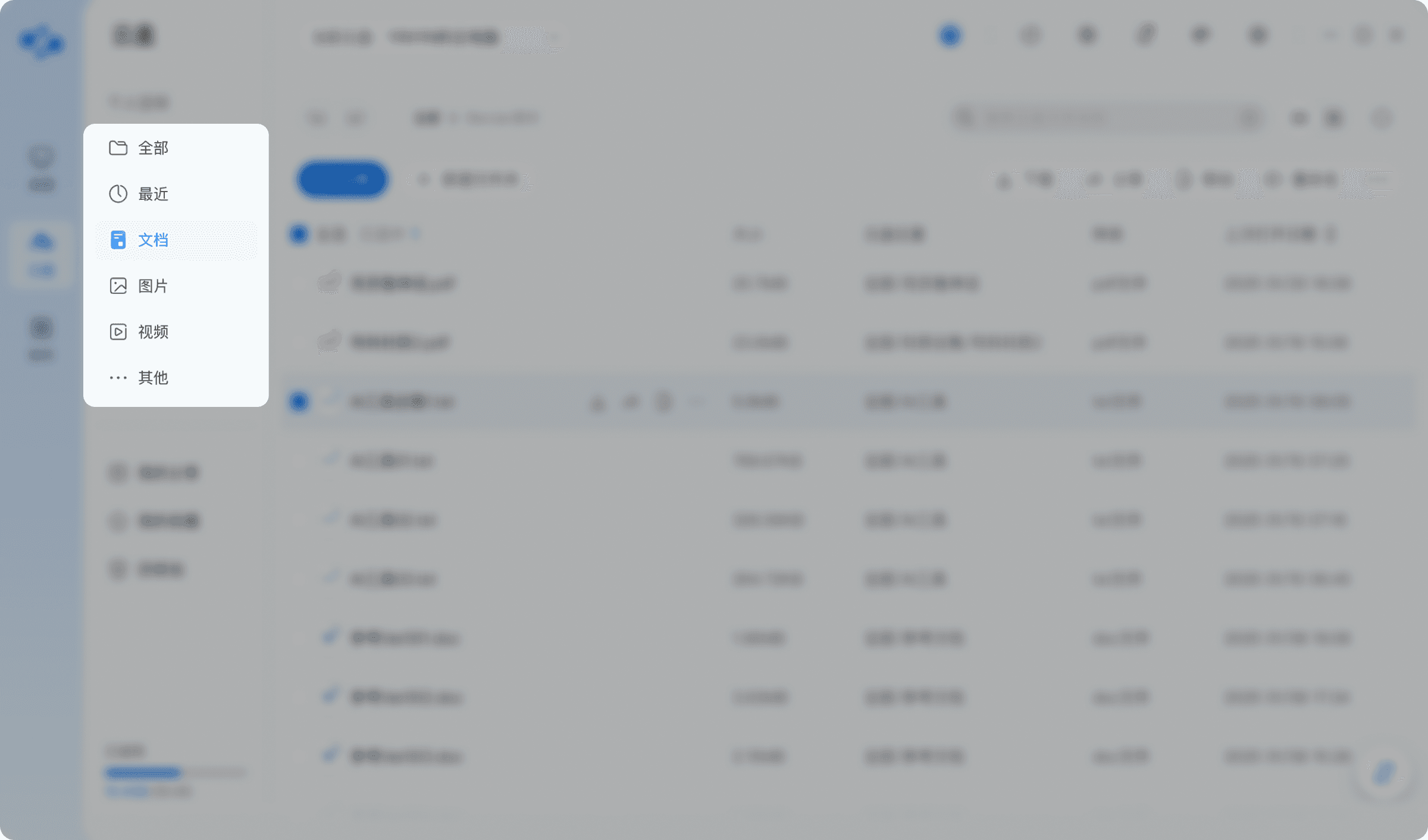
Categorized navigation
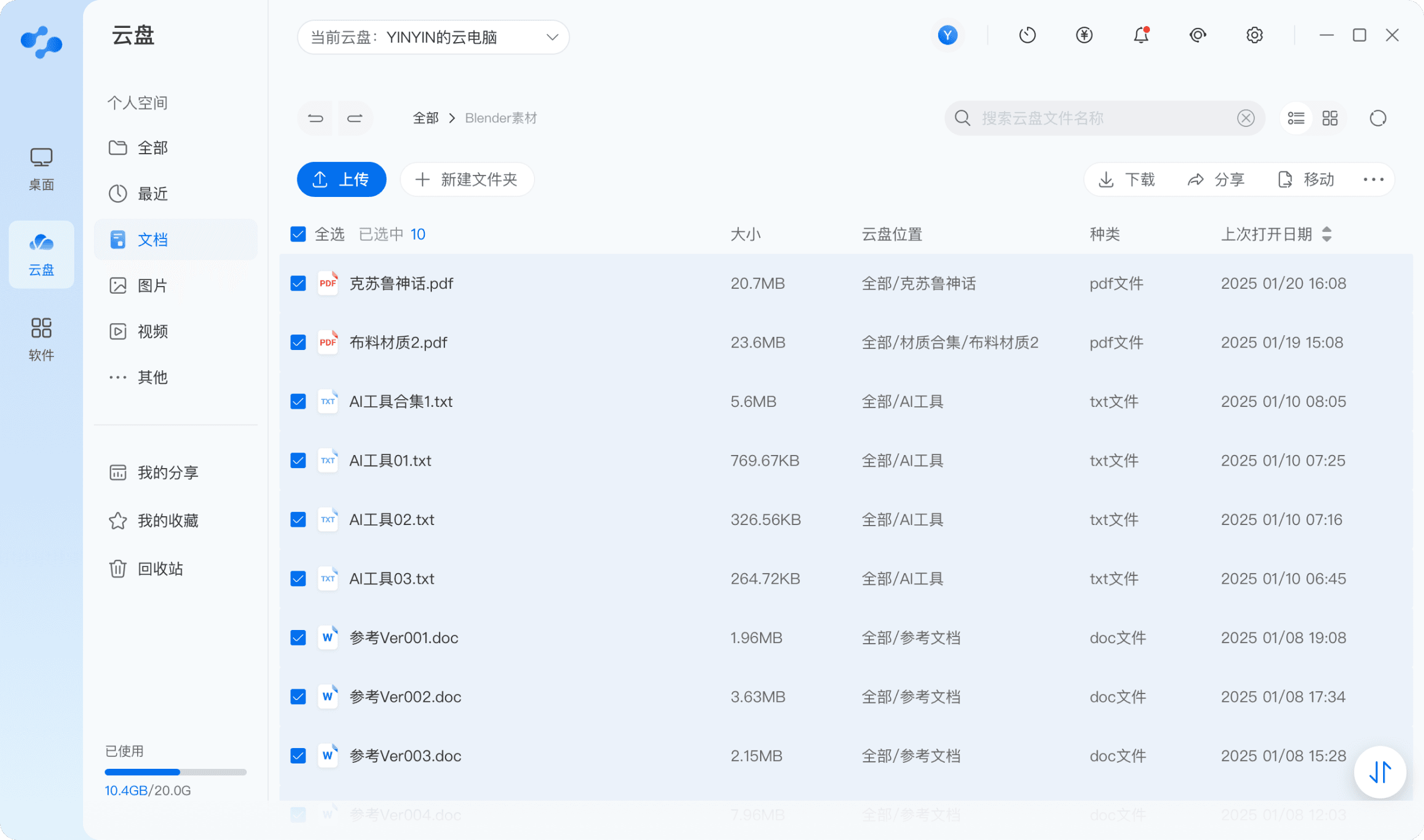
Cloud drive main screen-File category-batch selection
Proposed design
Interaction Layer Streamline Core Interactions
Smart-Aggregated Navigation
Contextual Task Management
Efficient Batch Operations
We redesigned the information architecture by introducing a "file type" navigation layer. This freeing users from memorizing complex paths. It shifts the file retrieval process from "searching through structures" to "accessing by attributes," transforming file discovery from a chore into an intuitive act.
File move operations are encapsulated within a modal overlay, allowing users to select target paths from a clear directory tree without leaving their current browsing context.
Supports multiple selection methods including checkbox lists, drag-frame selection, and keyboard shortcuts.
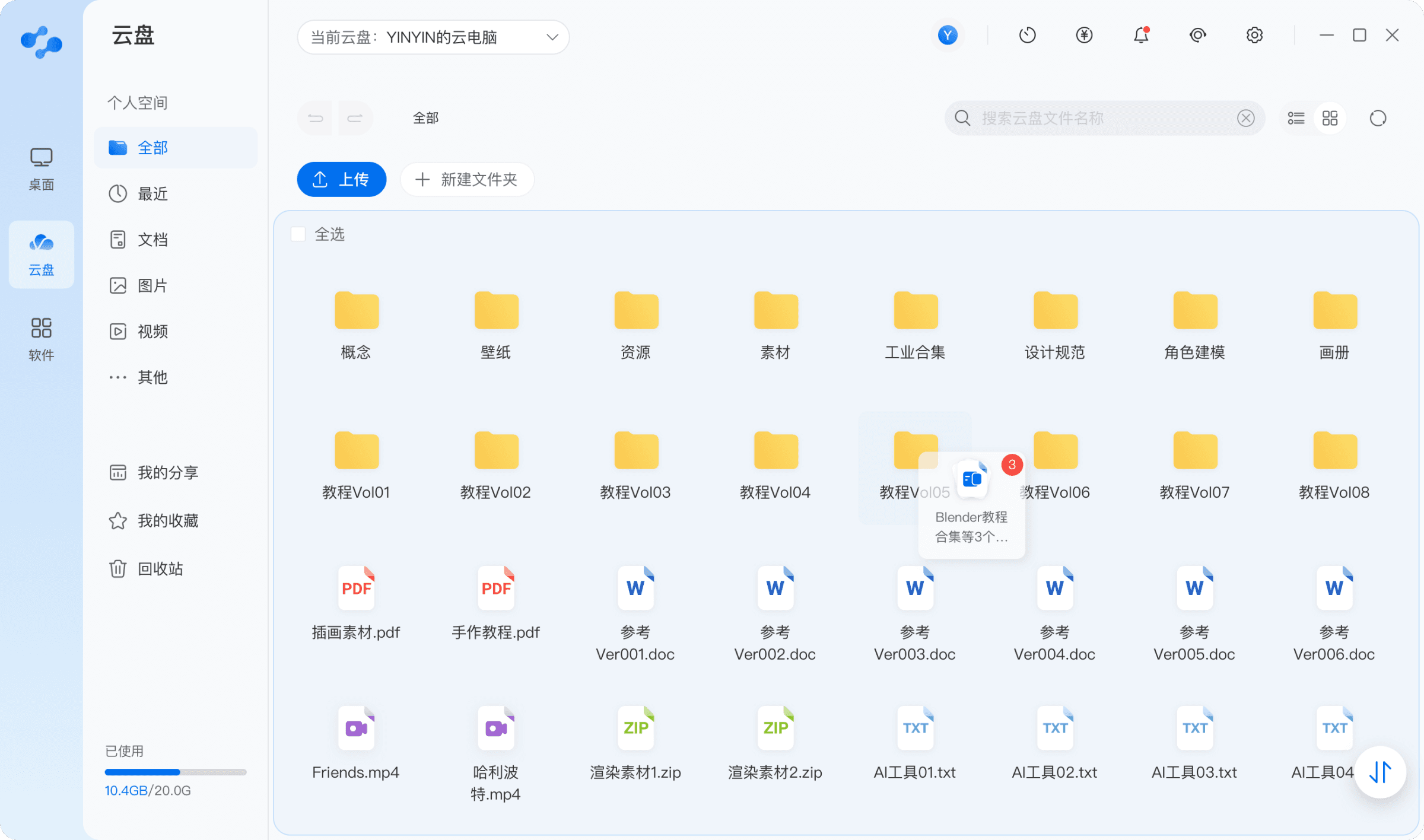
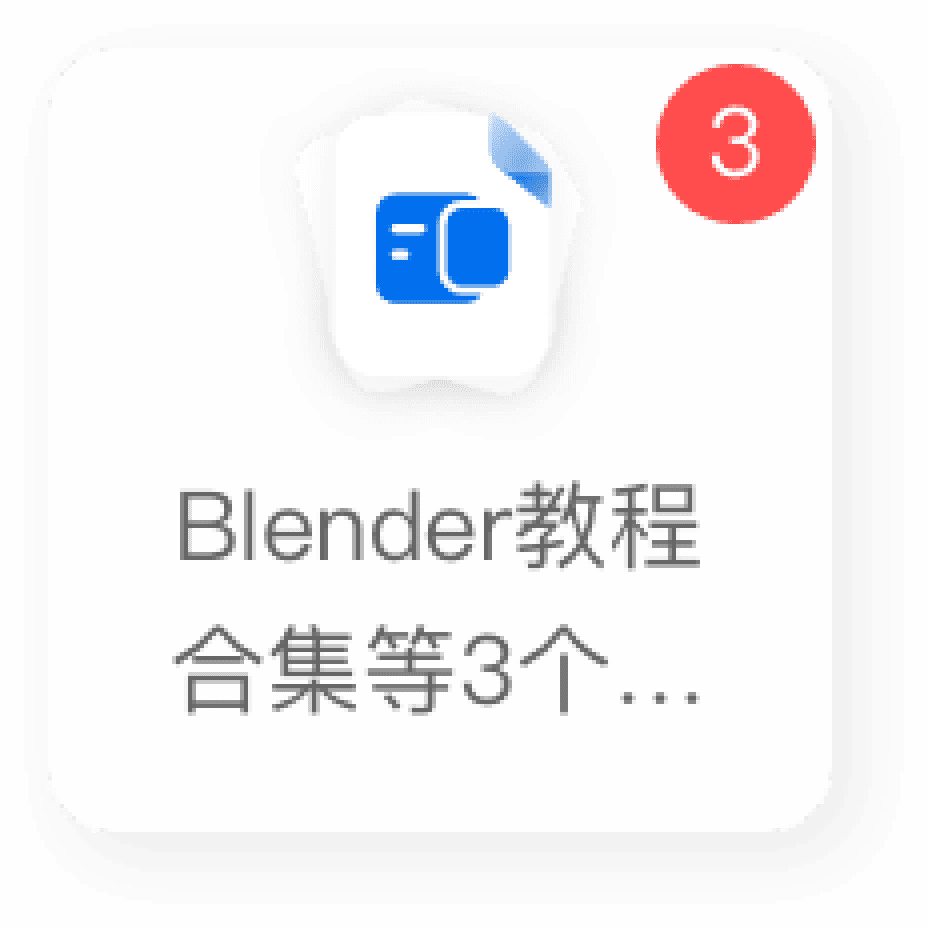
Implements drag-and-drop as a core interaction, allowing users to directly drag files to target folders or transfer areas for seamless moving and uploading.
1
3
2
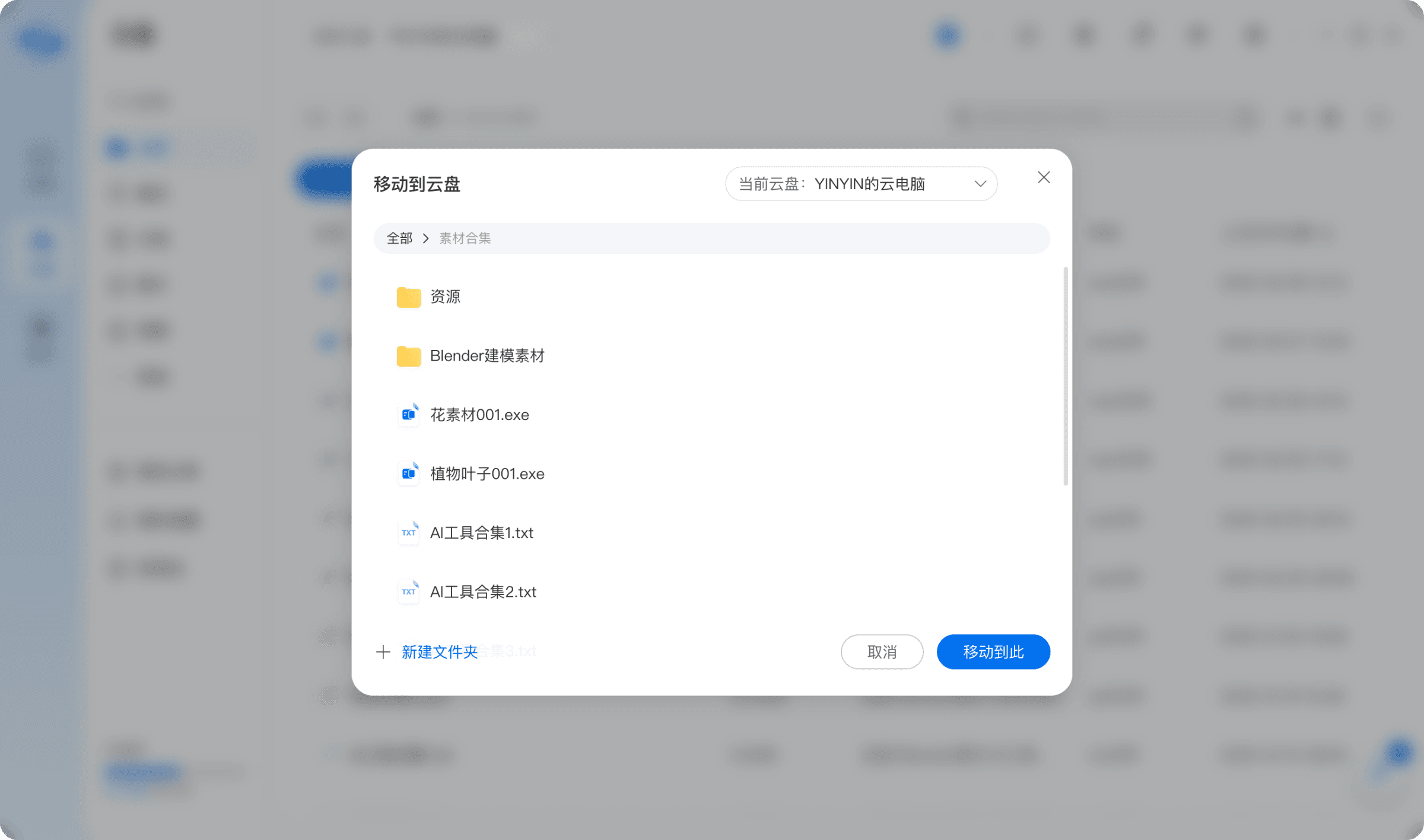
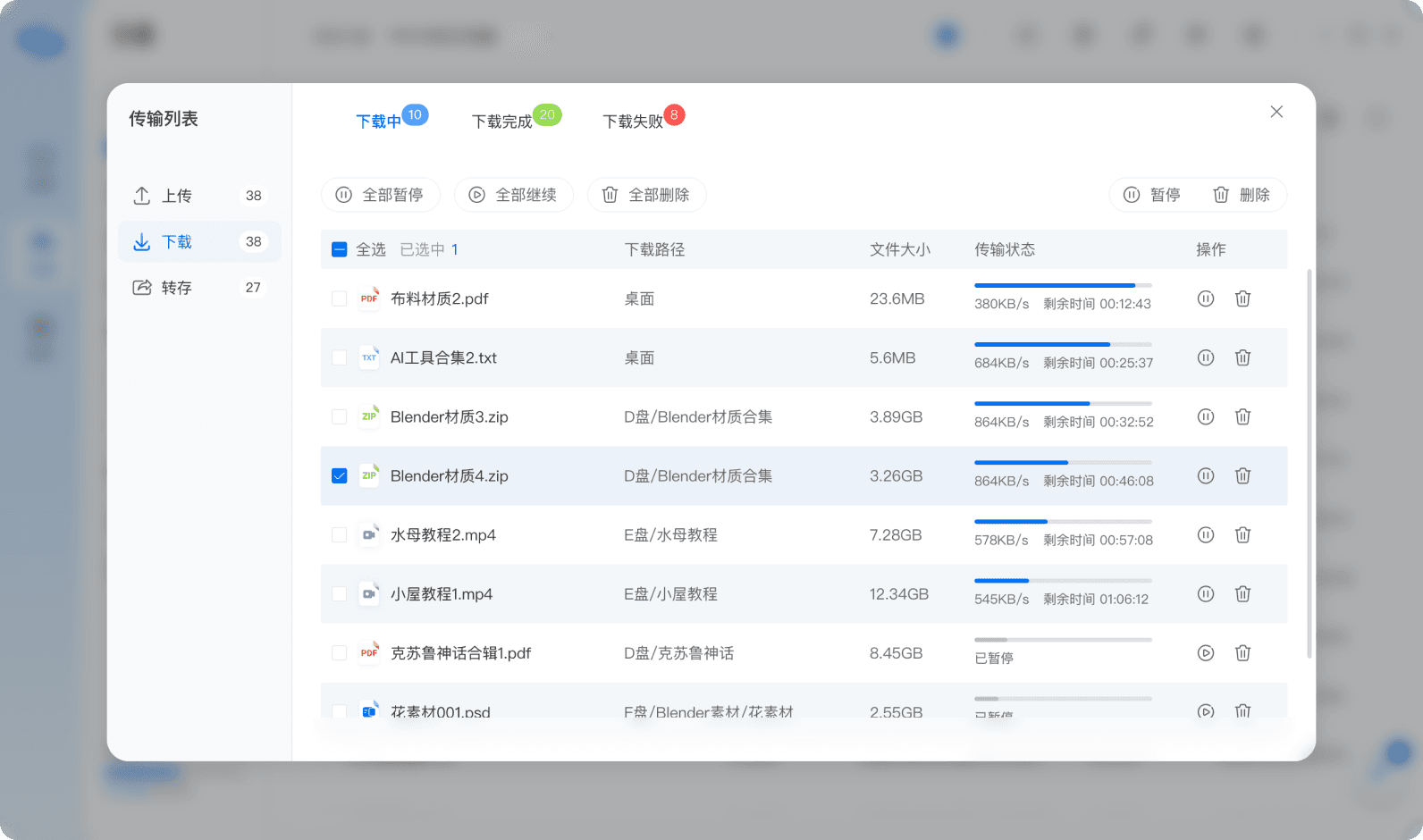
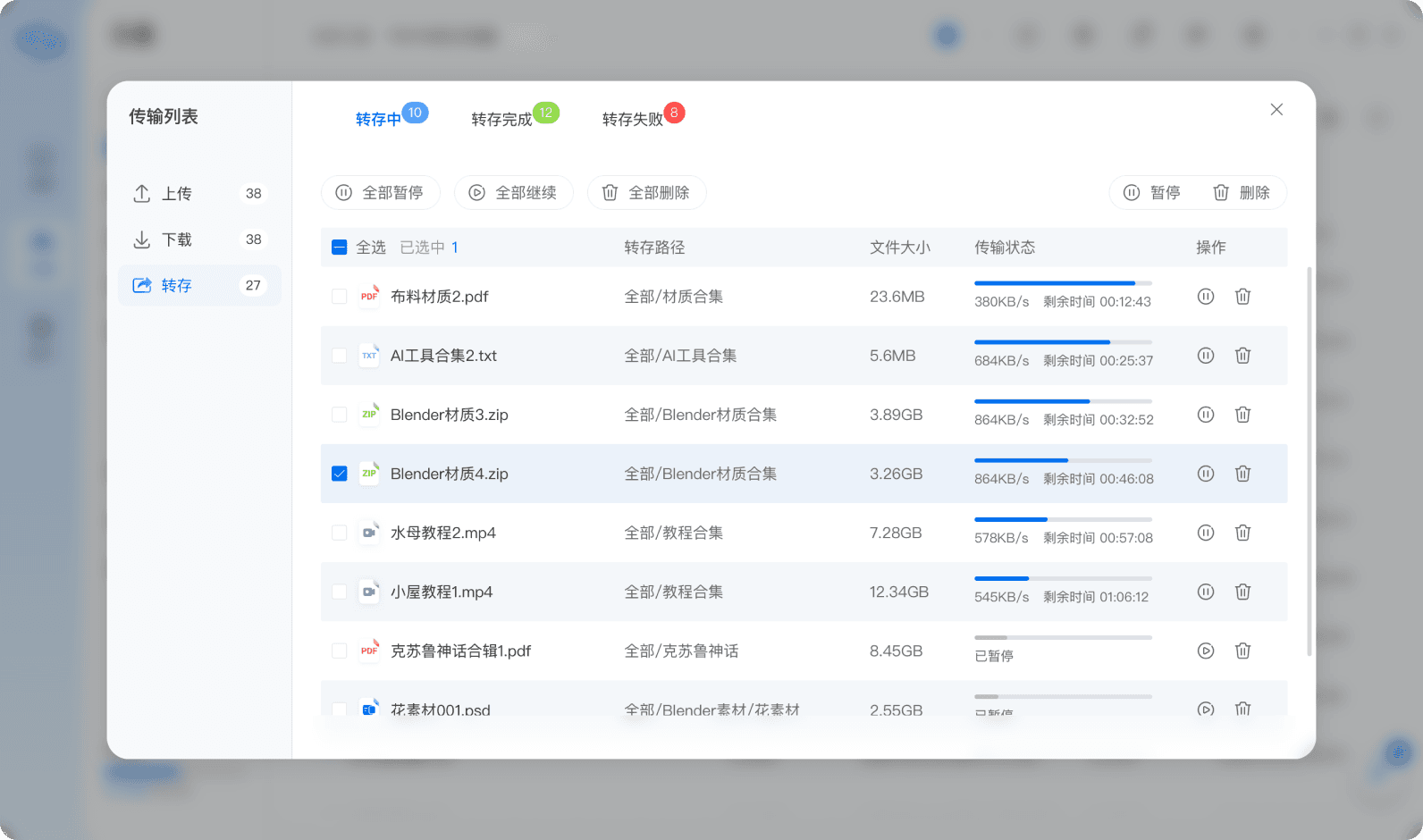
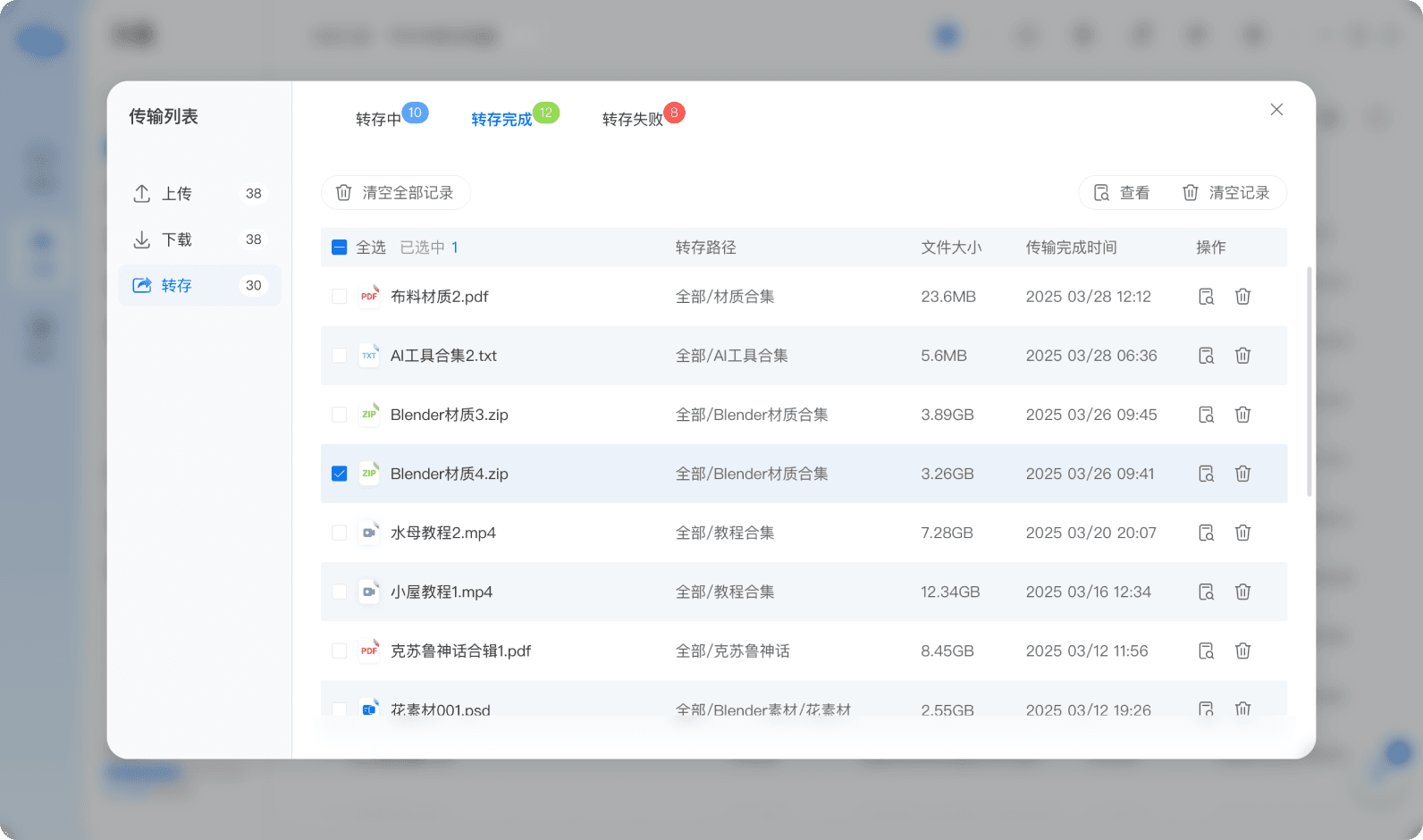
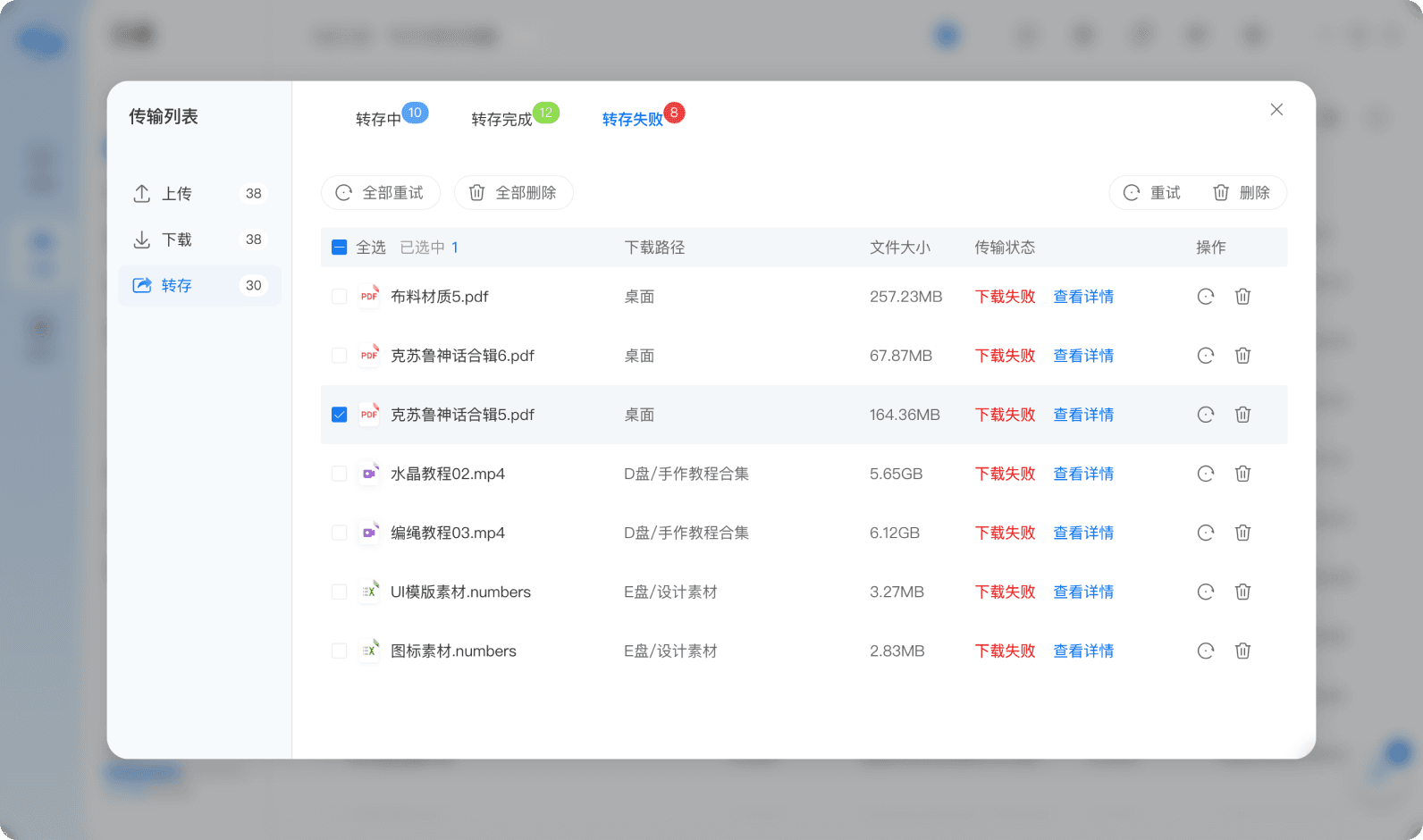
Multi-file drag-and-drop upload
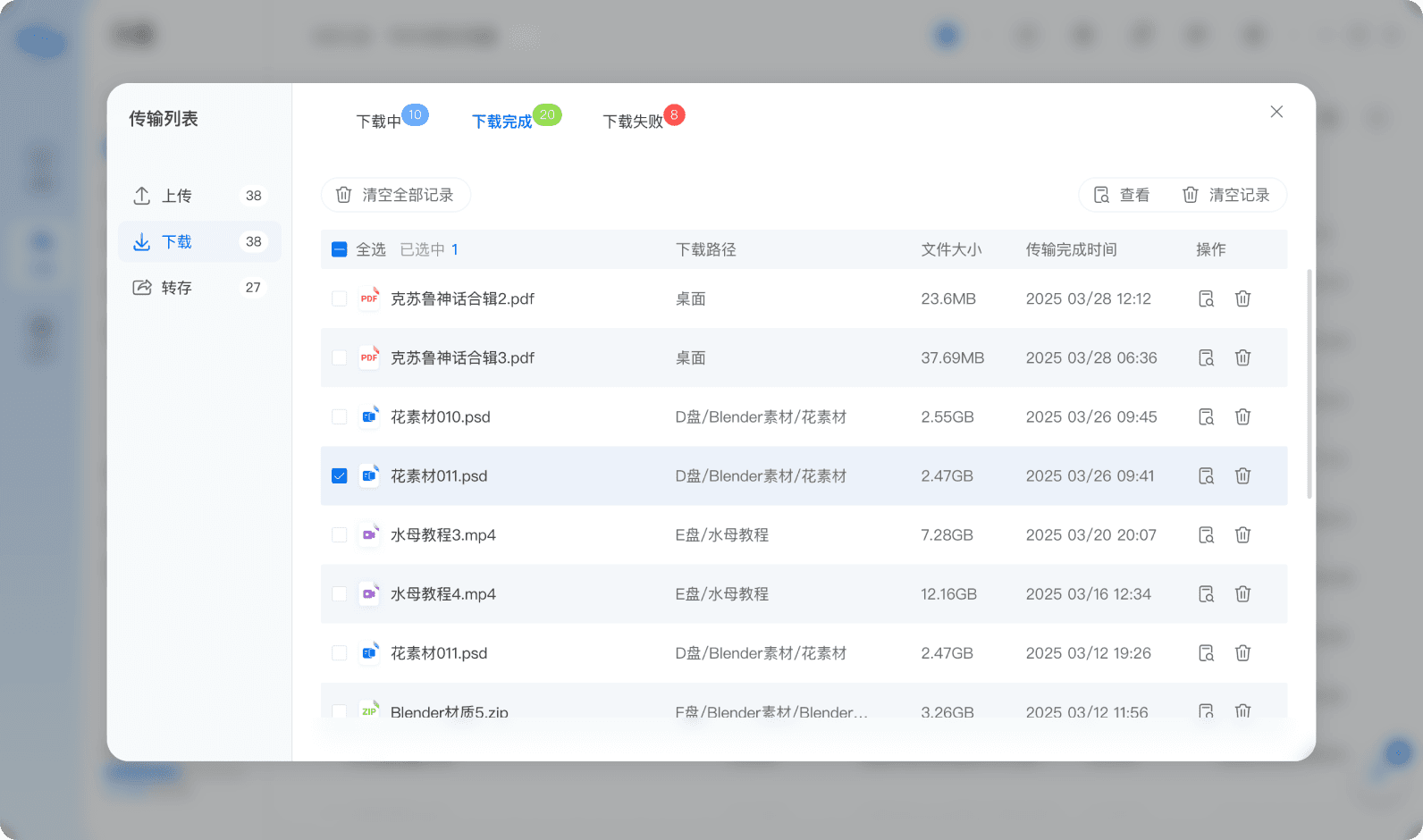
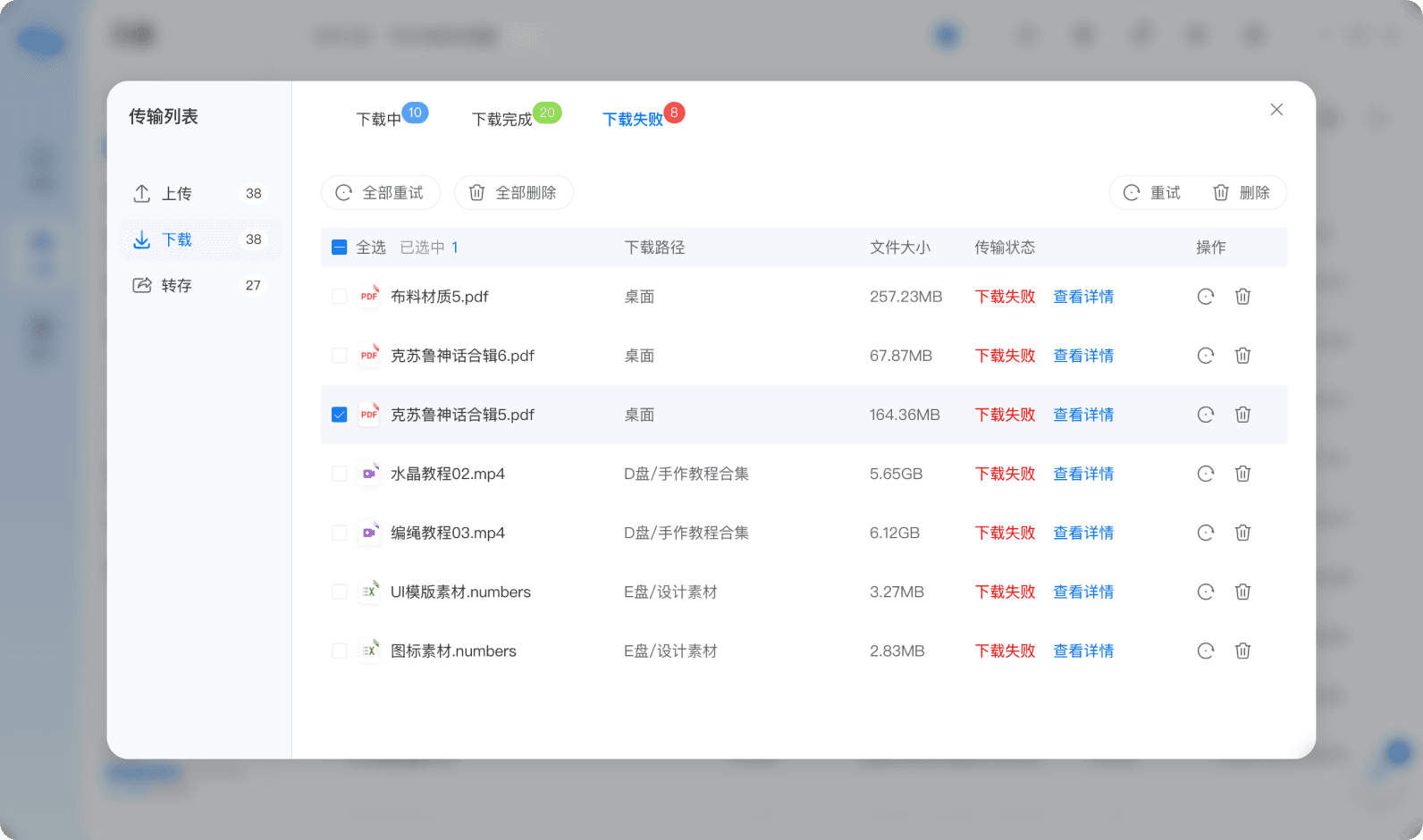
File transfer
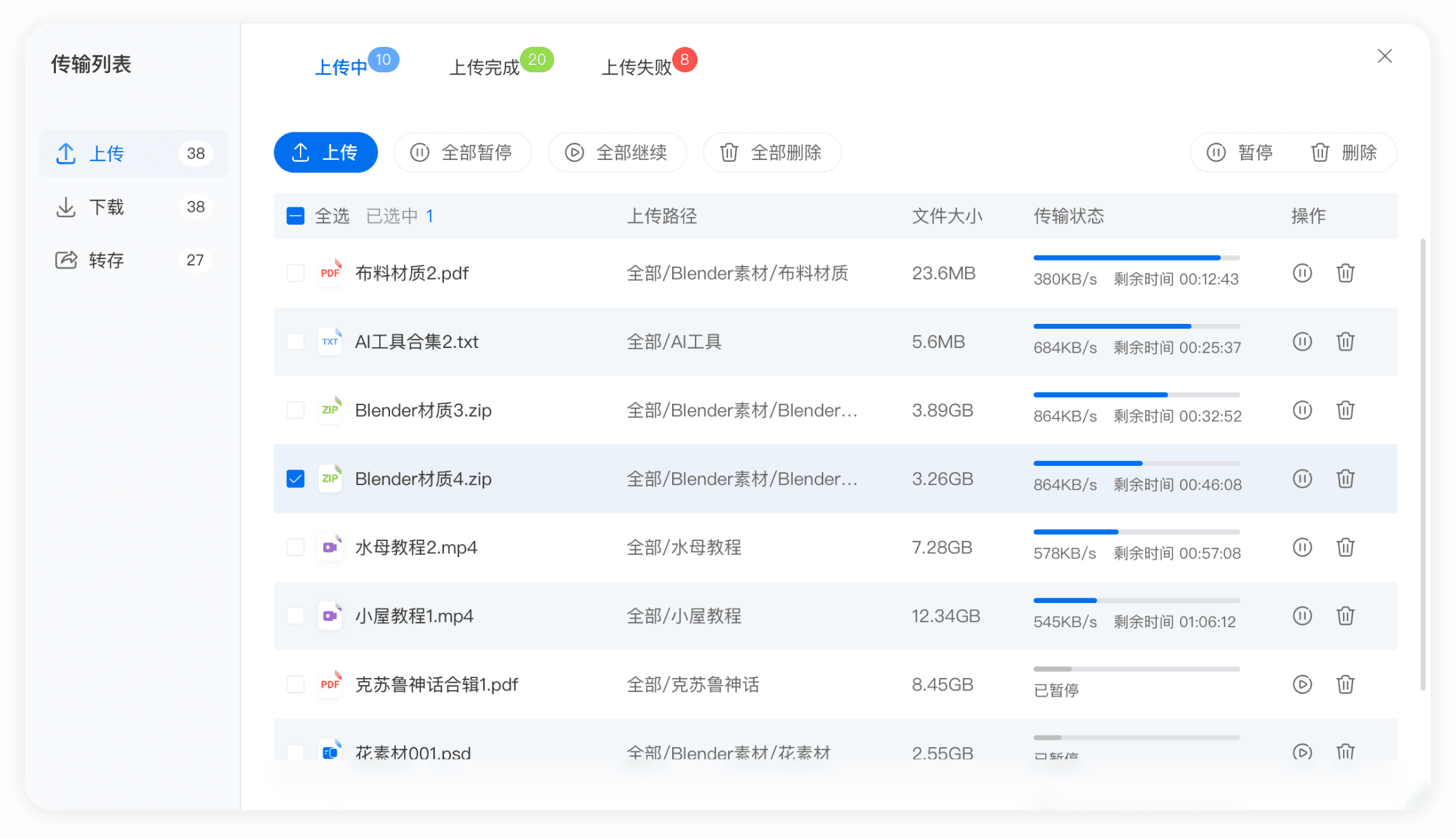
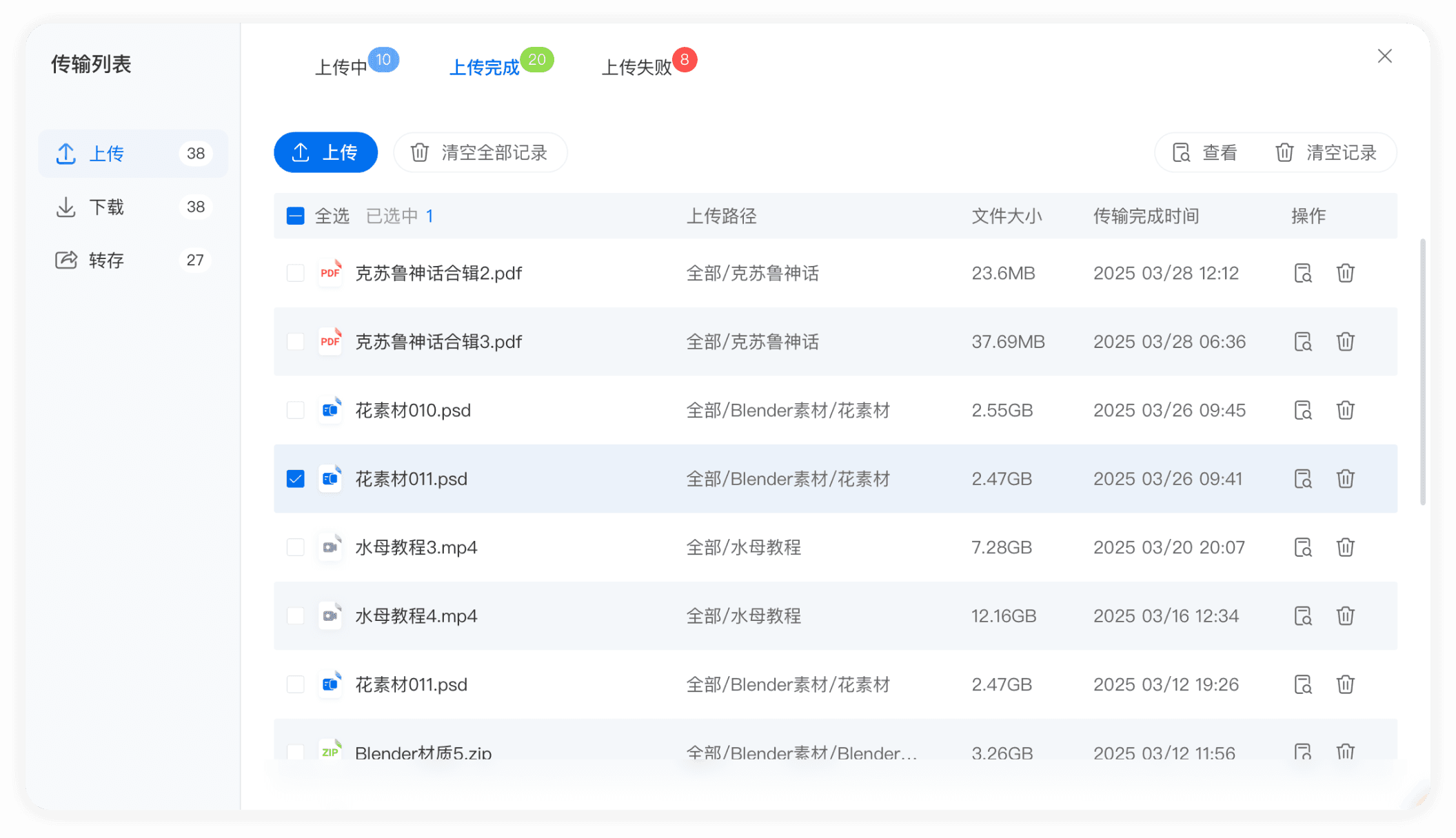
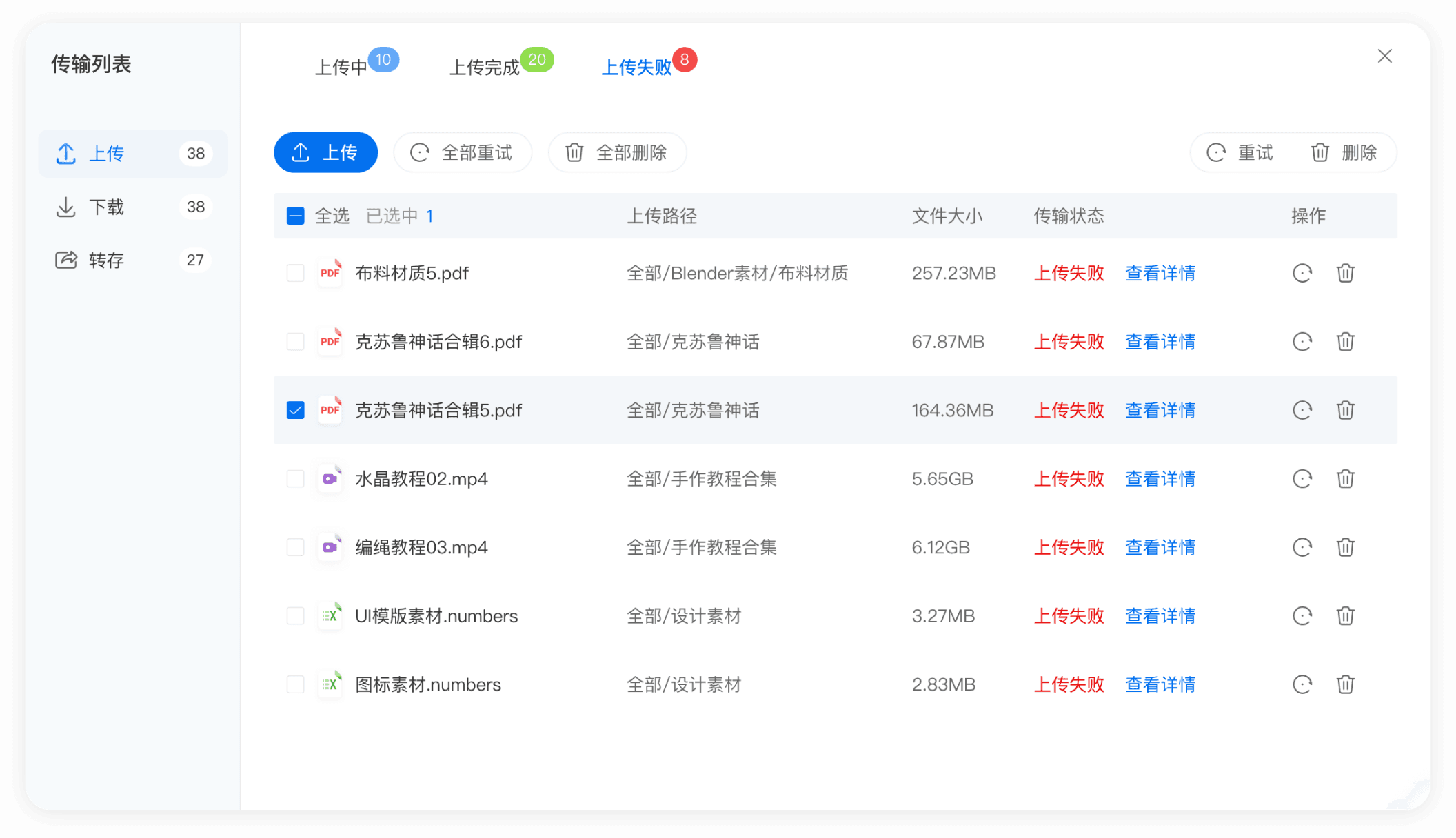
Asynchronous Task Queue
A unified transfer task manager centralizes all upload, download, and transfer tasks into an asynchronous queue, supporting pause/resume functions, priority adjustment, and failure retries to ensure reliability for large-scale file operations.
4
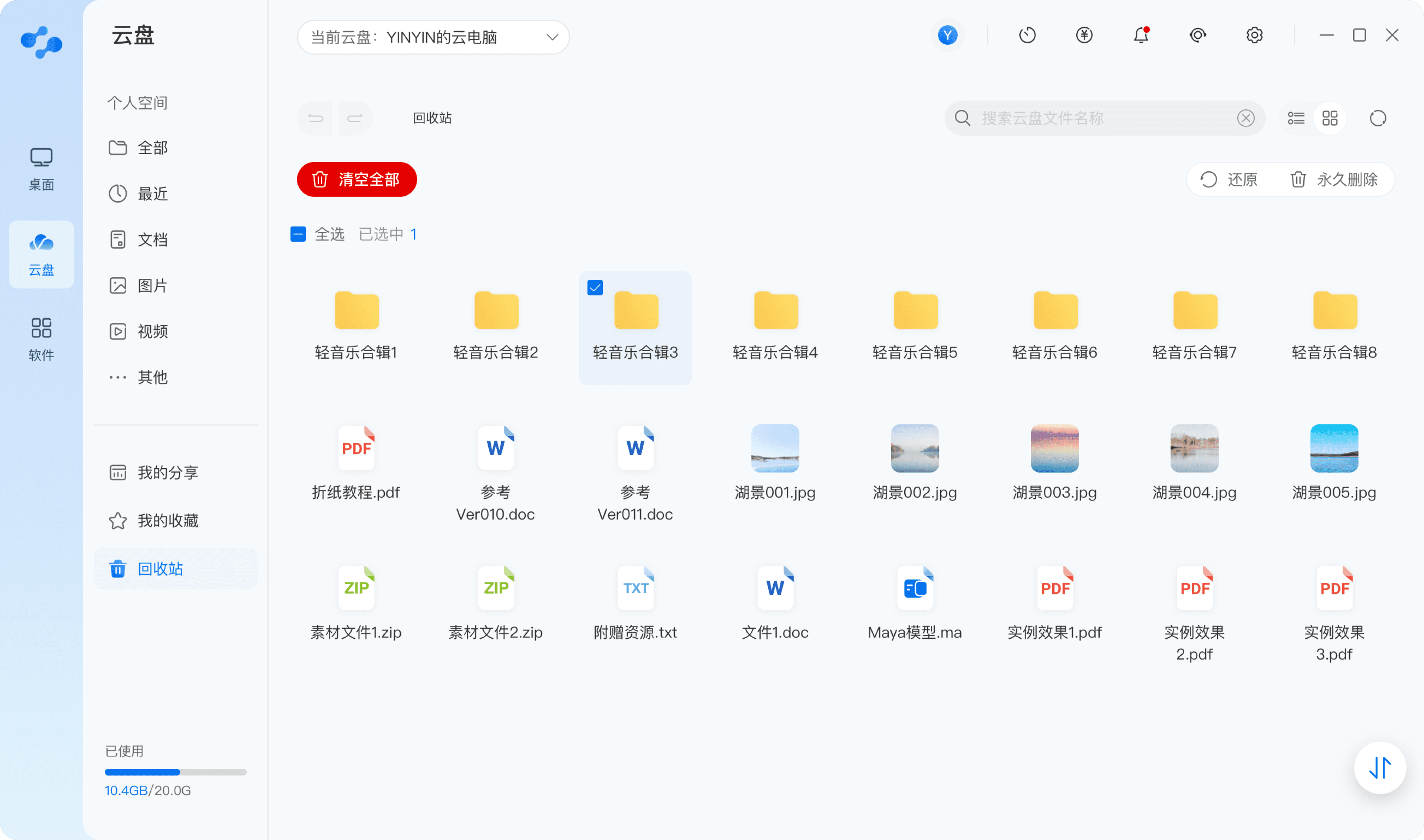
Cloud drive-trash bin
Structured Information Display
Guided Visual Feedback
Visual layer Visual Hierarchy
Uses zebra striping in lists (e.g., transfers) for readability. Clearly shows key details: name, path, size, status, progress.
Provides clear visual cues (color, outline, hints) during interactions like drag, hover, and load for better clarity and response.
6
7
Worry-Free Operation Assurance
Introducing a Transhi Bin mechanism that provides a safety buffer and recovery capability for all deletion actions, fundamentally eliminating accidental deletion risks and building users' operational confidence.
5
Business layer
Mobile version

Search file-category search
Quick file upload
Quick file upload-uploas to drive
Quick file upload-choose files
Quick file upload-choose images
Attribute-Based Quick Access
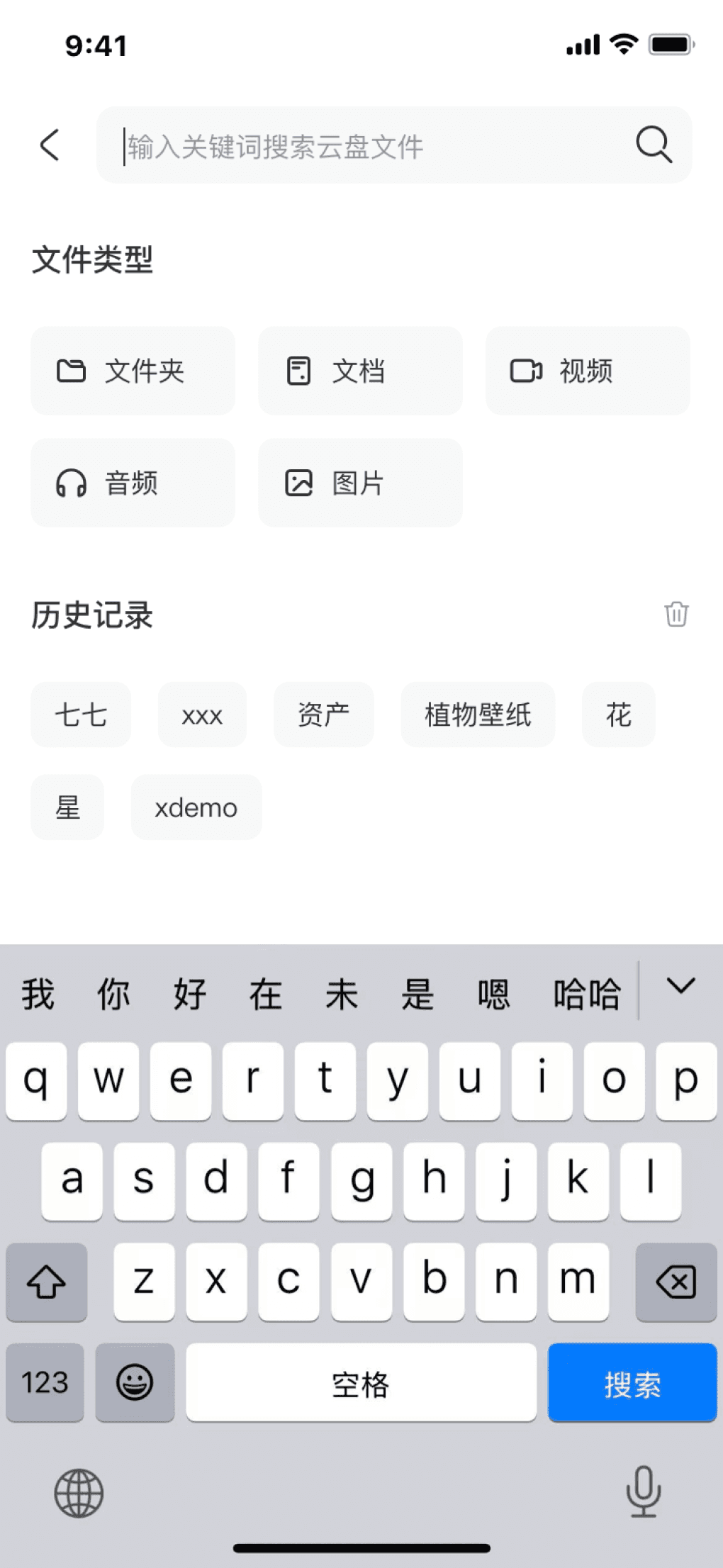
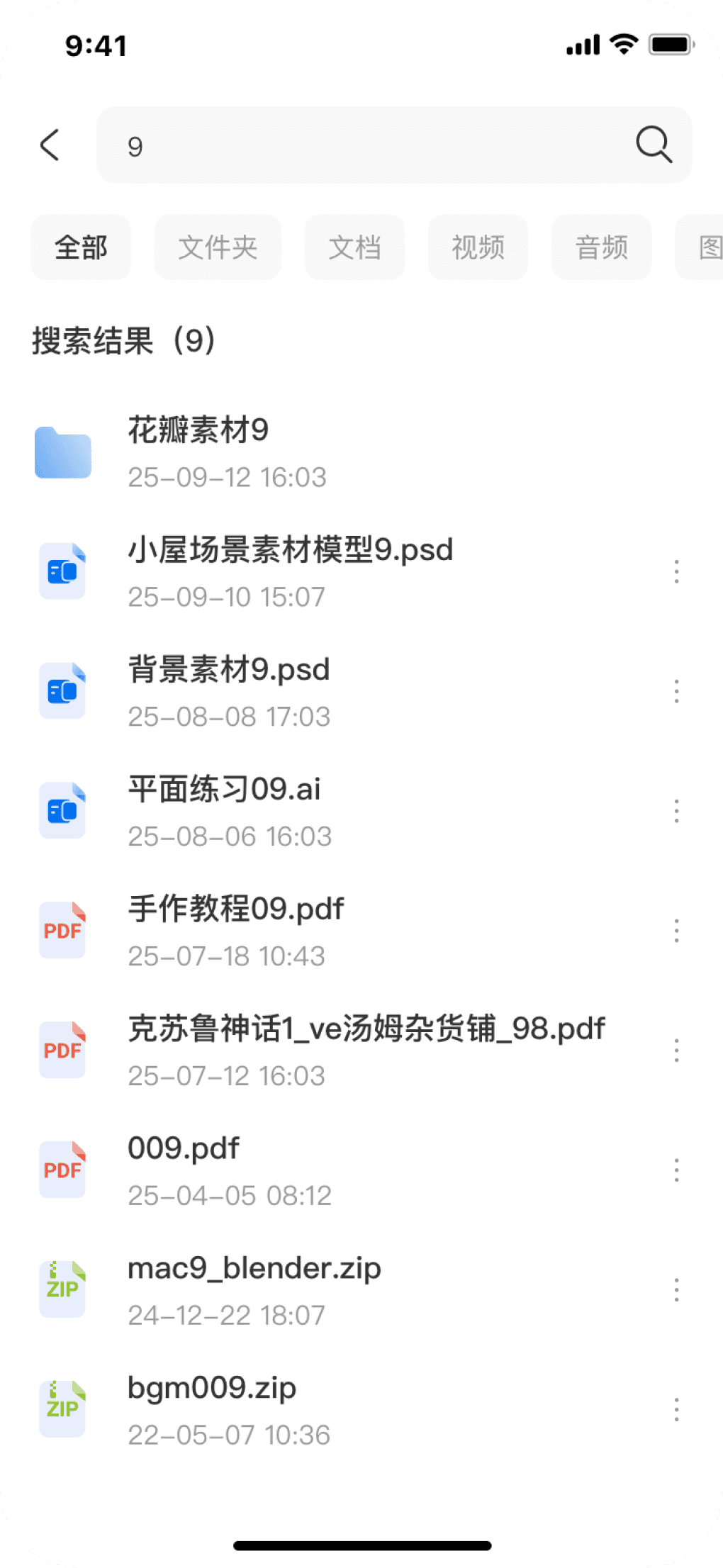
Quick and Precise Search Based on File Attributes
Contextual One-Tap Access
Building on keyword search, add file type filter tags to improve locating items in large result sets. Search history is also preserved for quick reuse, enabling a smooth workflow from "broad searching" to "refined filtering."
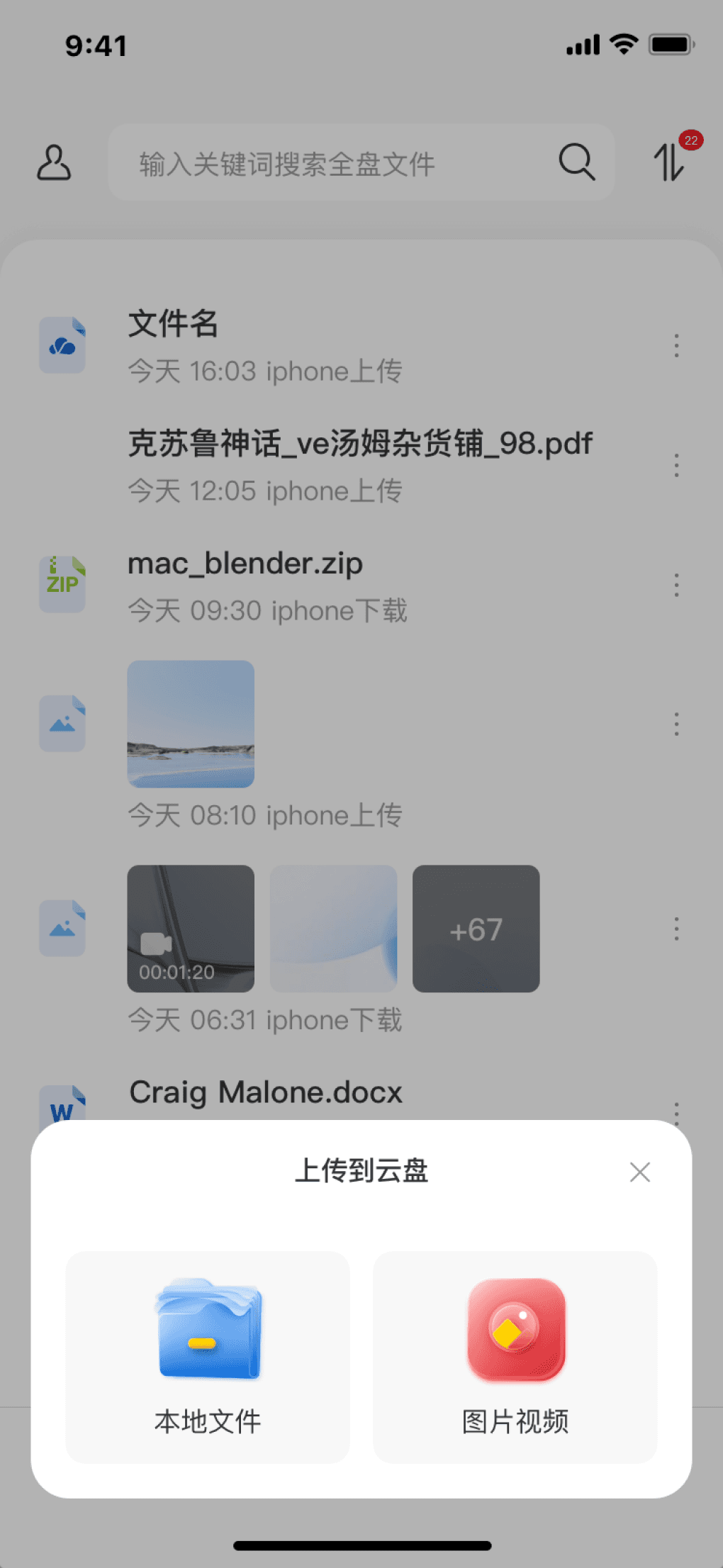
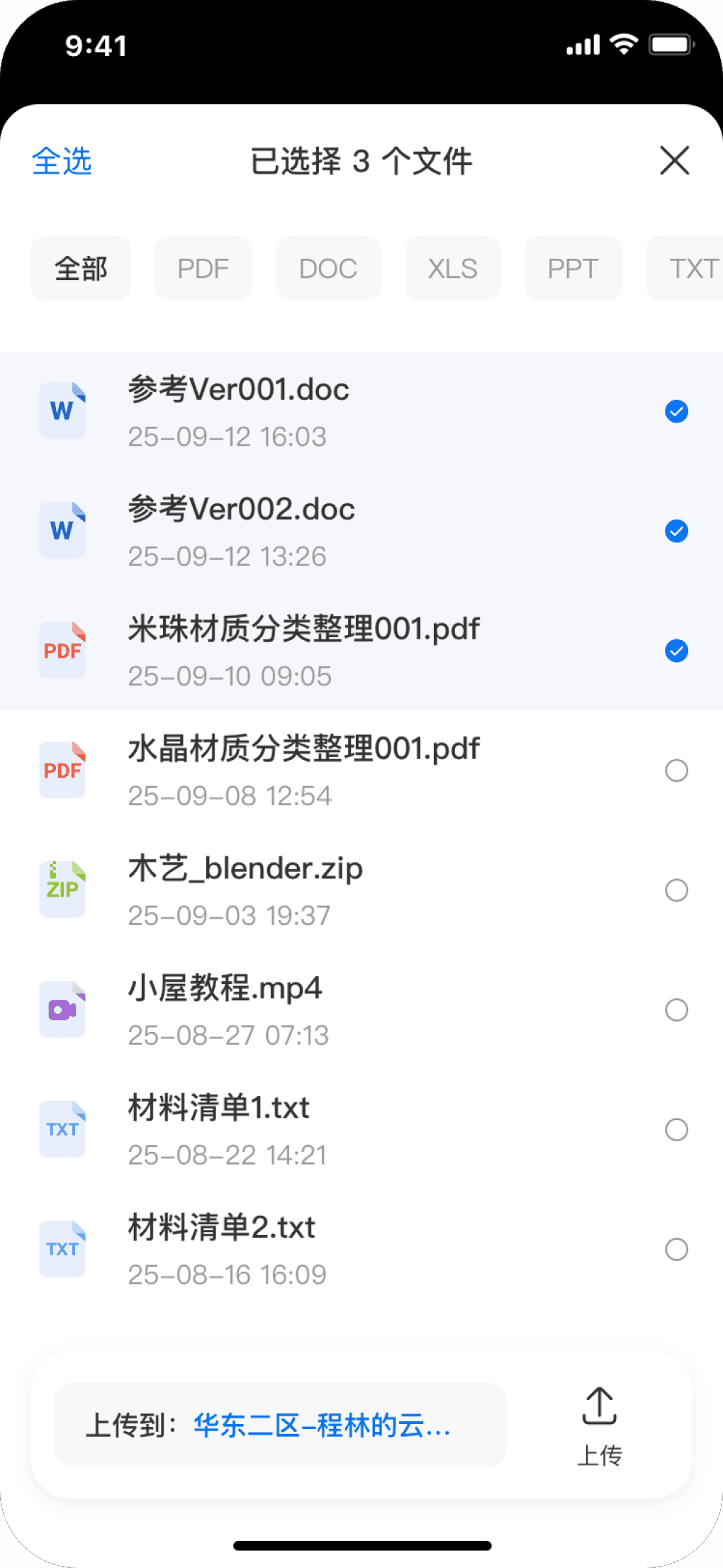
To address the pain points of deep upload paths and slow operations on mobile, a global floating upload button has been added to the main interface.
When clicked, it directly opens a file picker with type-based tabs (e.g., Photos, Documents), enabling instant batch selection. This turns the multi-step “find-filter-select” process into one action, boosting upload efficiency.
1
2

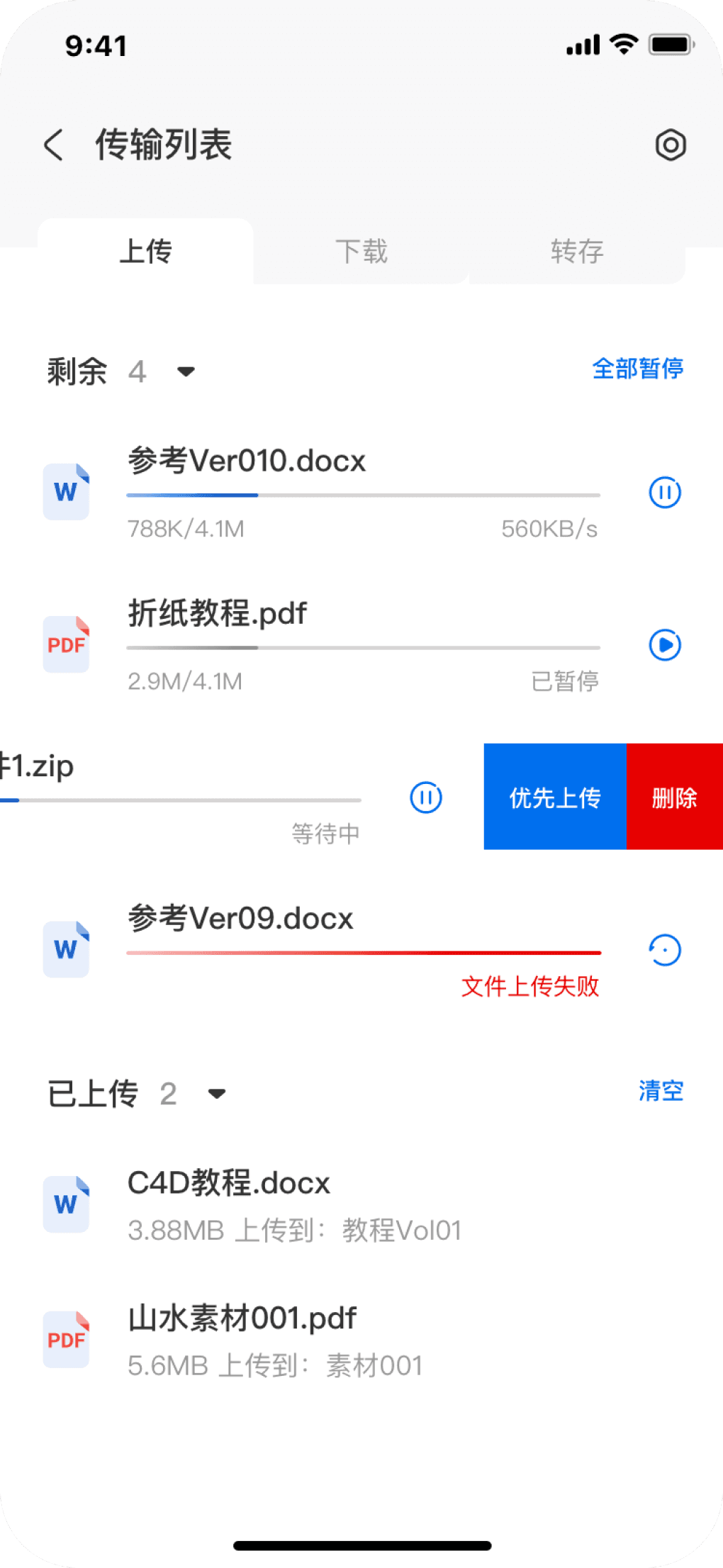
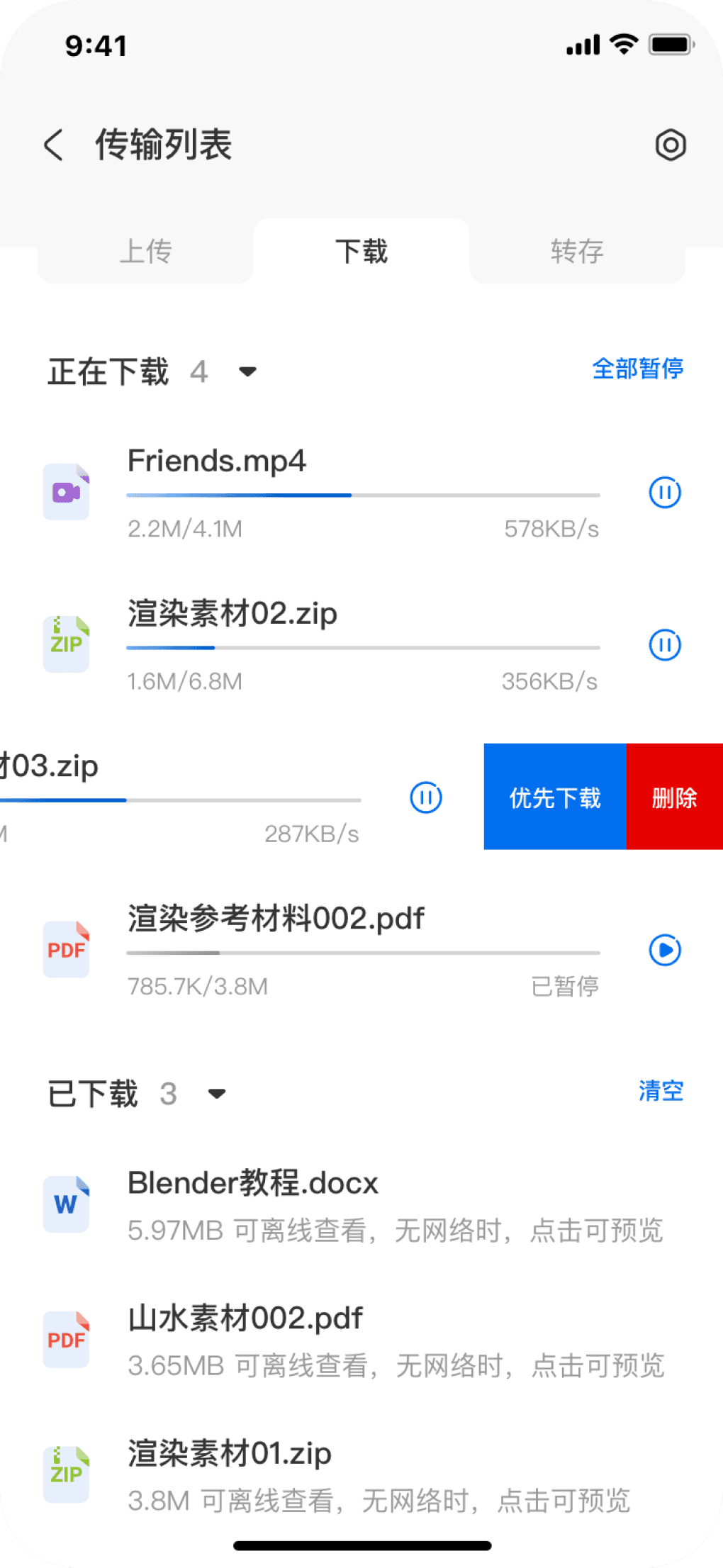
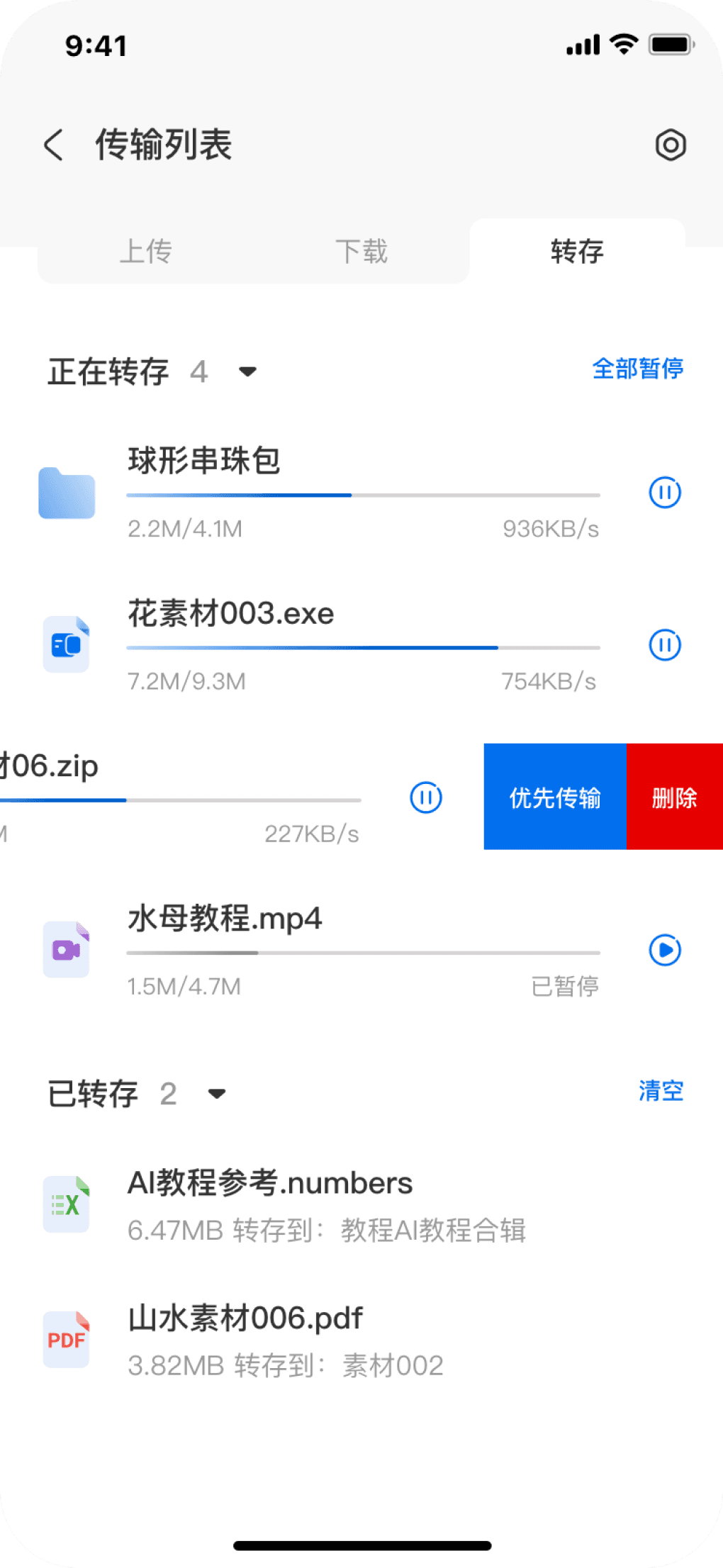
Centralized & Controllable Task Hub
Global Control
Individual Task Management
Transparent Feedback
All transfer tasks (uploads, downloads, copies) are consolidated into a clear task hub, organized by top tabs. Each tab supports one‑click actions like "Start/Pause All" and "Clear Completed Tasks".
Quick left‑swipe actions for single tasks for delete and prioritize.
Dynamic progress paired with real‑time metrics—transferred data, total size, and current speed—ensures fully transparent and intuitive transfer status.
3
4
5
Transfer list-upload
Transfer list-download
Transfer list-move
Cloud drive main screen-shared by me
Secure Sharing with Granular Controls
Integrated file sharing to streamline cross-user collaboration.
Proposed design
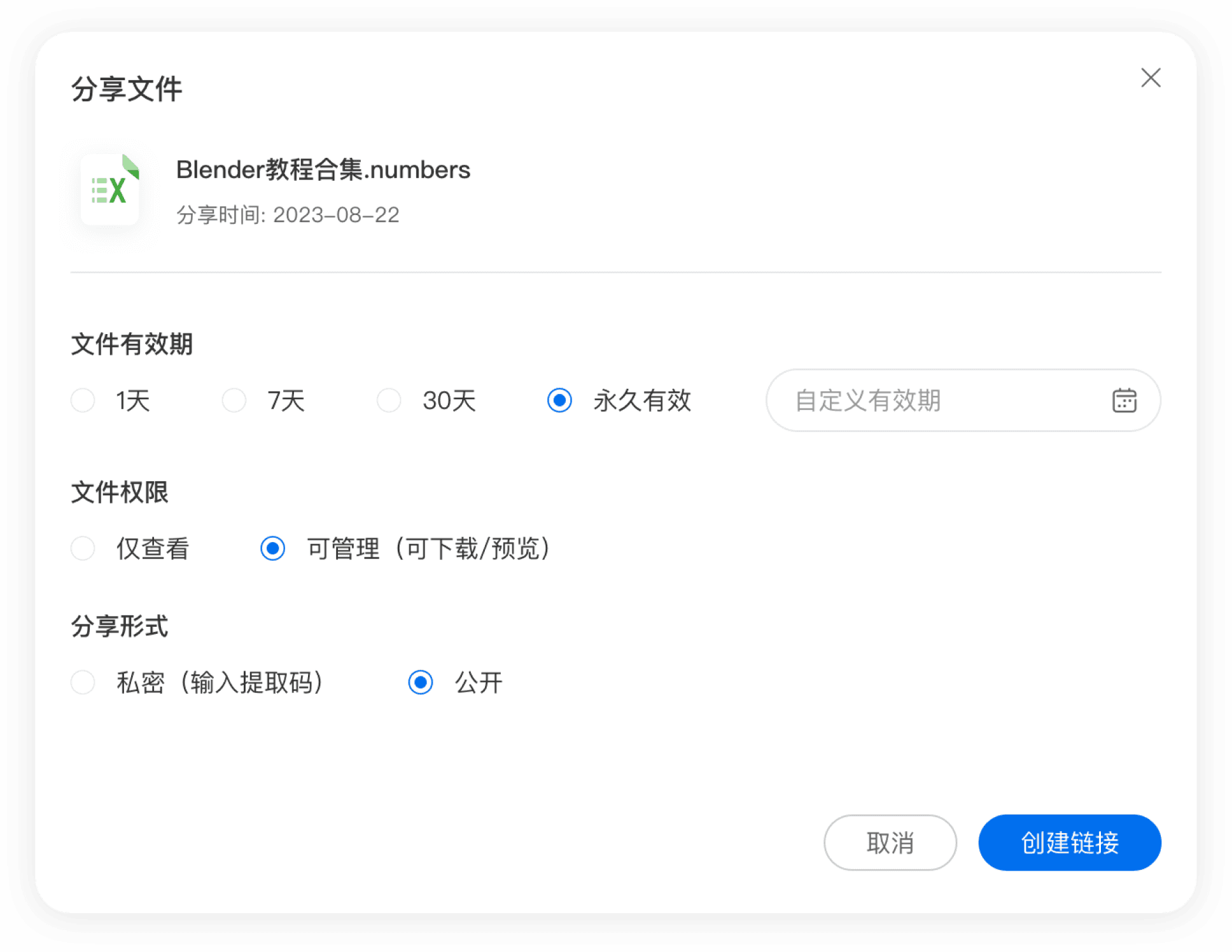
Share-create share link
Create share link success

Cloud drive main screen-shared with me
Intuitive & Secure Sharing Path
Controlled Sharing with Built-In Security
Consolidated Completion Feedback
Proactive Delivery
Offers preset expiration options, multi-level file permission controls, and supports both private and public sharing methods to meet varied security needs across different scenarios.
Upon successful sharing, a consolidated pop-up displays key information like the link and access code, with a "one-tap copy" function to ensure transparency and boost operational efficiency.
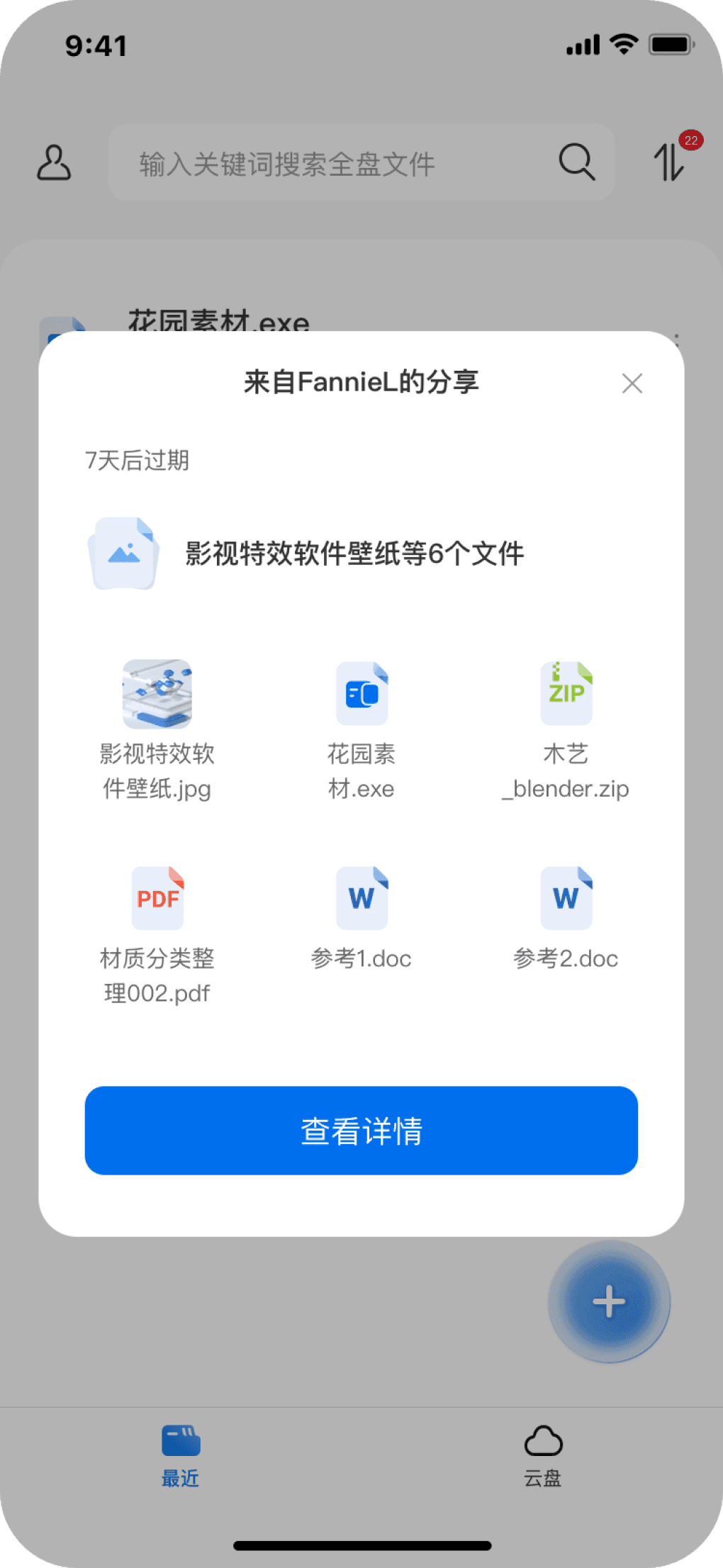
The system proactively sends sharing notifications to recipients. A tiled file preview provides an immediate, intuitive "first impression" of the shared content, enhancing transparency and making the receiving experience seamless.
1
2
3

Cloud drive main screen-get shared file
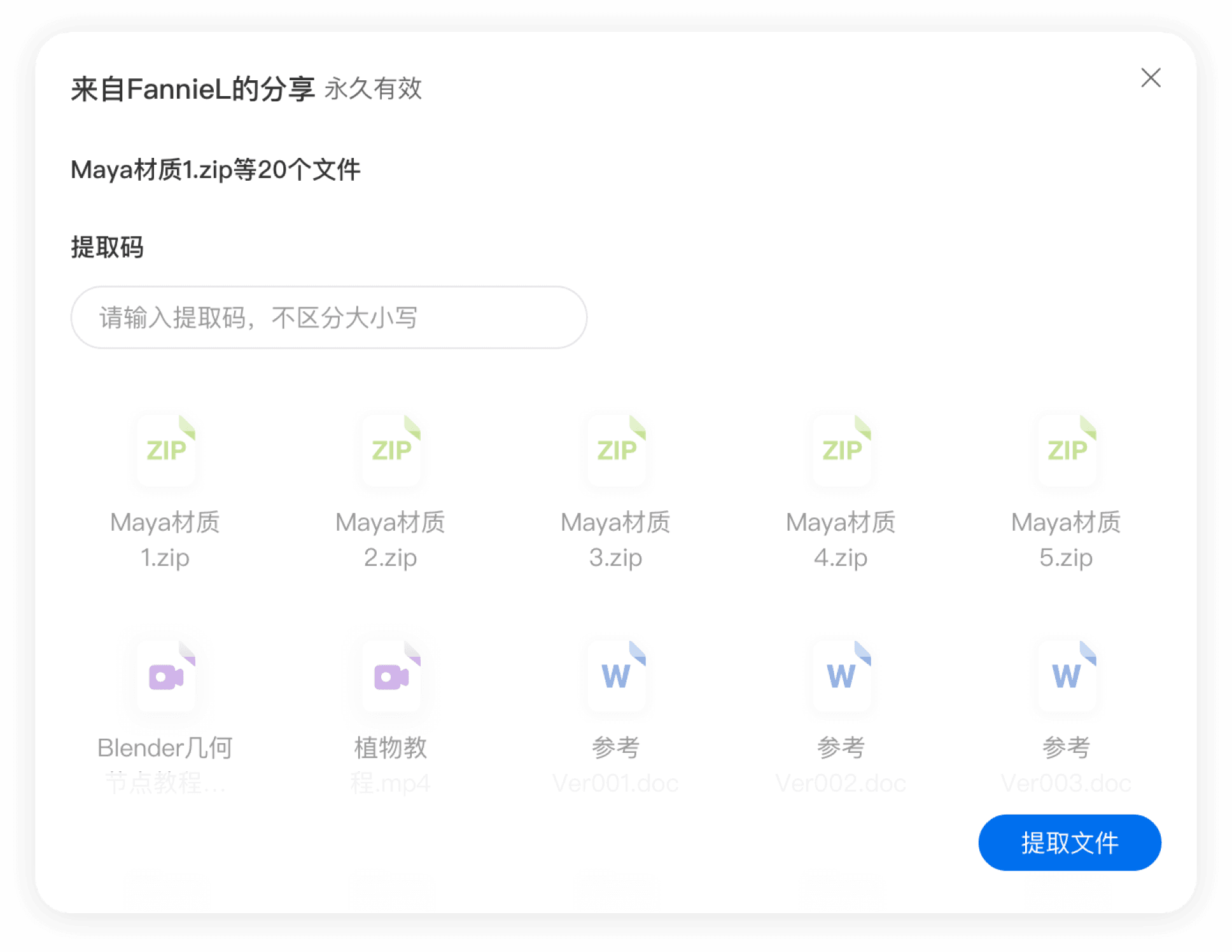
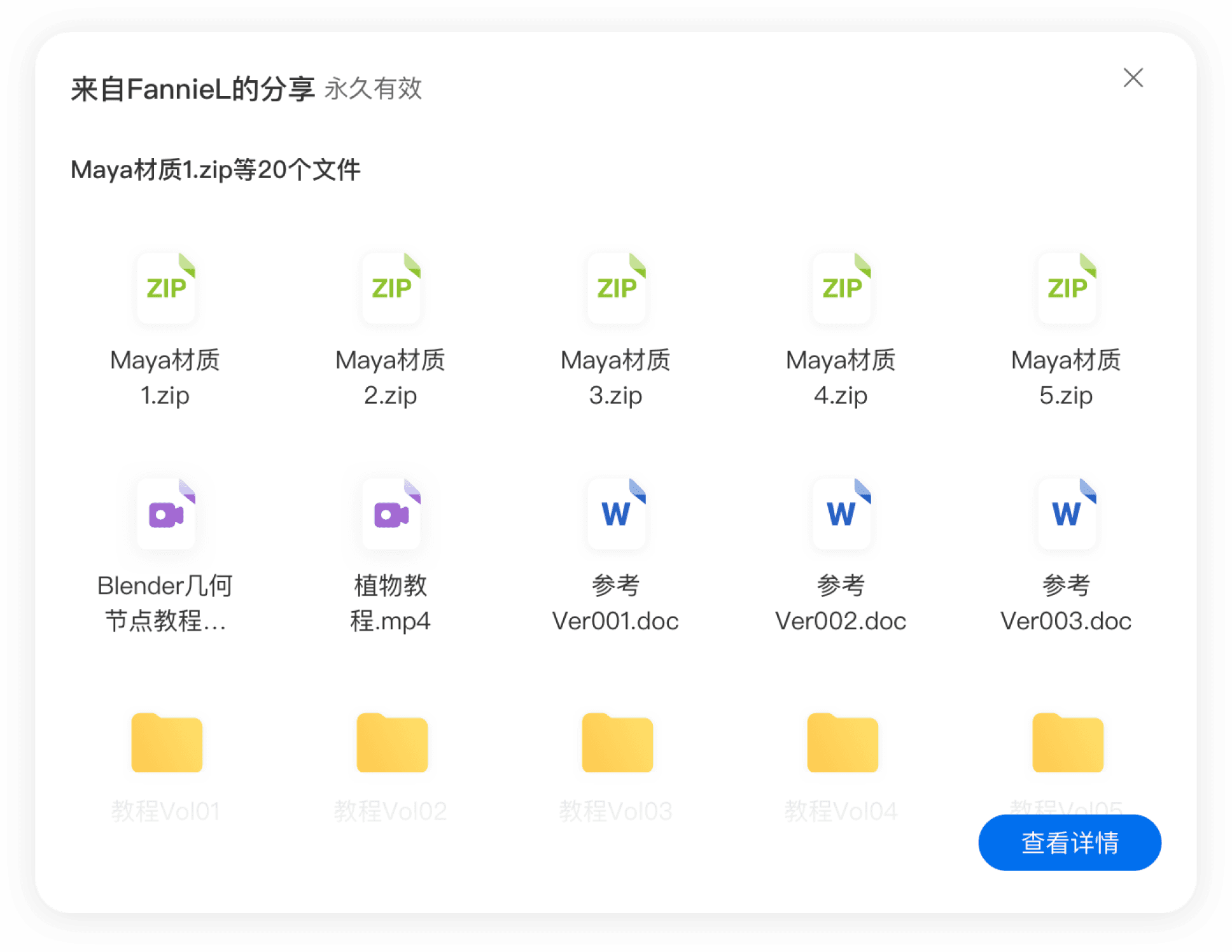
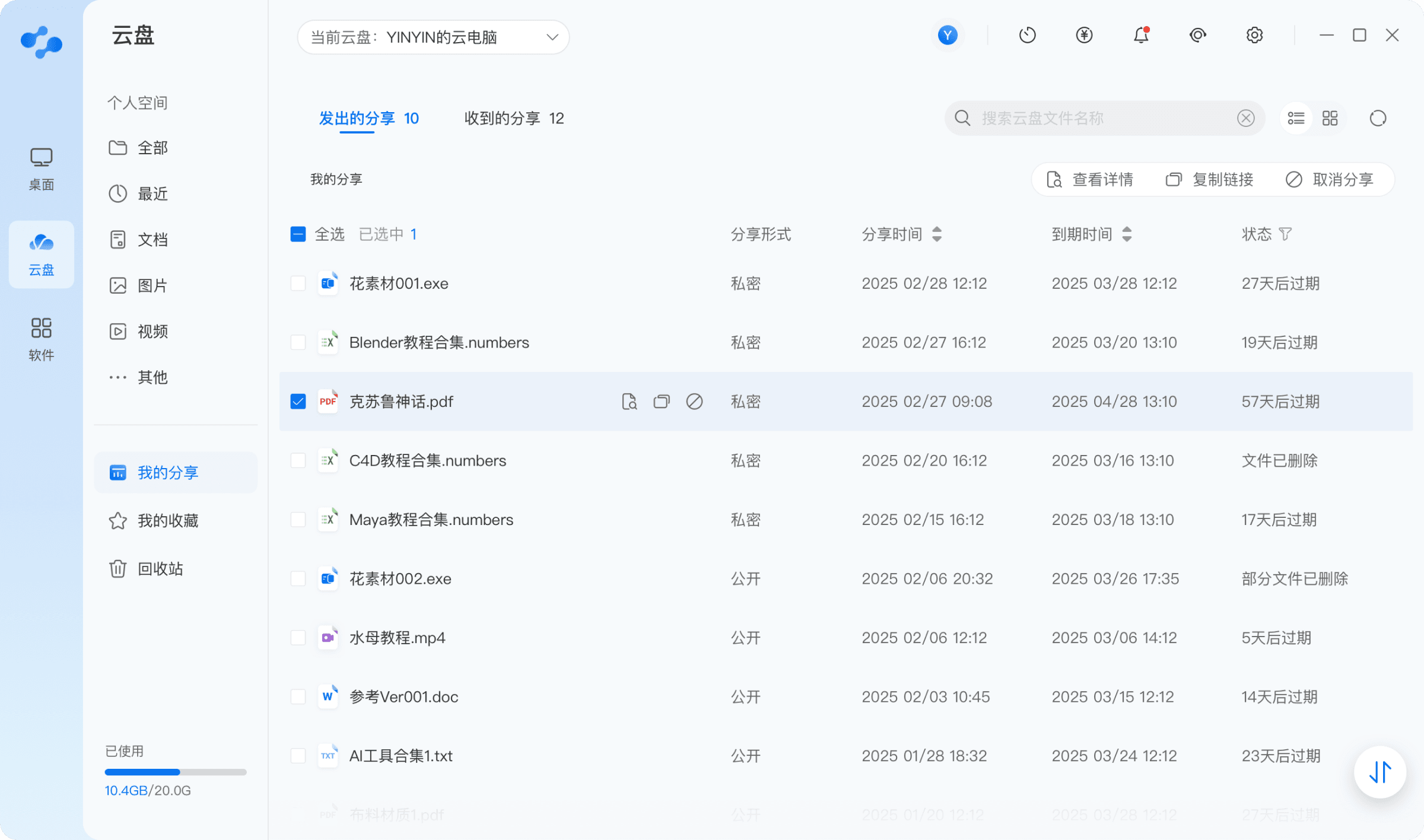
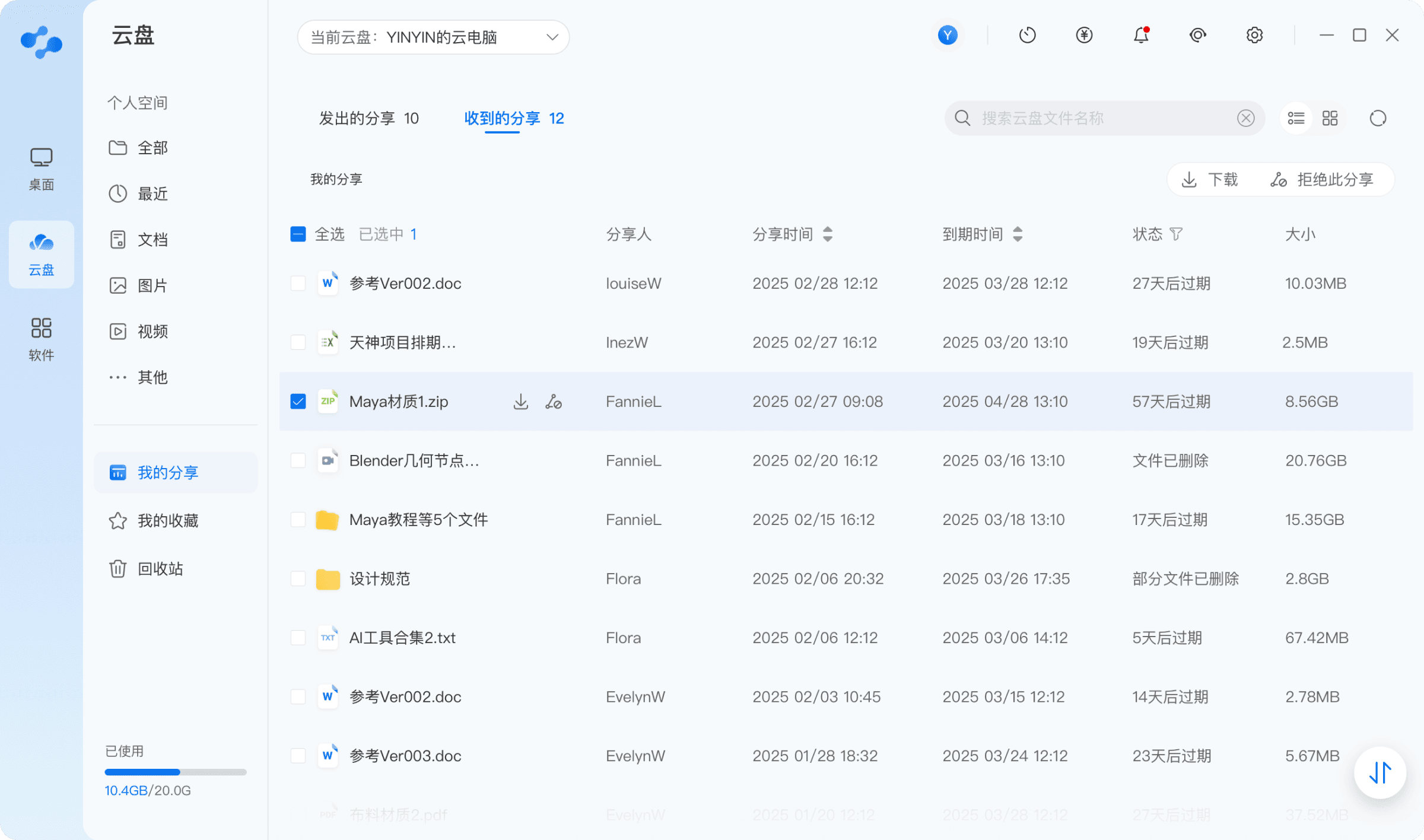
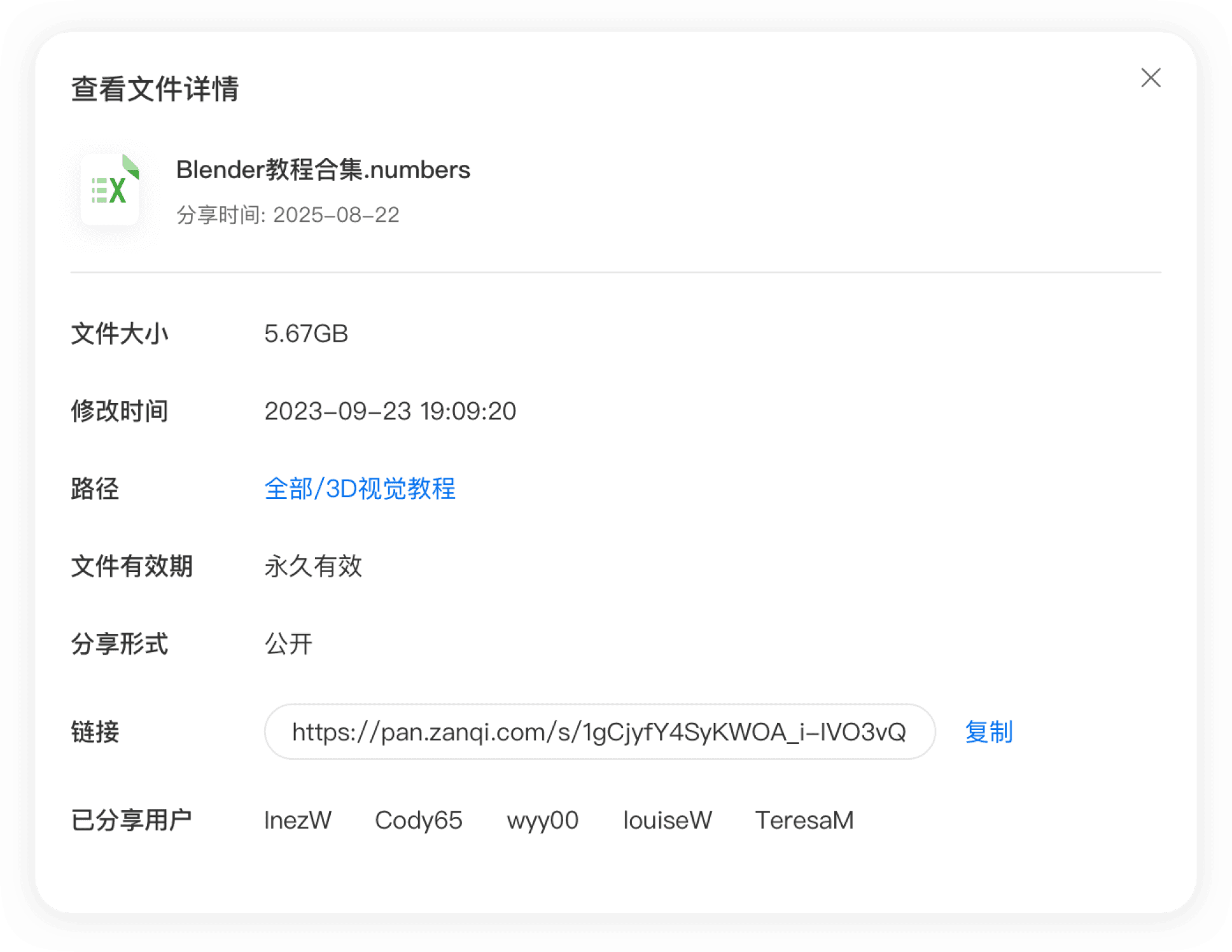
Complete Lifecycle Management for Controlled Sharing
Aggregated Sharing Hub
Efficient Management Actions
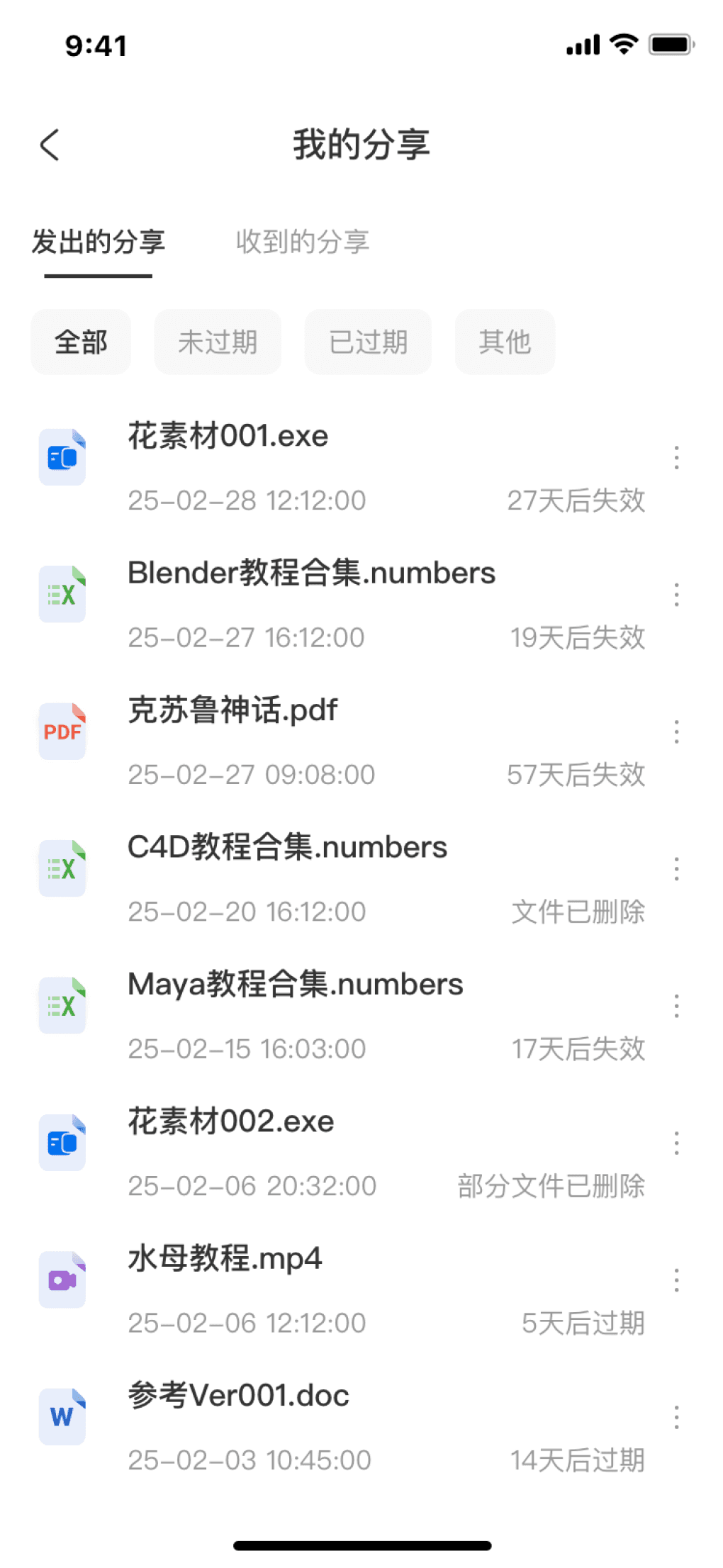
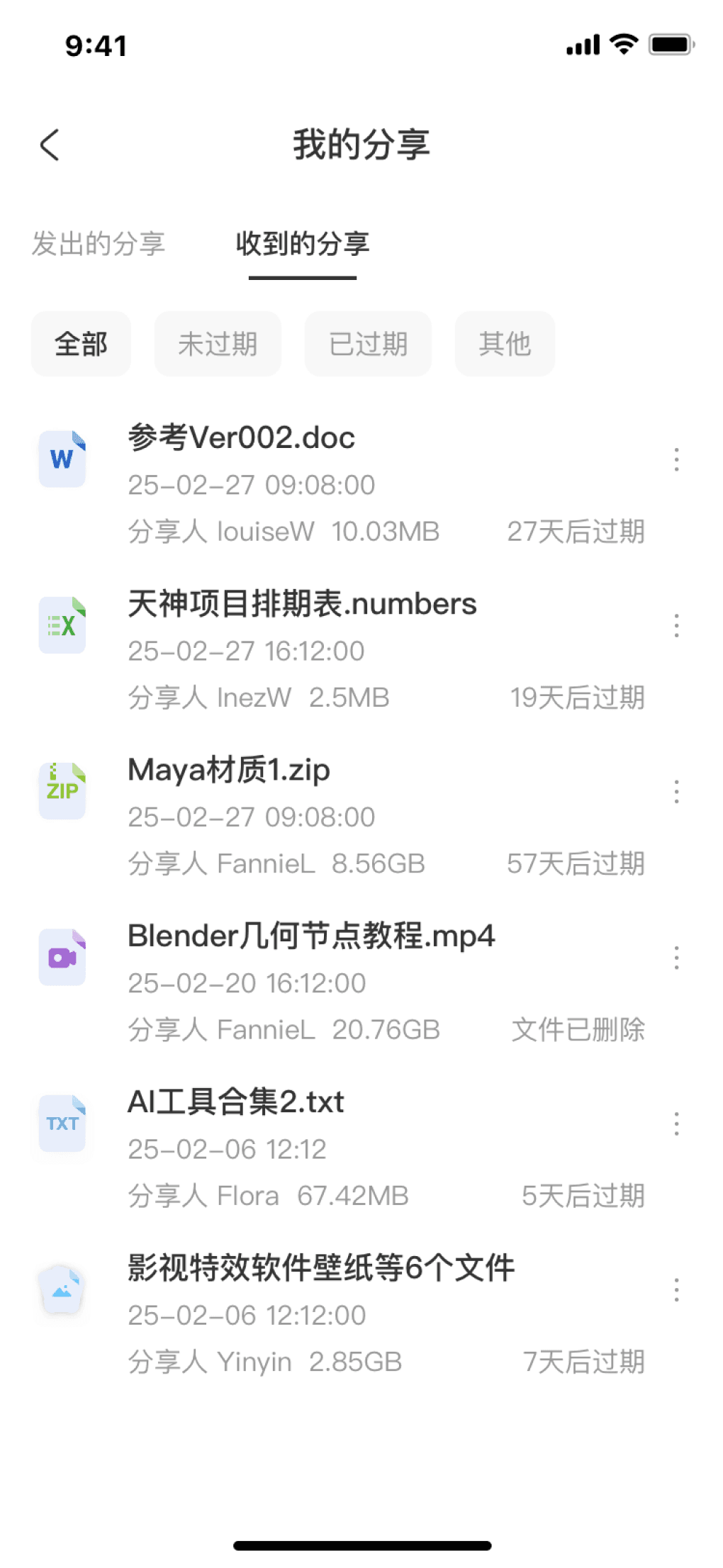
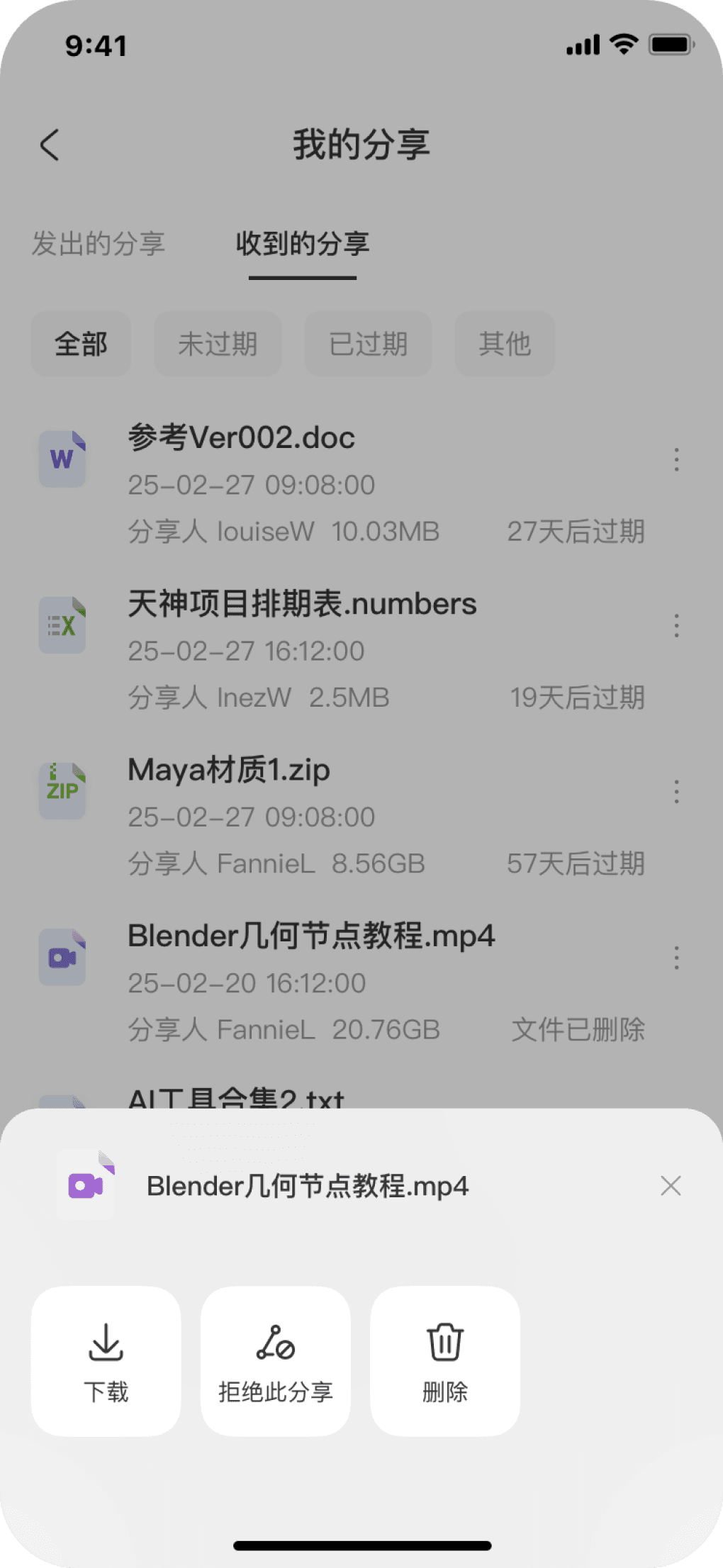
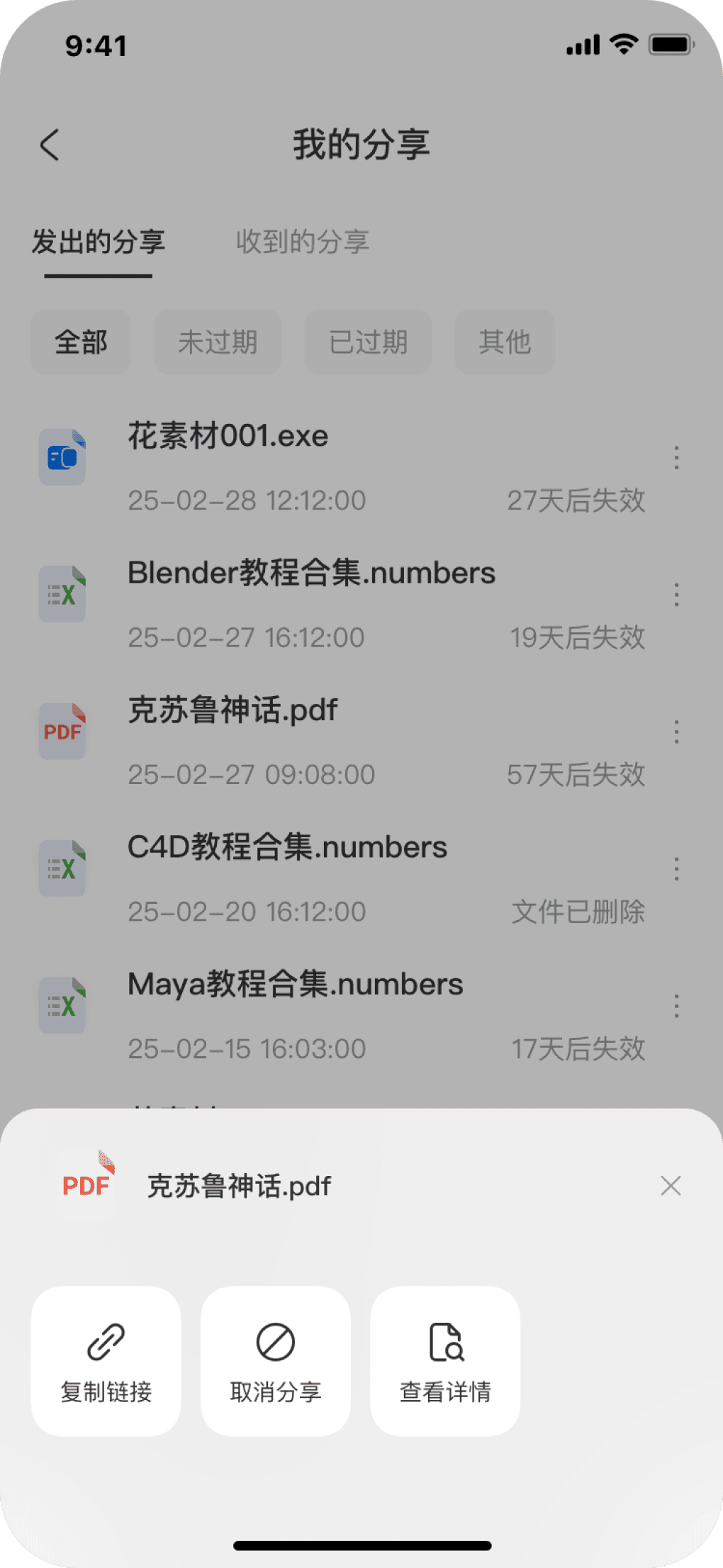
A centralized space for users to manage all sharing activities—both sent and received. It clearly lists the sharer, file, expiration time, and real-time status, boosting control and transparency.
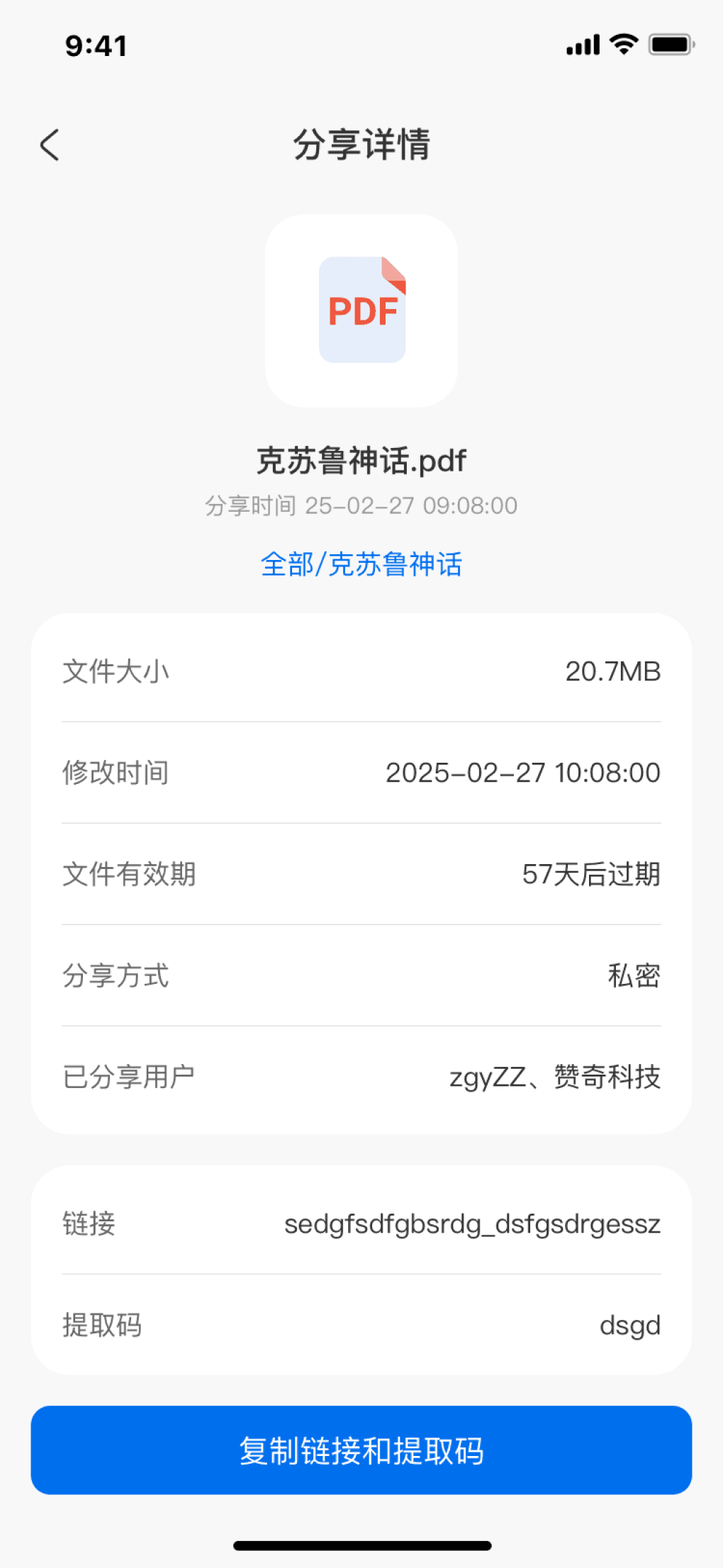
This unified interface grants core controls to both sides of a share. The initiator can easily manage sent links (copy, view details), while the recipient can preview or proactively decline irrelevant shares. This enables efficient, end-to-end management of collaborative content from initiation to receipt.
4
5
Mobile version
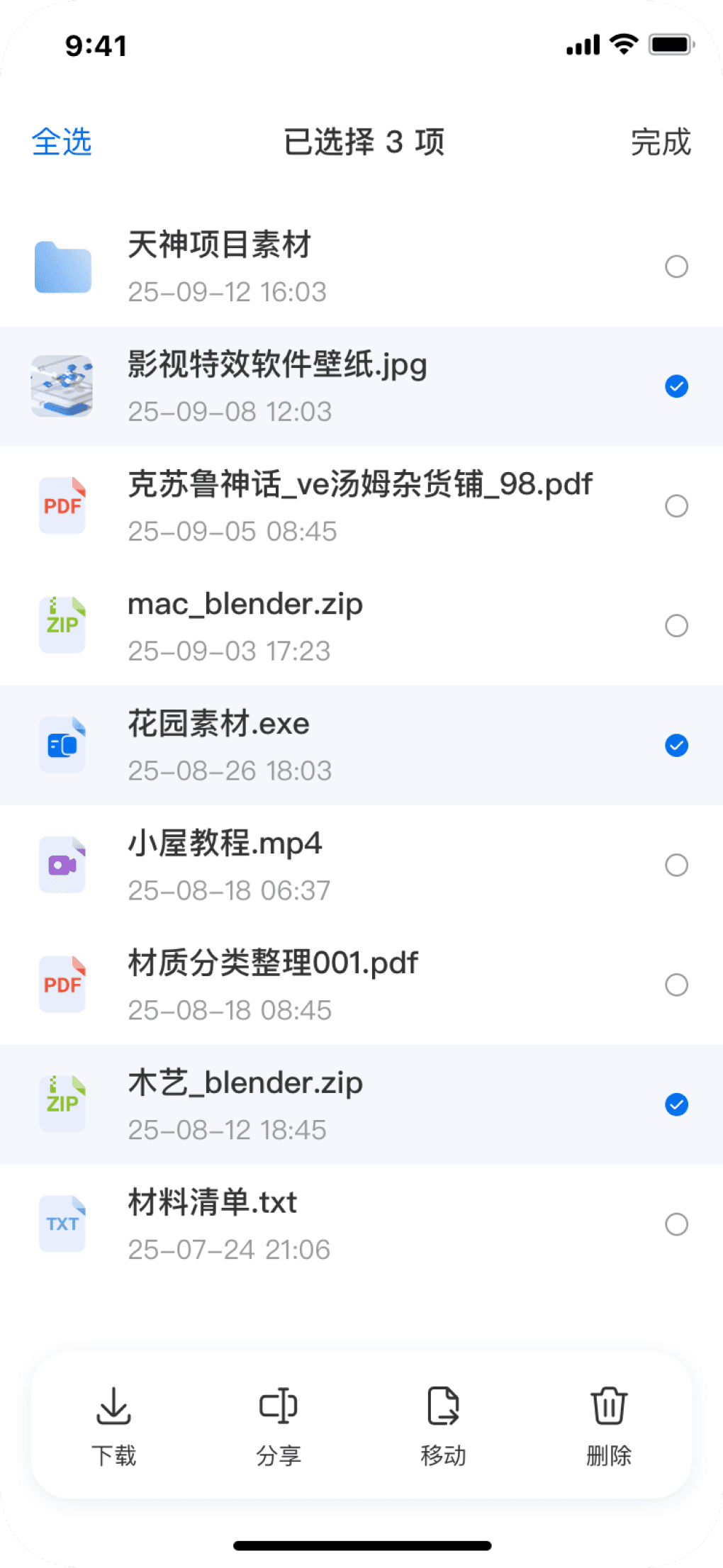
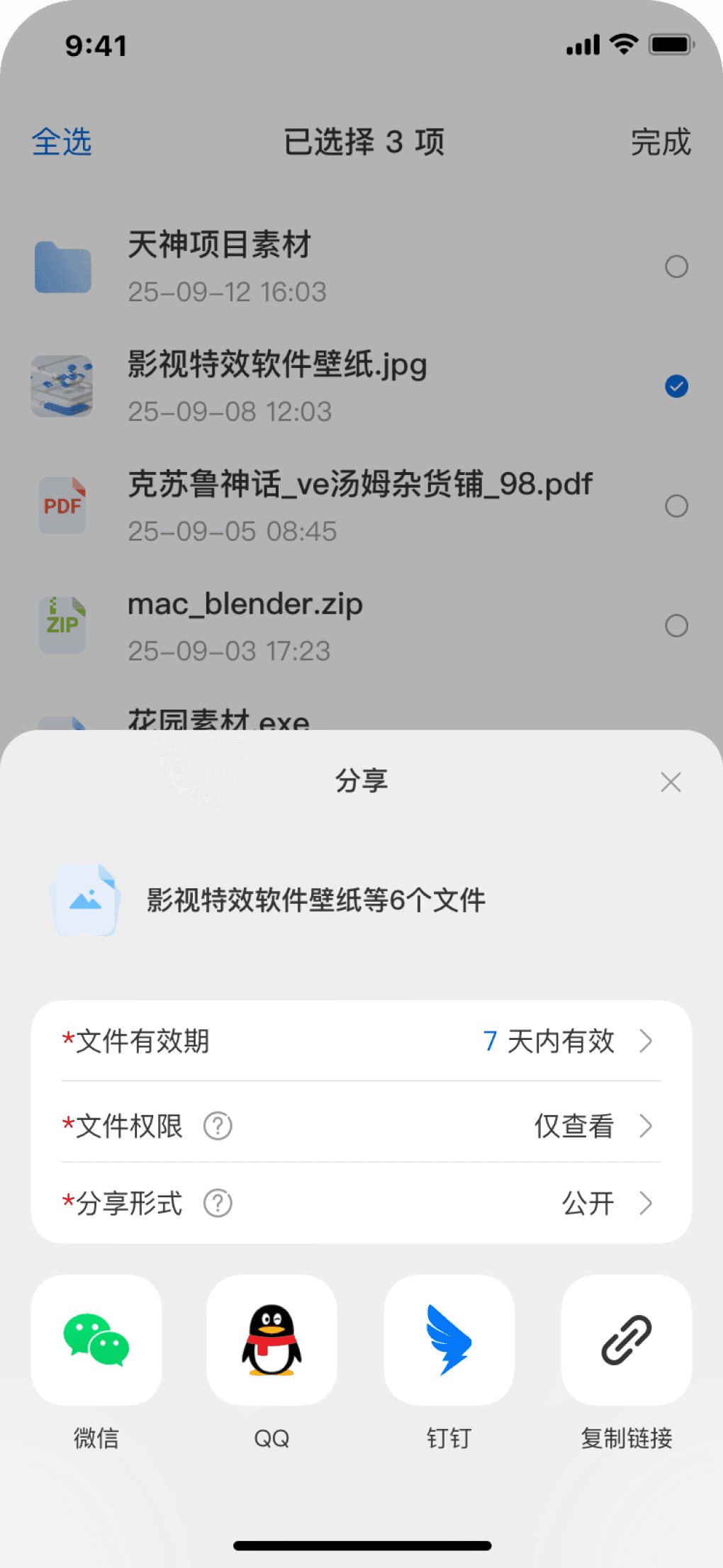
Cloud drive-select files
Cloud drive-select files-share files

Receive share-access code
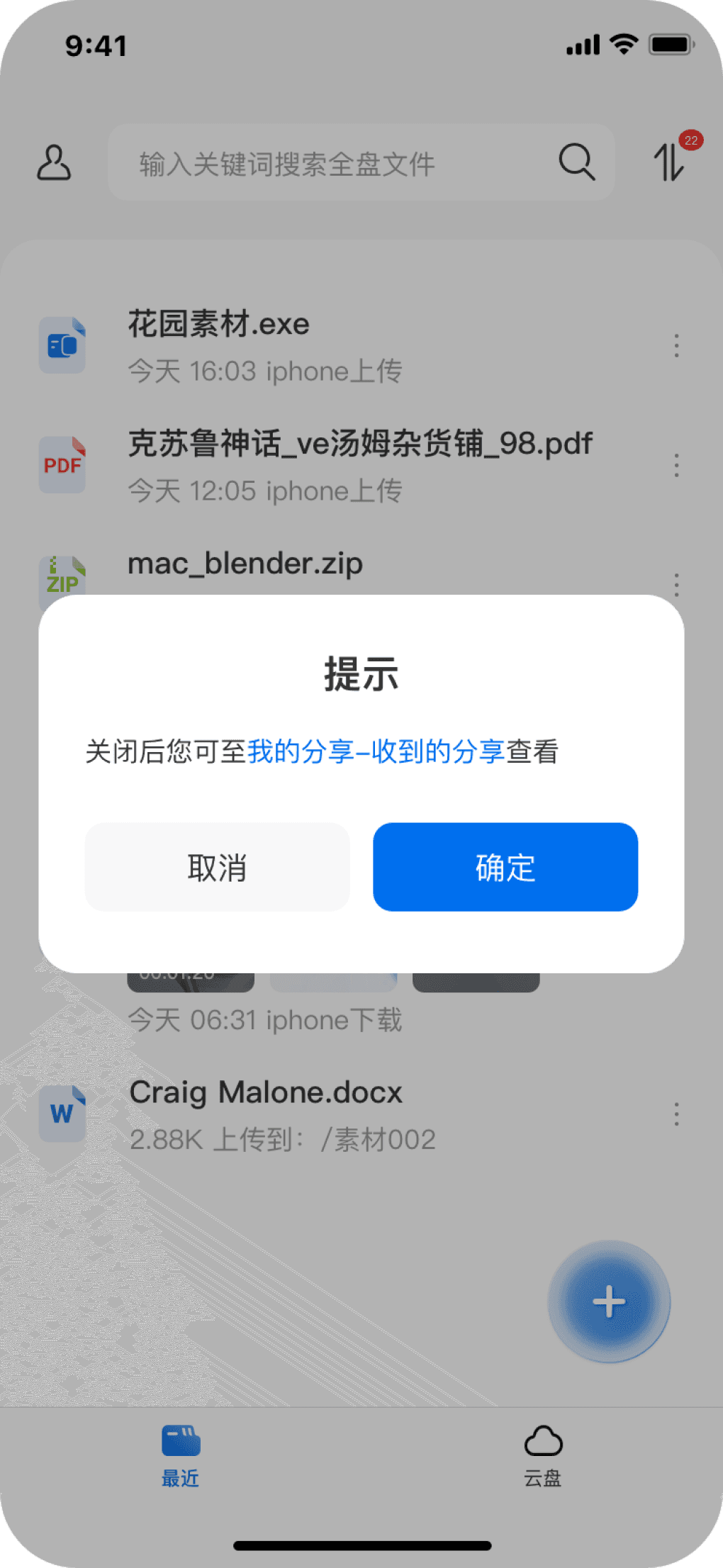
Receive share-share preview
Receive share-head to view
Profile-shared by me
Profile-shared by me-file operation
Profile-shared by me-details
Profile-shared with me-file operation
Profile-shared with me
Create share
Receive share
Lightweight One‑Tap Sharing Flow
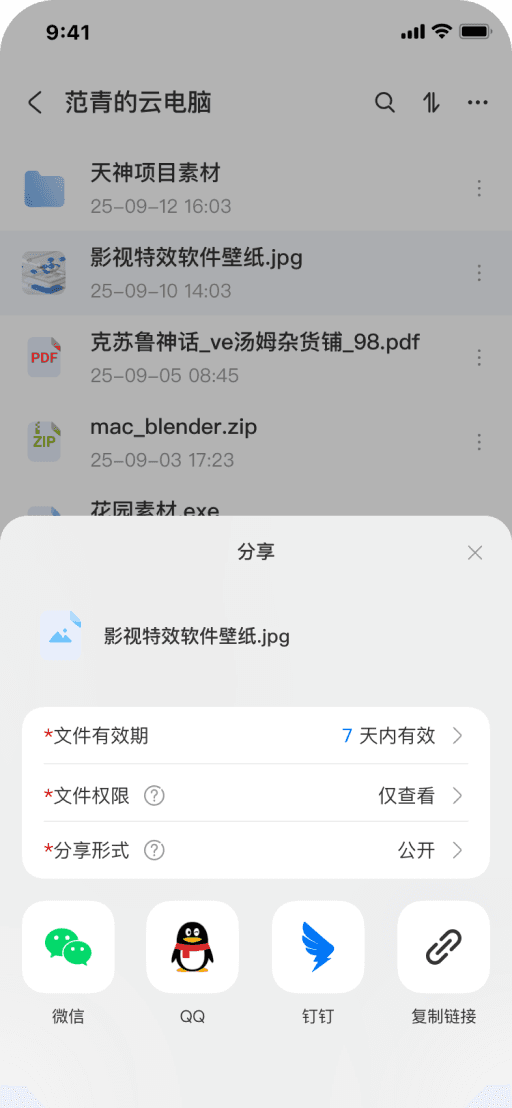
• Users can quickly start sharing by long‑pressing a file and selecting the share option. Core settings (permissions, expiration, sharing channel) are consolidated in a bottom modal panel, enabling quick configuration and one‑tap link generation. This creates a seamless “select‑set‑complete” loop that meets mobile, rapid‑sharing needs.
1
Bidirectional Sharing Management
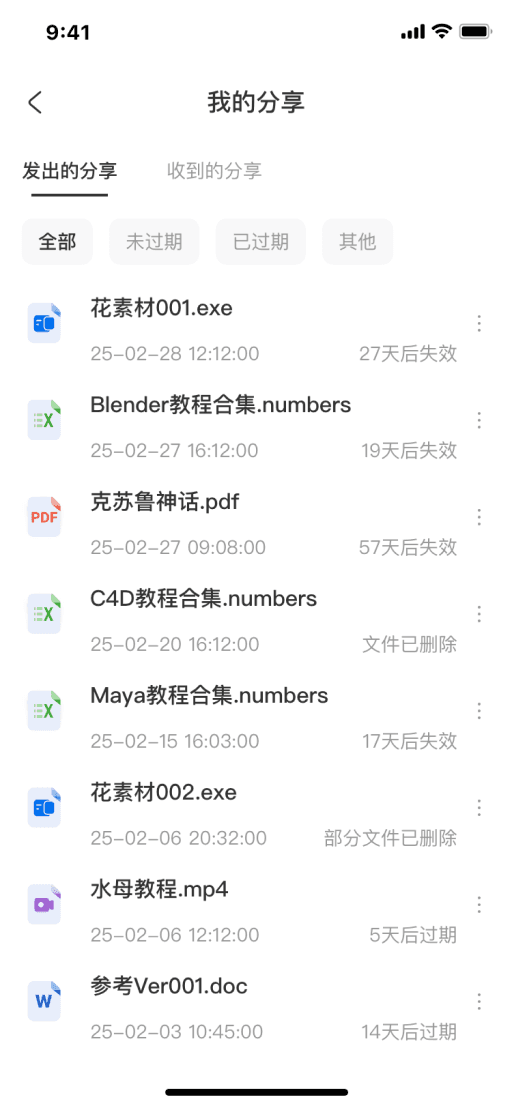
• The "My Shares" interface provides a unified management entry, clearly distinguishing collaboration contexts through dual tabs for "Sent" and "Received". Each share type is presented in a list that consolidates key status indicators and quick-action shortcuts, enabling users to rapidly locate and manage shared content in both directions—delivering efficient and transparent bidirectional collaboration control.
2
Core File Management Experience Design
A streamlined mobile experience that puts core file operations at your fingertips.
Mobile version
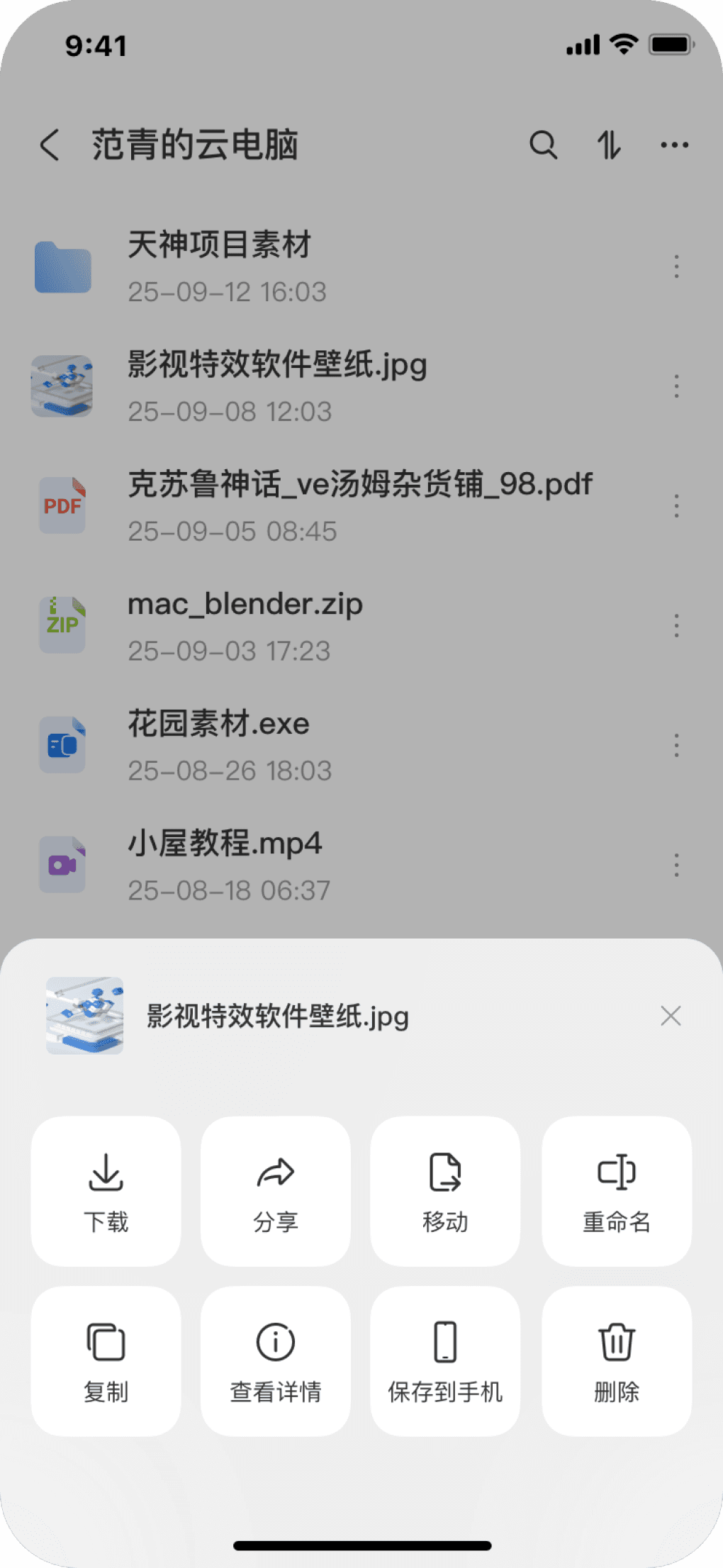
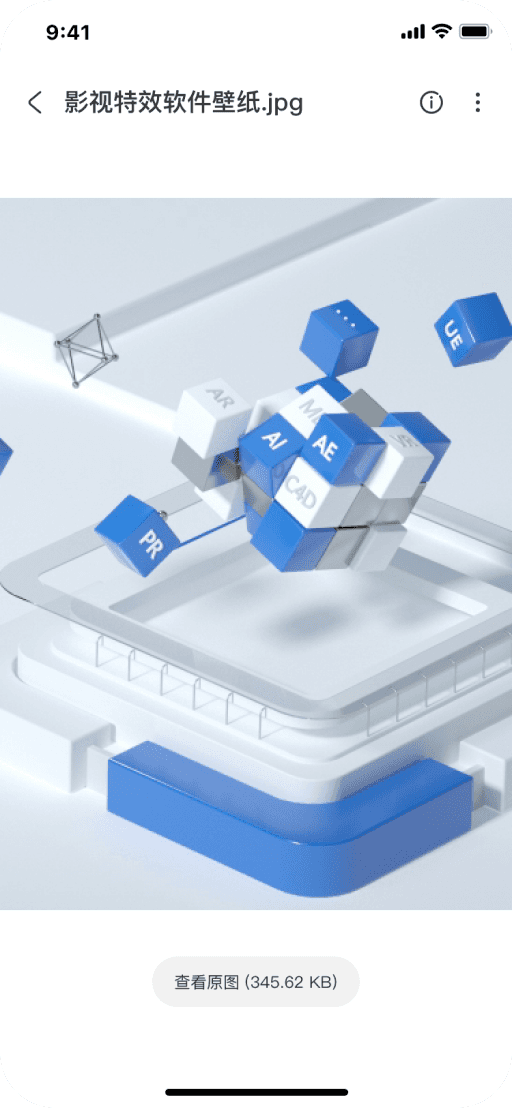
View image
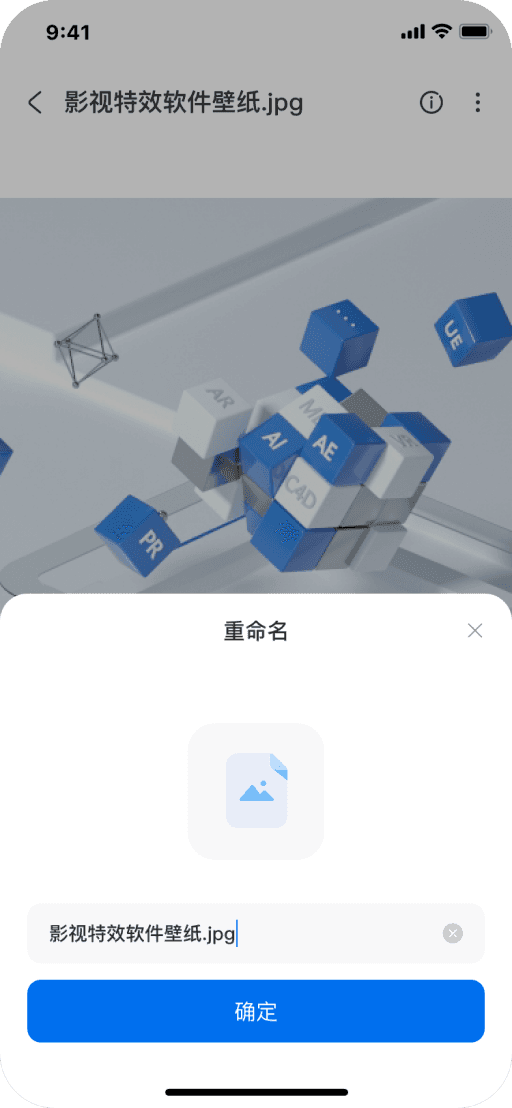
Rename
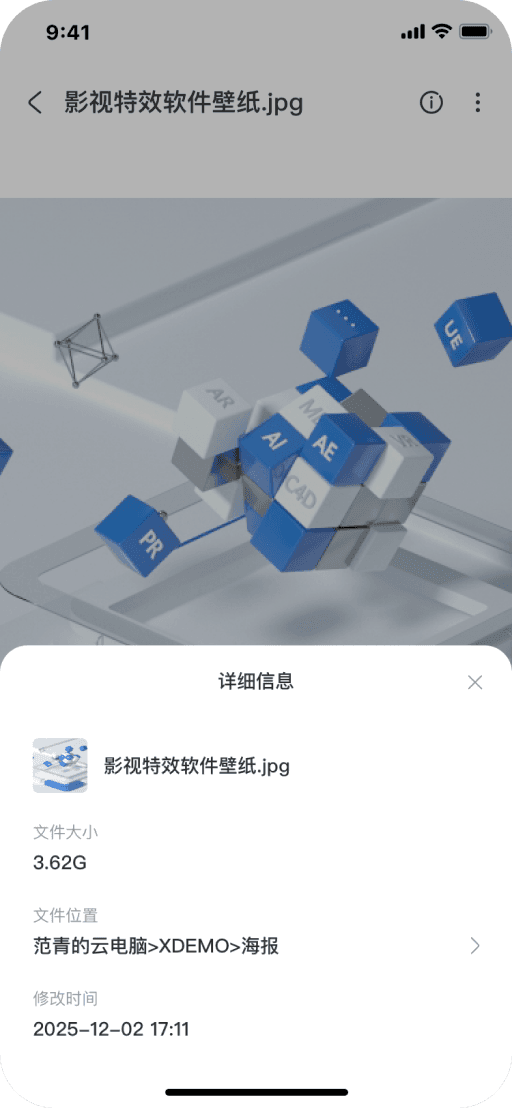
View details
Share
Move files


Download complete
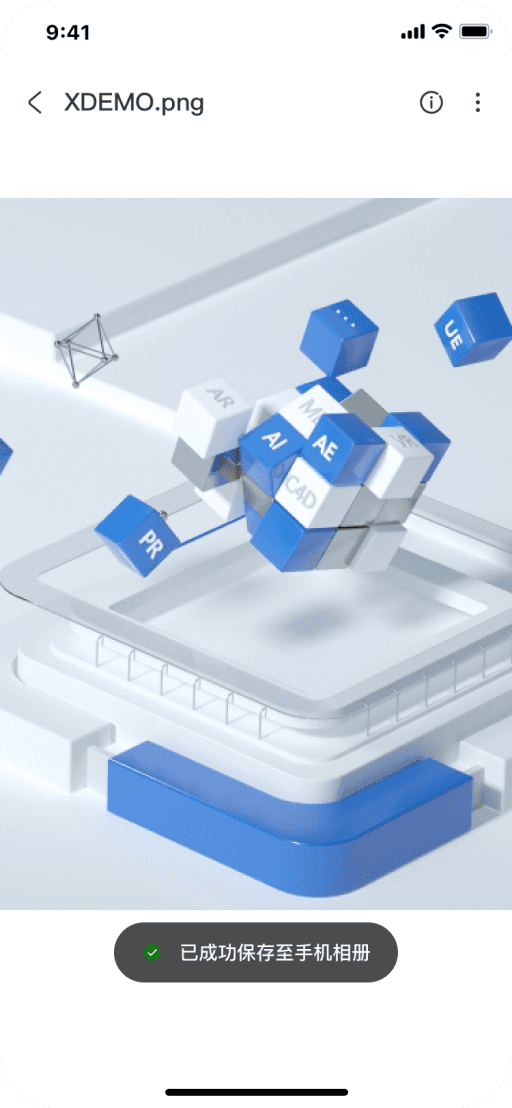
Save to phone
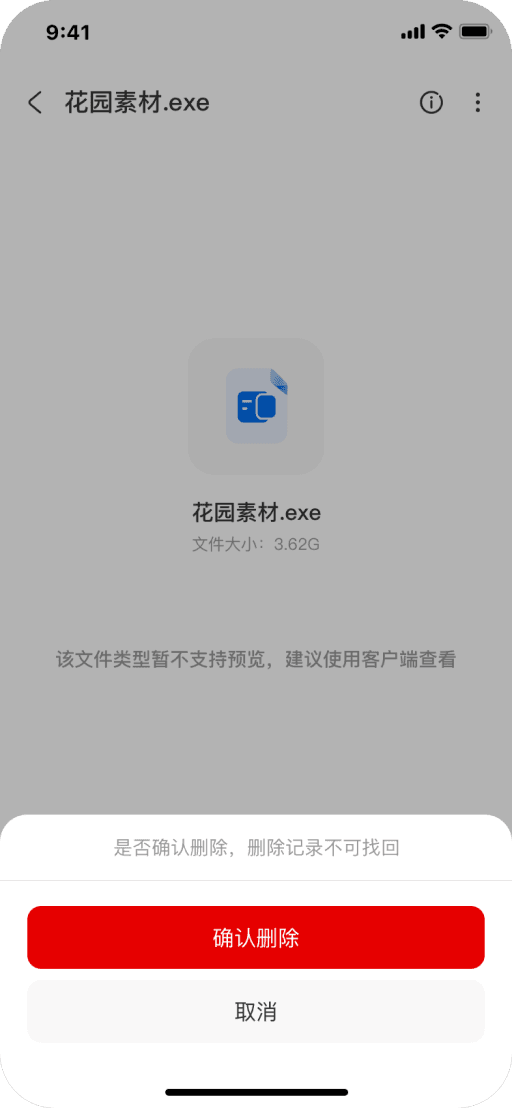
Delete
Cloud drive-file action menu
tap
long-press
Cloud drive-file action batch mode
Focused Core-Task Capability Building
Context-Based Interface Mode Switching
Based on user journey analysis, we prioritized and implemented the highest-frequency file operations for mobile scenarios—such as image preview, download, share, move, and rename—ensuring a feature set that is both complete and targeted.
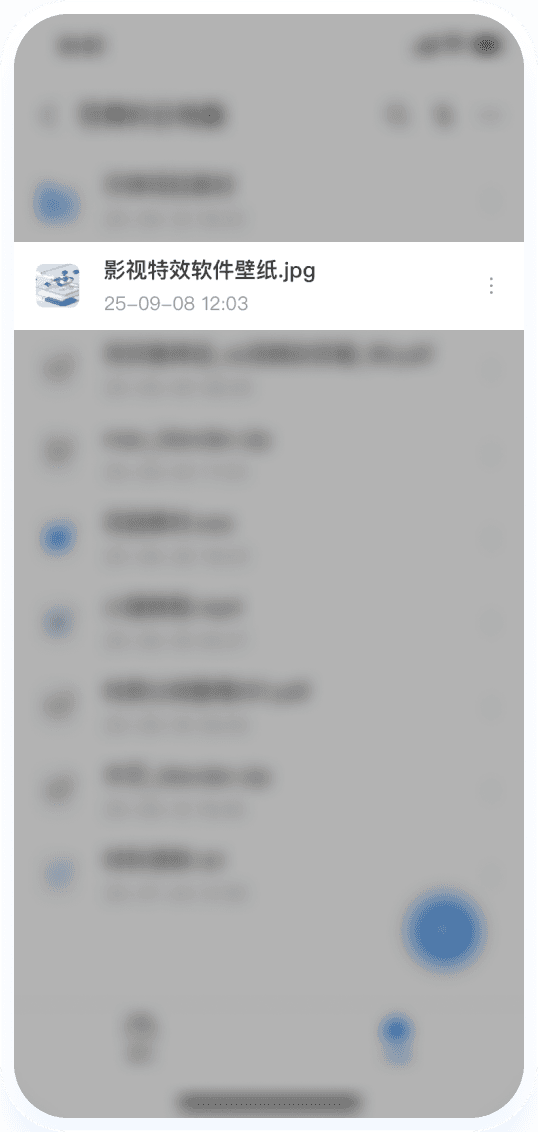
In Browse mode, tapping the "More" icon invokes a bottom action sheet, housing management functions within a contextual overlay—keeping the main interface focused on browsing and selection.
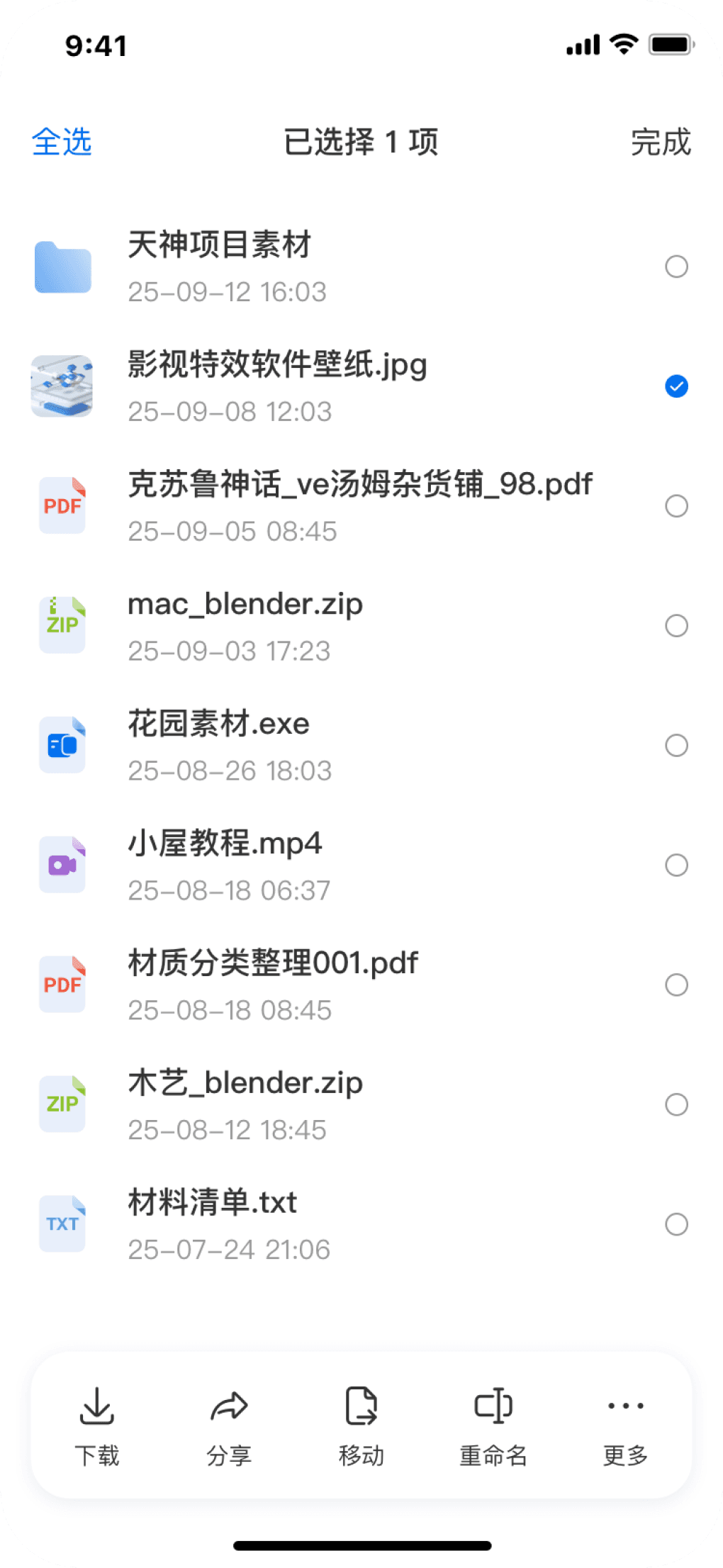
Long-pressing a file seamlessly switches to "Batch select mode", where the interface automatically replaces the "More" icon with checkboxes and surfaces a bottom action bar for efficient multi-file management.
1
2

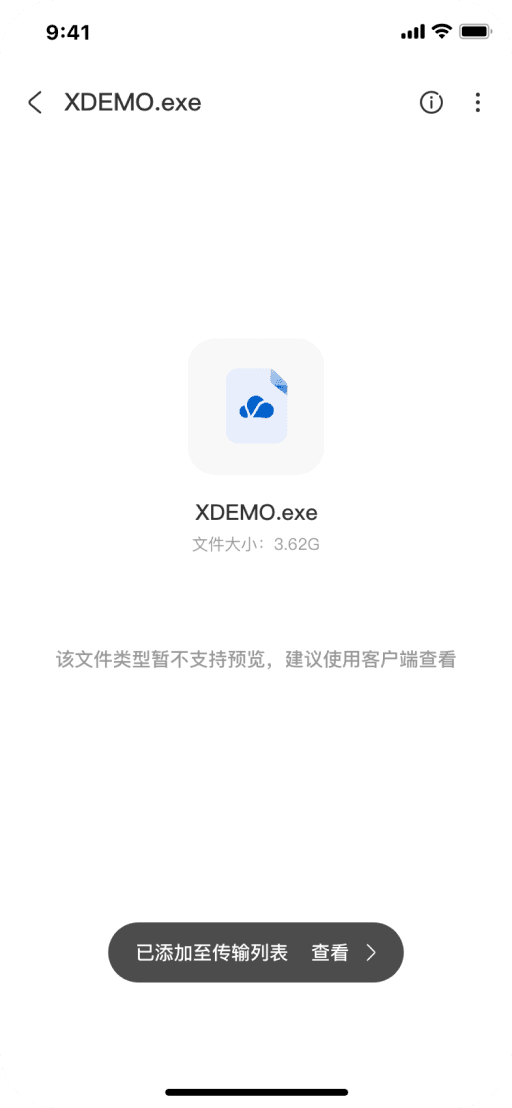
Added to downloads
Core tasks
Mobile "My Profile" Interface and Settings System
Optimize the overall layout and presentation of interface modules and action buttons to improve usability while enhancing error tolerance.
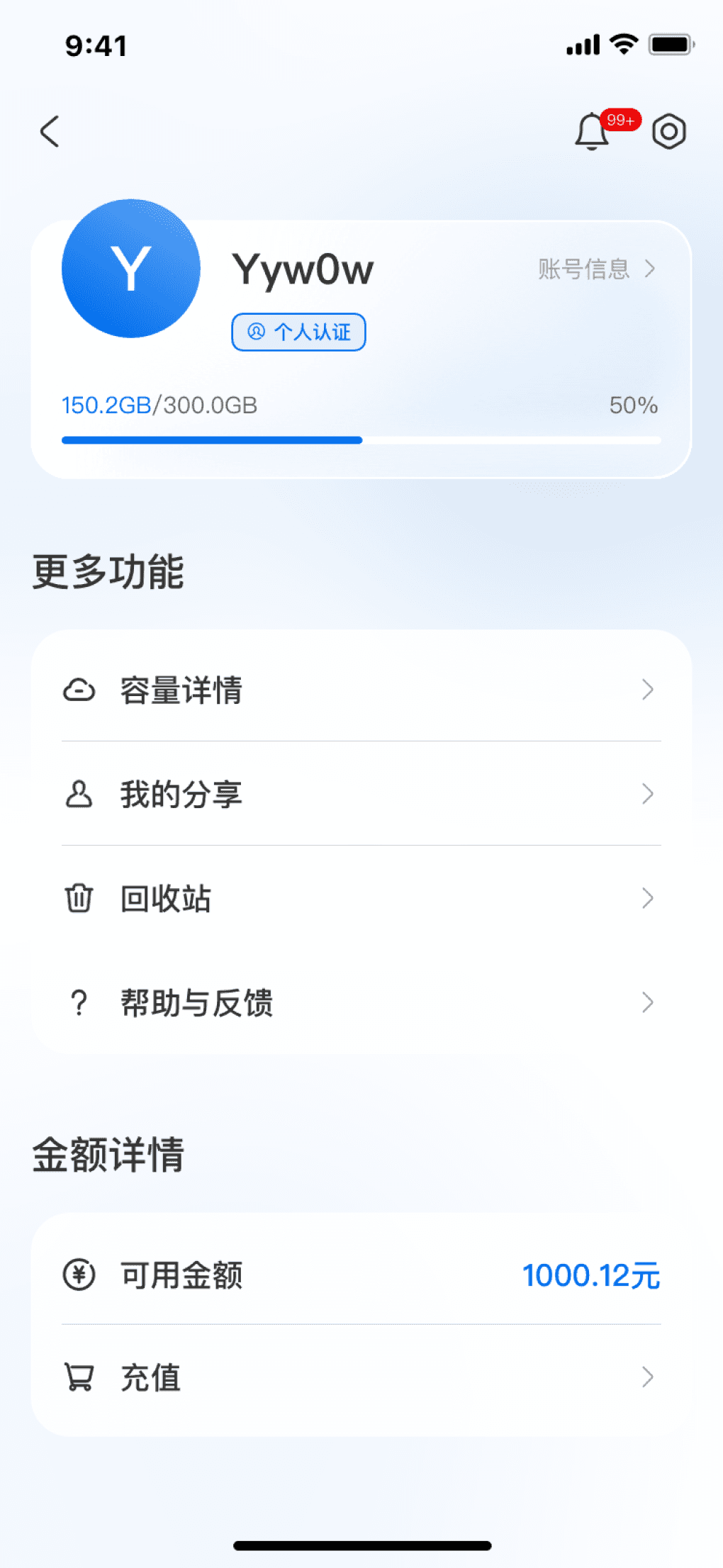
Profile page
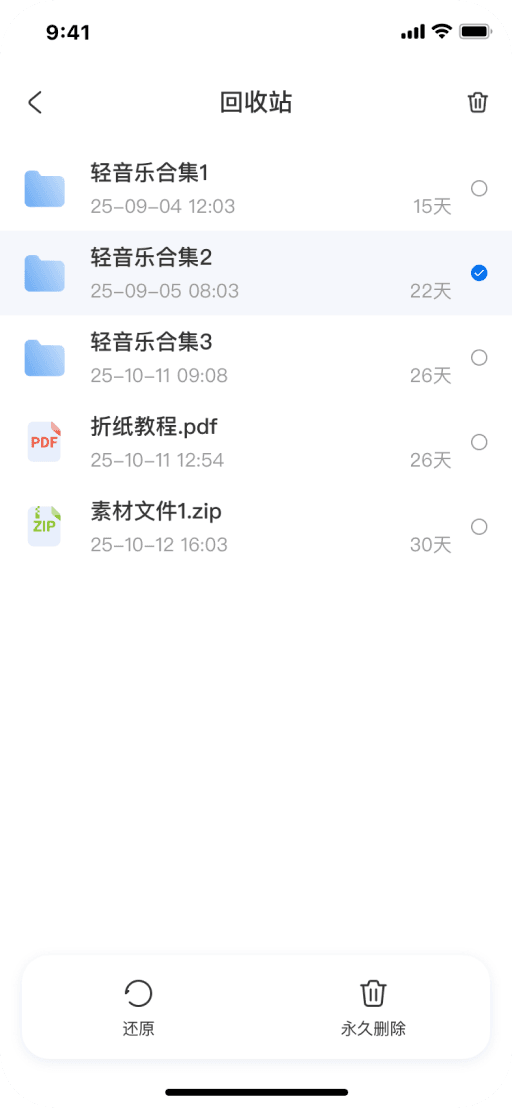
Trash bin

Help center
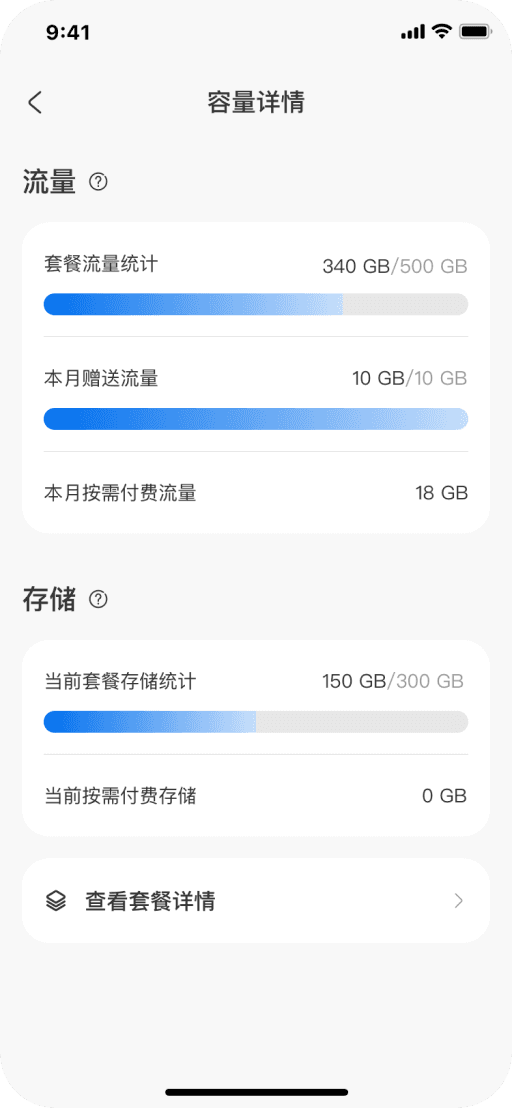
Storage details
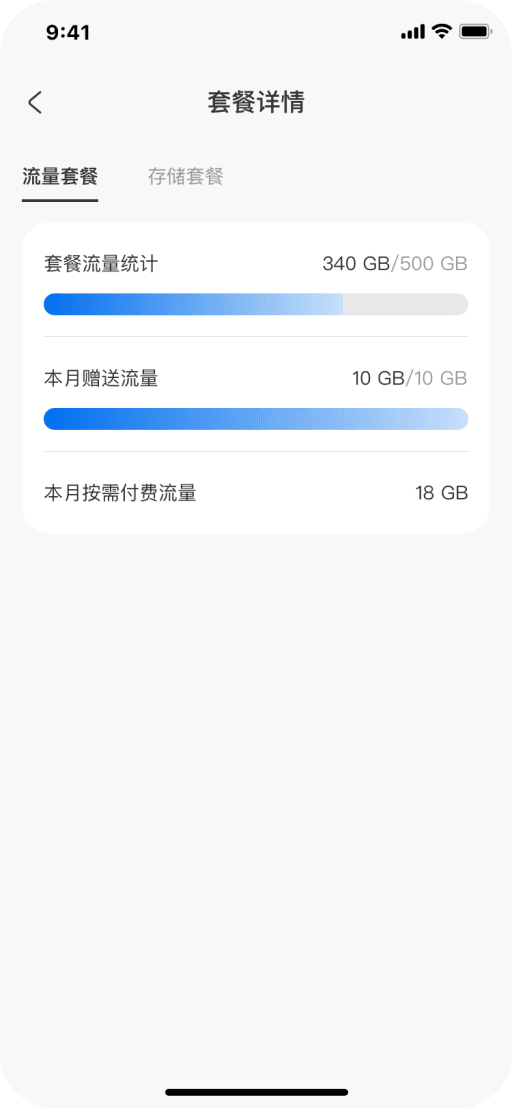
Plan details
My shares
More features


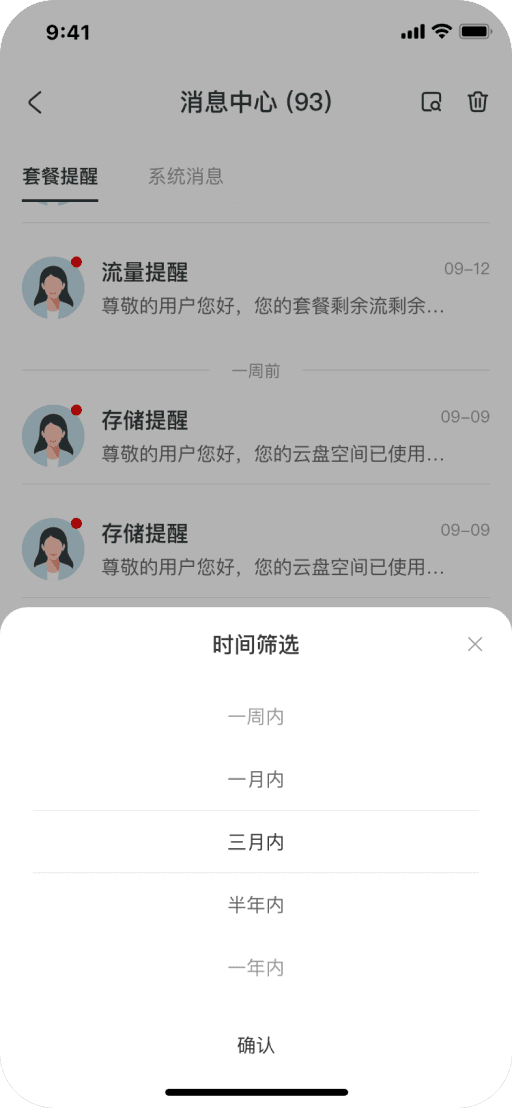
Message center
Mobile version
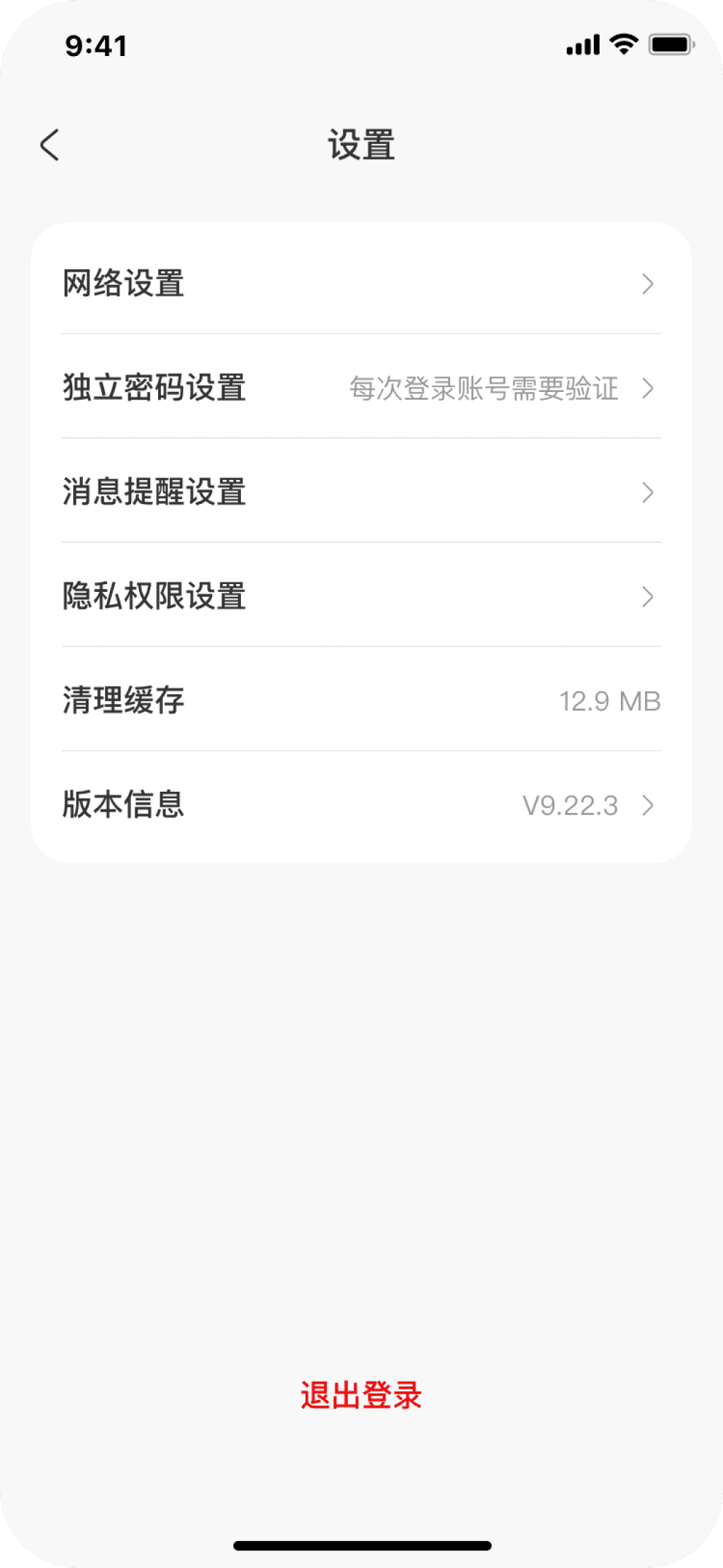
Setting menu
Personal Workspace: Aggregated Asset Overview and Core Management Portal
Structured Account Control Center
Resource & Status Overview
Smart Message Center
Core Management Suite
The top card provides a clear display of account identity, storage usage, and verification status, enabling users to quickly grasp their resource situation.
System notifications (such as received shares, storage warnings) and service reminders are centralized here. Categorized tabs ensure efficient delivery of important information.
The "More Features" area aggregates key management modules including "Storage Details," "My Shares," "Recycle Bin," and "Help & Feedback". These are essential portals for users to manage cloud storage assets, collaboration relationships, and troubleshoot issues. Their centralized presentation shortens the path to accessing these core tools.
The settings interface employs a clear grouped list design, organizing scattered system configuration items into logical modules. This creates a well-structured and easily navigable architecture for managing preferences.
1
2
3

Network settings

Independent password
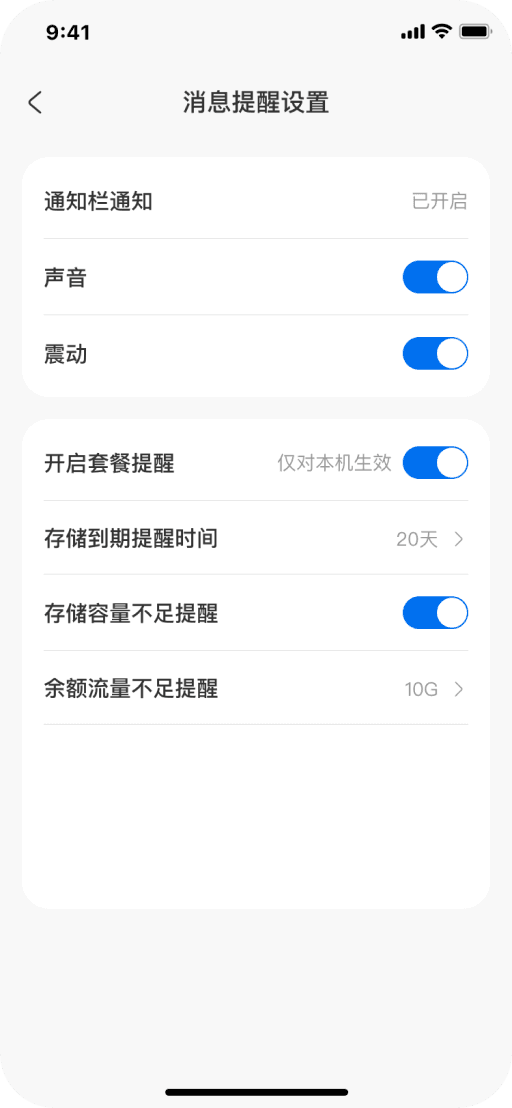
Notification settings

Version information

Privacy & permissions
Settings
Result
During usability testing, users from the media industry showed great enthusiasm for the "direct upload from mobile to project folder" feature, believing it would directly save them approximately 1-2 hours daily on material transfer time.
Core Reliability: Success rate for large file (>10GB) transfers (target >95%).
Collaboration Adoption Rate: Percentage of project teams utilizing the embedded collaboration features (target increase >40%).
Cross-Device Engagement: Percentage of users utilizing at least 2 device clients within a week (target >60%).
Design Verification and Anticipated Impact
User Testing Validation
Definition of Key Experience Metrics
Together with the product and development teams, we have defined the core metrics to measure the success of this redesign and will continue to track them after launch:
Takeaways
Redefining "efficiency" means being more intuitive, not just faster.
A reliable experience requires a visible "safety net."
Good system design hides complexity behind the scenes and keeps simplicity in front.
Mobile design is not about moving features around—it's about reinventing scenarios.